You’re not looking for “more apps”—you want fewer daily annoyances
You open your laptop to do one simple thing—take notes, join a call, adjust brightness—and you end up clicking through three different places, or you settle for “good enough.” That’s the quiet frustration of Windows 11: the basics work, but small gaps add up across a day of classes, meetings, and errands.
So the goal isn’t to collect more apps. It’s to remove friction. A good Store app should earn its spot by saving you time repeatedly, not by adding another icon you forget about. The catch is the Microsoft Store is crowded, and “free” can still mean spammy, pushy, or redundant. The real question is how to spot the few installs you’ll actually keep.
Before you hit Install: how to spot a Store app you’ll actually keep
Most people install a “free” app in a hurry, use it once, then keep living with it because removing it feels like another chore. That’s how clutter happens. A keeper is different: it solves a problem you hit at least weekly, and it does it faster than the built-in option. If an app’s pitch is vague (“boost performance,” “clean your PC”), it rarely maps to a real daily annoyance.
Before you click Install, check three things in the Store listing. First, the publisher: look for Microsoft or a known developer with other solid apps, not a random name with dozens of near-identical utilities. Second, the permissions and features: a brightness tool shouldn’t need contacts; a clipboard helper shouldn’t need location. Third, the update pattern and reviews: recent updates and specific reviews (“fixed my meeting audio routing”) beat generic five-star hype. The trade-off is you’ll skip some “fun” downloads, but you’ll keep your Start menu clean—and the next two picks should feel like instant shortcuts, not extra baggage.
When Windows’ “handy shortcuts” aren’t handy enough: PowerToys + Microsoft To Do
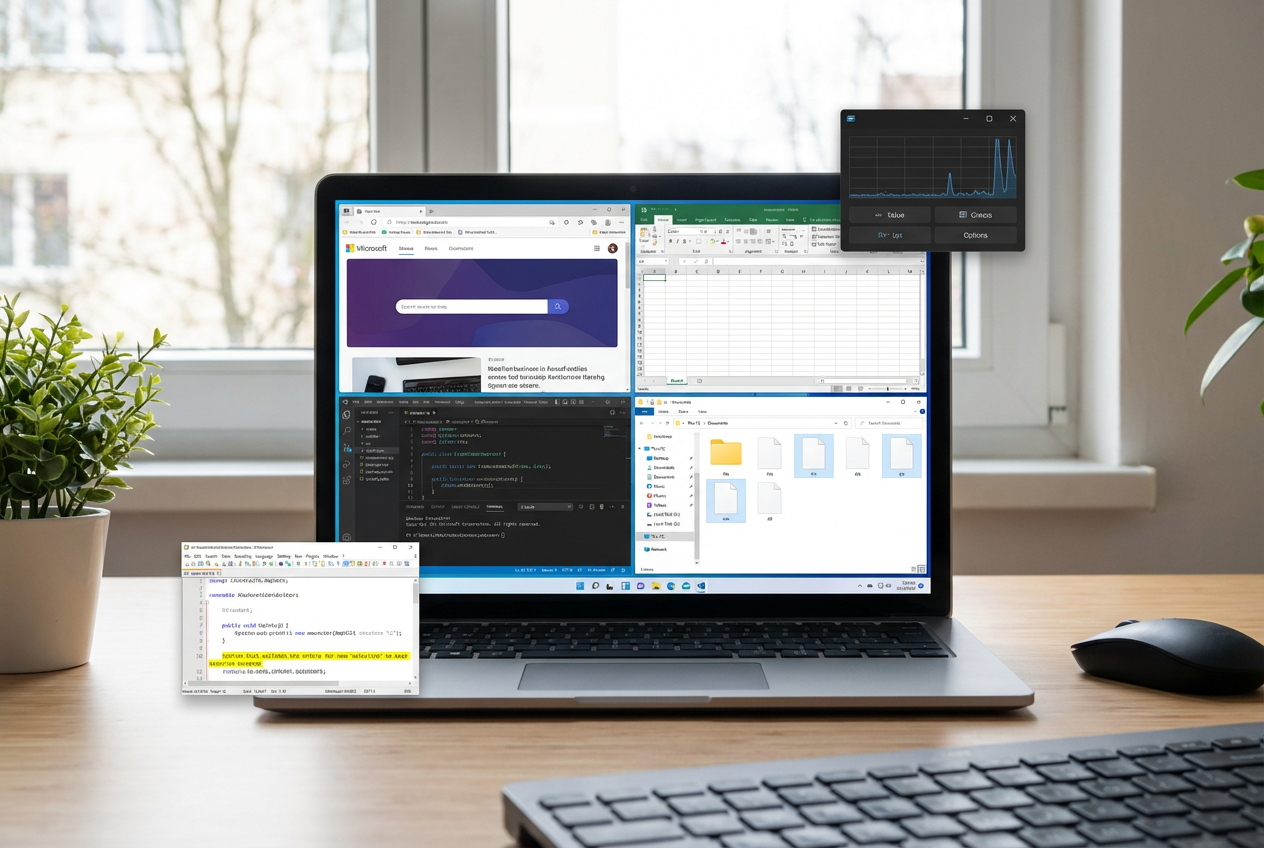
Those “instant shortcuts” usually fall apart when the thing you need is one step deeper than Windows expects. You want to rename a batch of files, keep a window on top while copying from it, or find text inside a screenshot someone sent you. That’s where Microsoft PowerToys pays off: it adds small tools you can reach fast, like FancyZones for cleaner window layouts, PowerRename for bulk changes, and Text Extractor for quick copy-from-image. The trade-off is choice overload—install it, then turn on only the modules you’ll actually use.
Pair it with Microsoft To Do when your day isn’t one big project, but 12 small obligations. To Do makes quick capture and recurring reminders painless, and it syncs across devices so a “submit form” task doesn’t die on your PC. The friction is upkeep: if you don’t pick one simple list (like “Today”) and review it once a day, it becomes another place where tasks go to hide.
Once your windows and tasks stop fighting you, the next pain point tends to be sound—especially the moment a meeting starts.
Audio chaos in meetings: fix it with EarTrumpet + Twinkle Tray
That “meeting starts” moment is when Windows tends to forget what you meant by “my mic and my headphones.” You join, someone can’t hear you, your music is suddenly blasting, and you’re digging through Settings while everyone waits. EarTrumpet fixes the messy part: it gives you a quick, clear mixer where you can set volume per app and route an app to a specific output (meeting to headphones, music to speakers) without a scavenger hunt.
Twinkle Tray solves the other distraction: brightness that’s fine at noon and brutal at night. It puts monitor brightness where you can reach it fast, and it can handle multi-monitor setups without you clicking through each display’s menu. The trade-off: on some external monitors, brightness control depends on the monitor supporting it, so you may get full control on one screen and limited control on another.
Once audio and brightness stop interrupting you, the next win is making your screen match your day—automatically.
Your eyes at 9 p.m. vs your screen at 9 a.m.: Auto Dark Mode + OneNote
That “match your day—automatically” feeling really shows up when you’re squinting at a bright white screen at night, then trying to read dark text on a dark background the next morning. Auto Dark Mode handles the switching without you remembering to toggle themes. You can set a schedule (sunset to sunrise or fixed hours), and it can change the app theme and wallpaper too, so the whole desktop stops flashing between styles.
The practical friction: not every app follows theme changes cleanly. You’ll still run into one stubborn window that stays blinding, so treat it like a “most of the time” fix, not perfection.
Pair it with OneNote when your notes need to stay readable across those lighting shifts. OneNote’s pages, ink, and highlighting hold up well in dark mode, and it’s easy to dump meeting notes, class outlines, and quick screenshots into one place. The trade-off is organization: without a simple notebook/section rule, search becomes your main way to find things, and that gets old fast.
Which 2 should you install first? A 10-minute ‘try it, keep it, remove it’ plan

That “simple notebook/section rule” is the same idea you should use for installs: make them earn a spot fast. If you try five apps at once, you won’t know which one actually reduced friction—you’ll just have more toggles and tray icons. Pick two based on what interrupts you most. If meetings derail you, start with EarTrumpet + Twinkle Tray. If your day is mostly juggling windows, files, and quick info grabs, start with PowerToys + To Do.
Set a 10-minute timer. Install the pair, then do one real task on purpose. Join (or simulate) a call and route audio where you want, then dim or brighten each monitor. Or rename five files, extract text from one image, and capture three tasks into a single list. Don’t explore everything; you’re testing “did this save me clicks right away?”
At minute 10, decide: keep both, keep one, or remove both. The trade-off is you might uninstall something that would shine later—but you’ll avoid the bigger cost of letting “maybe useful” apps pile up. Once you’ve kept a pair for a week, you’re ready for a quick maintenance rule that prevents clutter from creeping back.
After the honeymoon: keep the benefits without collecting clutter
That “quick maintenance rule” is what keeps your setup feeling lighter a month from now. When an app stops saving you clicks, it starts charging rent: extra tray icons, more updates, more places to check. Once a week, take two minutes to answer one question per app: “When did I last use this to fix a real annoyance?” If you can’t name a moment from the past seven days, uninstall it.
Also, trim features, not just apps. PowerToys is the classic case—turn off modules you never touch so it stays quiet. Do the same with startup and background behavior: if EarTrumpet or Auto Dark Mode doesn’t need to launch for your routine, don’t let it. The consequence is you may lose a “nice-to-have” shortcut, but you keep the core win: fewer interruptions.
When you treat installs as tools on probation, the Store stops being a temptation and becomes a shortlist you control.