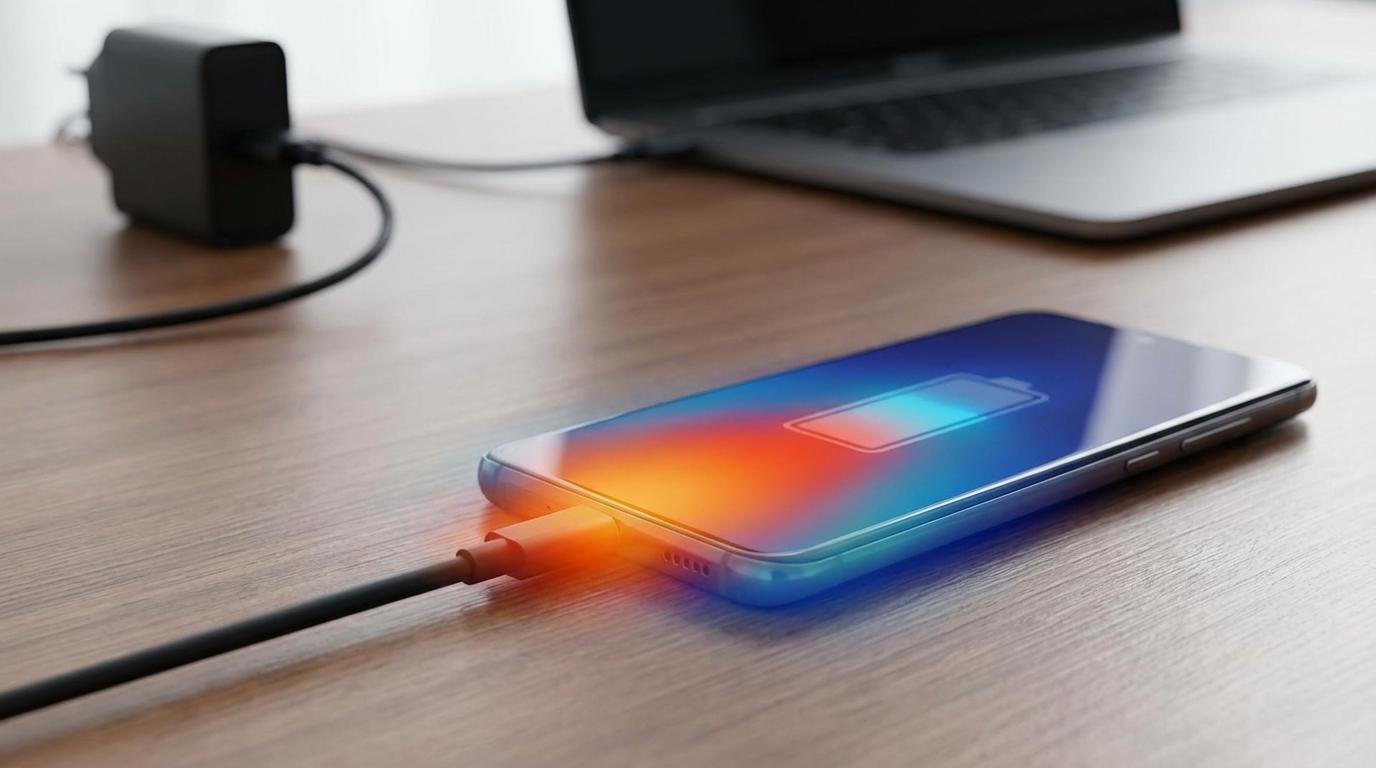
DeX, in plain terms: what changes when your phone hits a big screen?
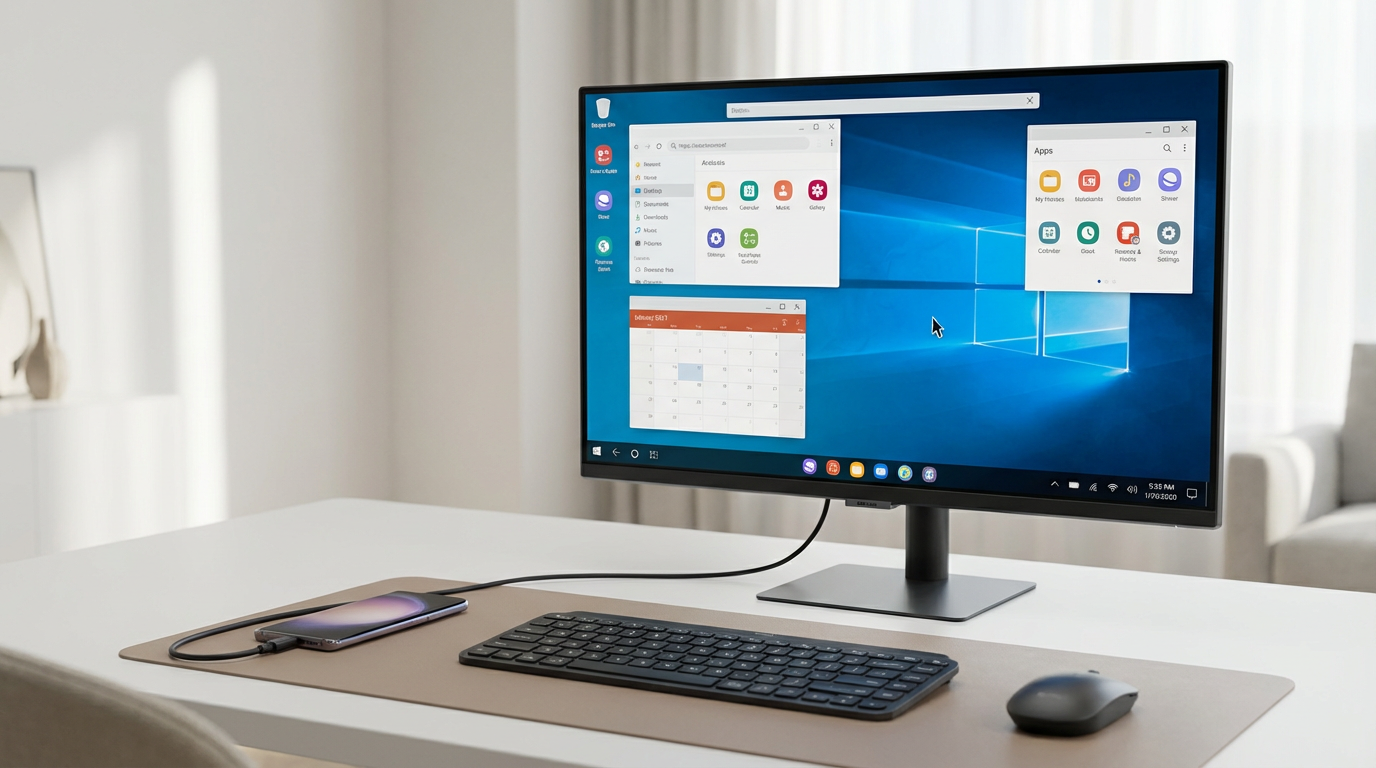
You plug your Galaxy into a monitor or connect to a TV, and instead of a stretched phone screen you get a desktop-style layout: a taskbar, resizable windows, and easier drag-and-drop between apps. Your phone keeps doing the computing; the big screen is basically the display, and your phone often turns into a touchpad if you don’t have a mouse.
The trade-off is simple: DeX makes multitasking and typing feel normal, but it doesn’t turn Android into Windows. Some apps still act “phone-first,” and performance depends on your model, heat, and what you’re running. Before buying anything, you need to confirm your phone and the screen can actually do DeX.
First checkpoint: does your Galaxy phone (and your display) actually support DeX?
That “confirm your phone and the screen” step is where most DeX attempts fail—usually because the phone supports DeX, but the display path doesn’t. Start on the phone: open Settings and search “DeX.” If you see Samsung DeX (and especially “Auto start when HDMI is connected” or “Wireless DeX”), you’re in business. If DeX never appears in Settings, your model likely doesn’t support it, and no cable will fix that.
Then check the screen side. For wired DeX, your monitor needs HDMI (or DisplayPort with the right adapter), and your phone’s USB‑C port has to support video output—most S/Note/Z flagships do. For wireless DeX, the TV/monitor needs Miracast support (common on many smart TVs; less common on random hotel sets). The practical friction: “Cast” working doesn’t guarantee wireless DeX will.
Once those two boxes are checked, you can choose cable vs wireless based on where you’ll actually use it.
Cable or wireless—what setup fits your reality (travel, hotel TVs, office monitors)?
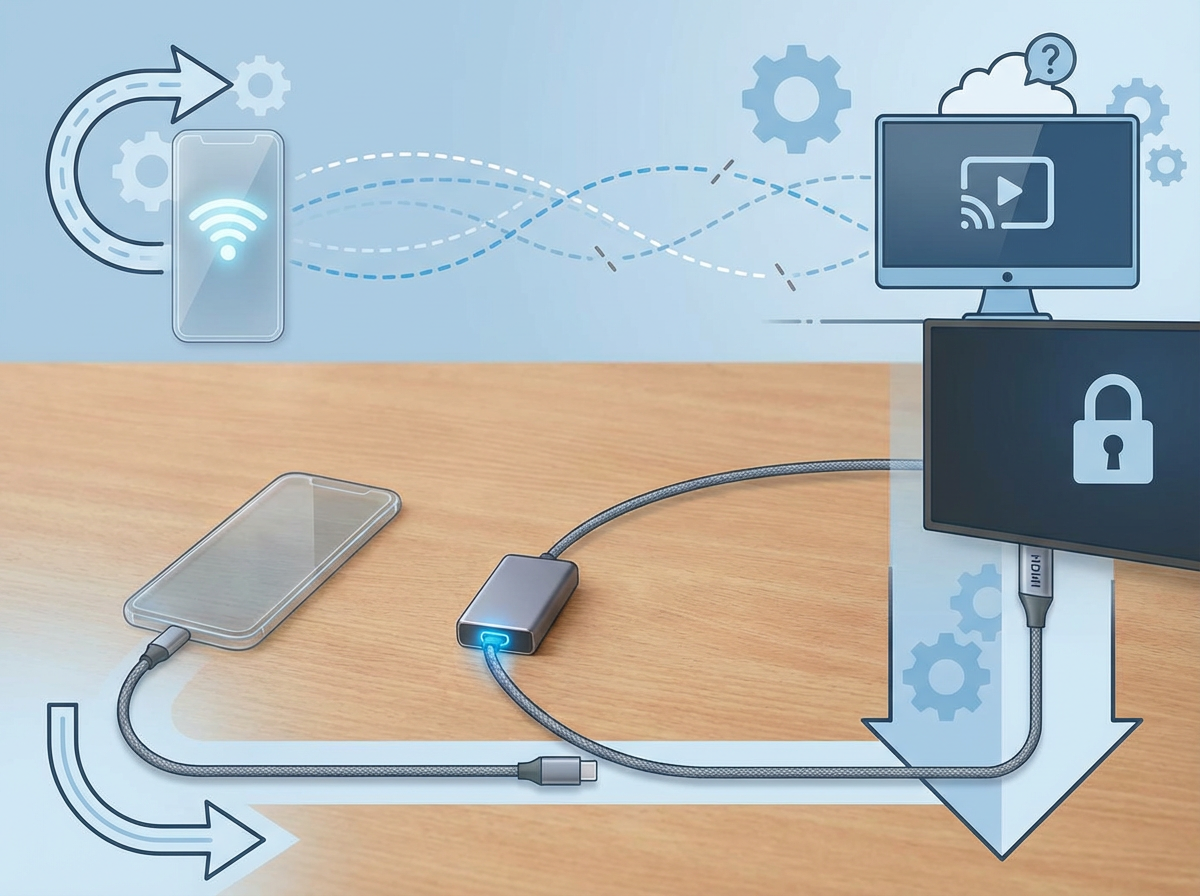
Where you plan to use DeX usually decides the connection for you. At home or at a desk with your own monitor, a cable wins because it’s predictable: plug in, DeX pops up, and the connection doesn’t depend on the TV’s settings or Wi‑Fi. In an office, it also avoids the awkward moment of trying to connect to a shared screen while someone else’s laptop is still paired.
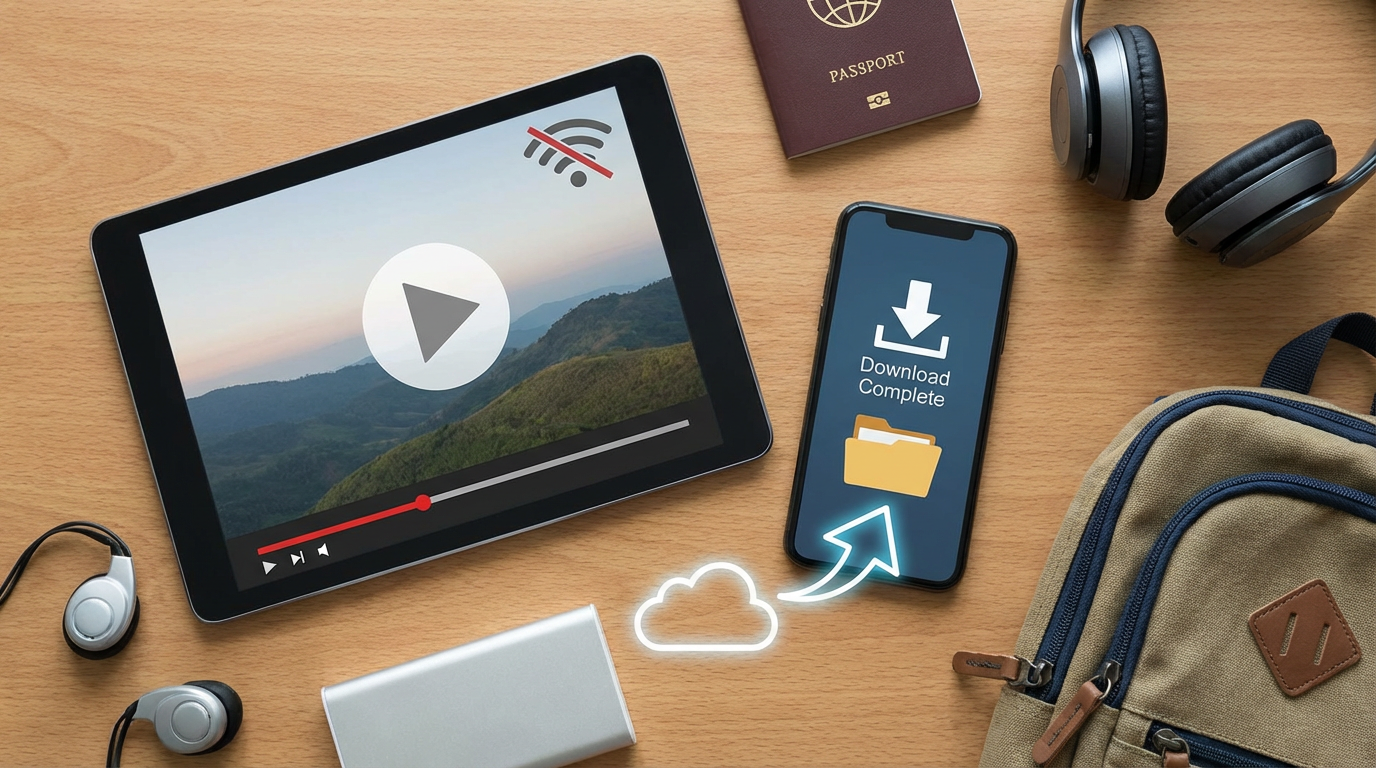
Travel flips the math. Wireless DeX sounds ideal until you’re staring at a hotel TV locked to “Hotel Mode,” a missing input button, or a set that supports casting but not Miracast. If you can’t change inputs or enable screen sharing, wireless DeX is dead on arrival. A small USB‑C-to-HDMI adapter (or hub) and a short HDMI cable work in more places, even when the TV menus are restricted.
The real trade-off is friction vs flexibility: wireless is clean when it works; wired is boring but reliable. Once you pick the path, the next step is buying the simplest wired setup without the common gotchas.
Wired DeX setup: the simplest parts to buy and the most common gotchas
That “boring but reliable” wired setup usually comes down to one choice: adapter or hub. If you only need a screen, a USB‑C to HDMI adapter is the simplest buy—phone in, HDMI out, done. If you also need charging and USB ports for a keyboard/mouse, get a small USB‑C hub with HDMI plus USB‑A and USB‑C Power Delivery (PD). Without PD, your phone can drain fast during a long session.
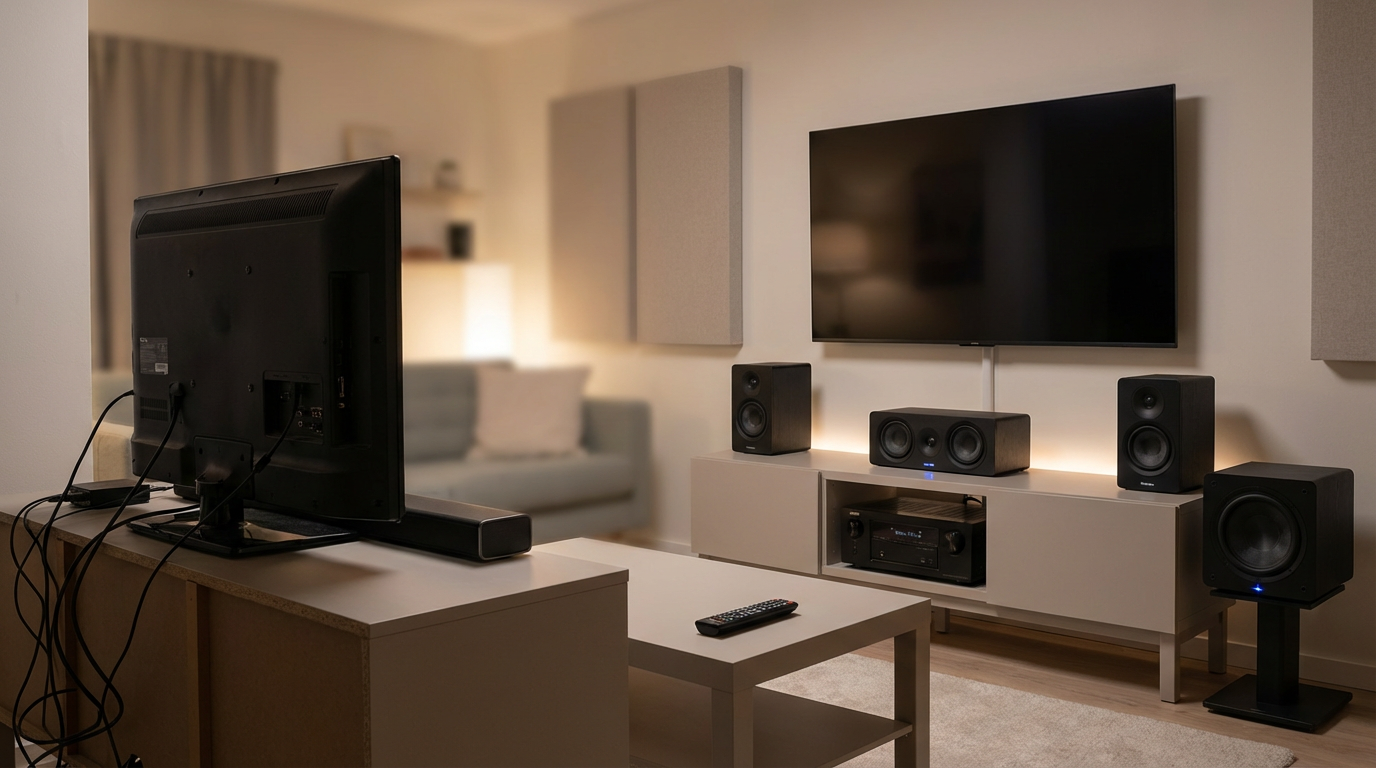
The most common gotcha is the wrong HDMI path. Cheap adapters can top out at 1080p, flicker, or fail outright, and long/beat-up HDMI cables cause “no signal” that looks like a DeX problem. Another friction point: some monitors don’t auto-switch inputs, so you plug everything in and stare at the wrong source.
Once the picture is stable, the next step is making input and audio feel desktop-normal.
Wireless DeX on a TV/monitor: how to connect fast when you don’t control the screen
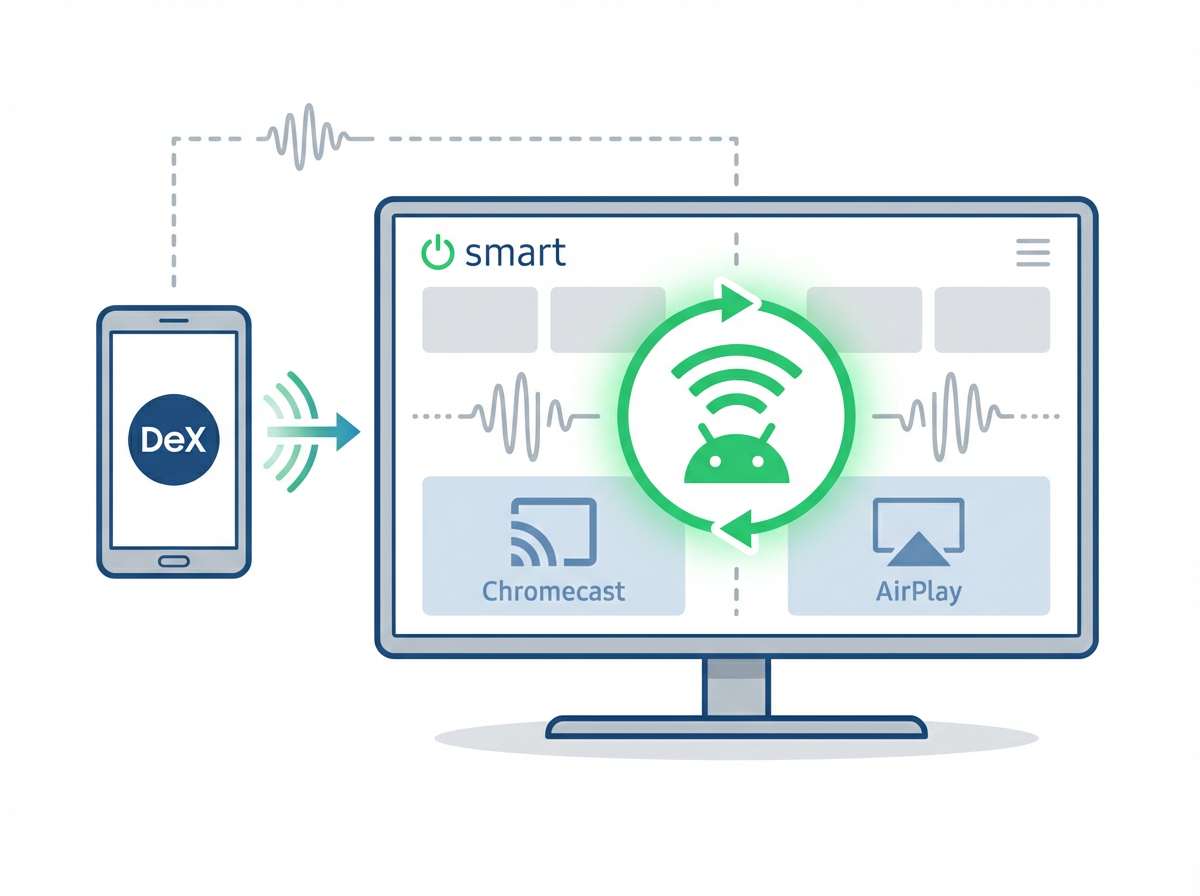
When you walk into a conference room or hotel and want the “no-cables” win, the fastest move is to treat wireless DeX like a screen-sharing job with one extra requirement: the TV has to support Miracast. On the phone, open Quick Panel > tap “DeX” (or search “DeX” in Settings) > choose your TV/monitor from the list. If the screen shows a PIN, enter it, and you’re in.
The friction is usually the screen, not your phone. Many TVs hide Miracast under names like “Screen Mirroring,” “Smart View,” “Wireless Display,” or an input tile that has to be launched first. If you can’t change inputs, the TV is locked to “Hotel Mode,” or it only supports Chromecast/AirPlay, wireless DeX won’t show up no matter how many times you refresh.
Also expect lag. It’s fine for email and docs, but it can feel mushy for precise mouse work, which is where a wired fallback starts looking smart.
Make it feel like a real desktop: keyboard, mouse, audio, and file access choices
That “mushy” feeling is usually your cue to stop relying on the phone-as-touchpad and add real input. The easiest win is a Bluetooth keyboard and mouse—pair them once, then they follow you between TVs and monitors. If you’re already using a USB‑C hub, wired USB‑A peripherals feel more immediate and won’t randomly reconnect mid-call, but they cost you a port and usually push you toward carrying the hub everywhere.
Audio is the other surprise. DeX may keep sound on the phone even when the picture is on the TV, so check the DeX sound output setting (or the volume panel output picker) before you start a meeting. If you’re in a hotel or shared office, Bluetooth earbuds avoid blasting audio through the room, but wireless can introduce delay on videos.
For files, plug in a USB drive or SSD through the hub for quick transfers, or use cloud storage when you can’t trust the network. If you need “desktop” access every time, a hub plus a small mouse is the most dependable combo.
Will your apps behave? Performance limits and the surprises that matter before you rely on it
That “dependable combo” is when people start expecting laptop behavior—and that’s where DeX can surprise you. Most everyday work apps (mail, Office/Google docs, Slack/Teams, browser tabs) run fine, but some still lock to a narrow phone layout, won’t let you drag files in/out, or ignore right‑click menus. If you rely on a specific tool, open it in DeX at home once before you travel.
Performance is mostly about heat and memory. Long video calls, lots of tabs, or a heavy game can throttle after 20–40 minutes, especially while charging, and you’ll feel it as stutter or slow window switching. Wireless adds its own friction: extra lag and occasional resolution drops. If you need “it just works” for a presentation or meeting, bring a wired fallback.