You’re using OneDrive every day—so why does it still feel uncertain?
You open a Word file from OneDrive, make a quick change, hit save, and close your laptop. Later you check your phone and the update isn’t there yet. Or you see the file in File Explorer, but you can’t tell if it’s actually on your computer or just a shortcut to the cloud.
That uncertainty is the real problem. OneDrive can store files in two places at once (locally and online), and it tries to hide the complexity so it feels like one folder. The trade-off is that when something goes wrong—offline work, low storage, a paused sync—it isn’t obvious what’s “real” right now. The fastest way to feel in control is to know what’s local vs cloud.
“Is this file actually on my computer?” The local vs cloud reality check
Knowing what’s local vs cloud usually comes down to one quick check in File Explorer: the little status icon next to the file or folder name. A cloud icon means it’s online-only (it shows up, but it isn’t fully stored on your PC). A green check means it’s available offline. If you see solid green, it’s pinned to stay on this device.
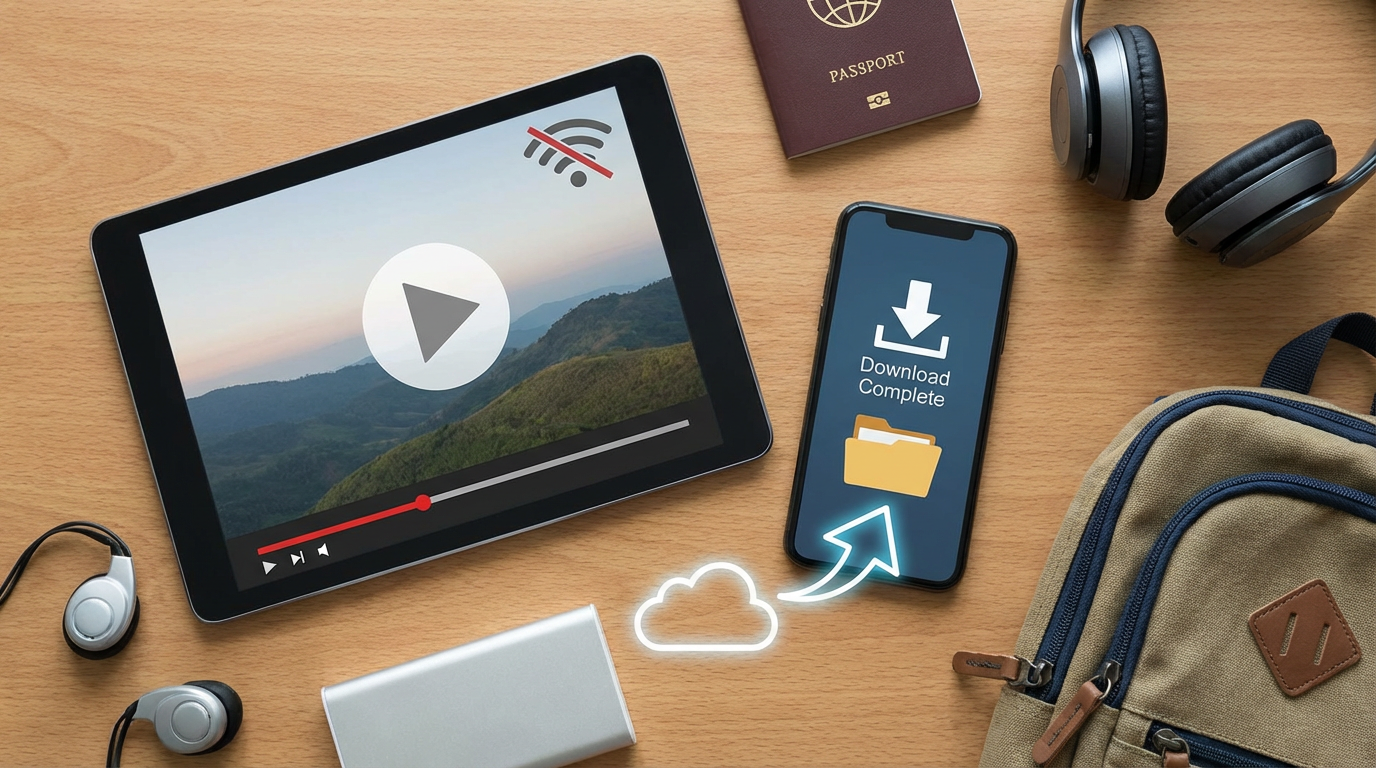
This matters the moment you lose Wi‑Fi or open a big file before a meeting. Online-only files can open fine—until they can’t, because OneDrive needs a connection to pull the content down. On the flip side, pinning everything “just in case” can quietly eat your storage and slow your laptop.
When you’re unsure, right-click the item and choose “Always keep on this device” or “Free up space.” That one habit sets up the next decision: what should stay offline, and what shouldn’t.
Picking what stays available offline (without filling your storage)
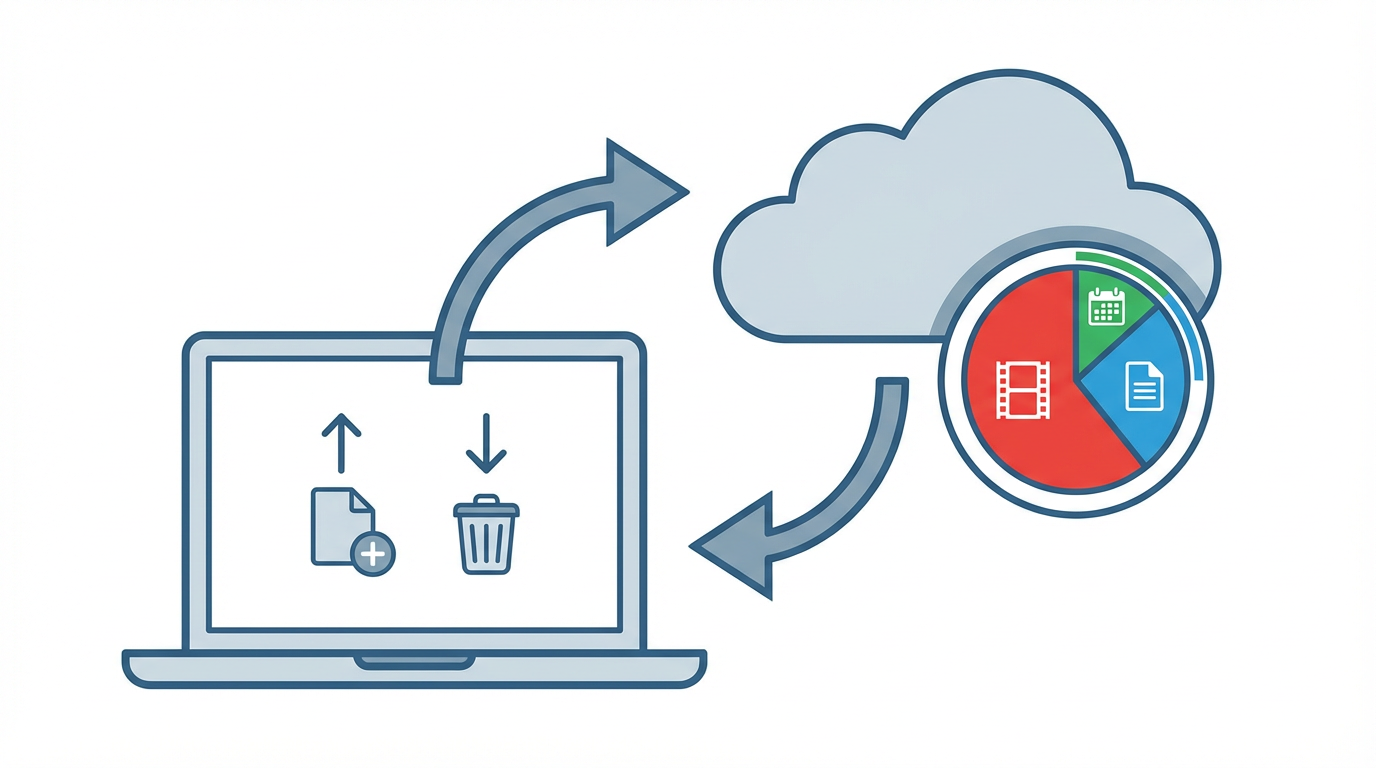
That decision usually shows up right before you travel, walk into a spotty building, or you’re about to present: you want the “right” files offline, not your entire OneDrive. Start by pinning folders you truly need without thinking—active class or project folders, templates you reuse, and anything you’ll open during a meeting. Then leave the archive alone. If you haven’t touched a folder in weeks, it doesn’t need to live on your SSD.
Use folder-level choices to keep it simple: right-click the folder and pick “Always keep on this device” for current work, and “Free up space” for finished work. The trade-off is obvious the first time you pin a huge video or a shared folder with years of history: storage disappears fast, and Windows can start nagging you. If that happens, unpin the big folders first, then pin back only what you’ll open this week.
Once you’re choosing offline on purpose, the next surprise tends to be what happens after you reorganize—moves, renames, and the “why do I see two of these?” moment.
You moved or renamed something—and now it looks duplicated or missing
That “why do I see two of these?” moment usually happens right after you drag a folder to a new place or rename it for clarity. In File Explorer it can look like OneDrive made a copy, or like the original vanished. Most of the time, you’re just seeing timing: the move happened locally, but the cloud version (and other devices) hasn’t caught up yet.
Start by checking the item’s status icon. If it shows the syncing arrows, let it finish before you do more organizing. Then check OneDrive on the web to see where the “real” copy ended up. If you renamed a folder that other people sync too, expect a brief mess: their PC may show the old name until it updates.
If you truly see duplicates, look for one version with “(1)” or “conflict” in the name, and compare “Date modified.” Keep the newest, then delete the extra after sync completes.
Sync is stuck, paused, or throwing errors: what to check first (in order)
After a move or rename, the next panic is the little arrows that never stop—or a red X that turns every save into a question mark. Start with the simplest reality check: is OneDrive paused? Click the OneDrive cloud icon in the Windows taskbar. If it says “Paused,” resume it and give it a few minutes. Then look for the obvious blockers: are you actually online, and is your laptop in Battery Saver or a metered connection mode that slows or delays sync?
If it’s still stuck, check storage in two places. A full PC drive can’t download new content, and a full OneDrive cloud storage limit can’t upload your changes. Both can show up as “sync issues” even though nothing is “broken.” Fixing it is usually unpinning a large folder (“Free up space”) or deleting a few big items you don’t need anymore.
Only after that, open “View sync problems” from the same OneDrive menu. Pay attention to filenames with forbidden characters or paths that are too long—those stop the whole line. If you keep hitting the same error, fix one file, wait for green checks, then move on.
Avoiding conflict copies and weird duplicates when two people edit

Once sync is healthy again, the next “where did this extra file come from?” moment usually happens when two people edit the same file at the same time—especially if one person is offline, in a spotty building, or using an older Office app. OneDrive tries to merge changes, but if it can’t, it creates a second version with “conflict” or a name like “filename (John’s copy).”
The safest habit is to keep collaboration files in Office formats (Word/Excel/PowerPoint) and open them from OneDrive or Teams, not from an email attachment. If you need to work offline, tell the other person and finish your edits before they jump in. The trade-off is speed: real-time coauthoring feels instant, but it depends on everyone staying connected.
If conflict copies appear, don’t delete in a rush. Open both, compare the last changes, copy what you need into one “keeper” file, then let sync finish before removing the extra.
“I need to share this”—choosing a link that won’t overshare or break teamwork
After you’ve cleaned up conflicts, the next risky moment is when someone says, “Can you share that?” and you need it to work without accidentally handing out the whole folder. Start from the file (or folder) in OneDrive or File Explorer, choose Share, then look closely at the link settings before you hit send.
If it’s a teammate, pick People in your organization (or the specific people option) so it stays inside your school/work account. Use Can view for “read this,” and Can edit only when you truly want changes coming back through the same file. “Anyone with the link” is convenient, but it’s the easiest way to overshare because forwarding still works.
One friction to expect: people often request access anyway if they’re signed into the wrong account. When that happens, don’t make a new copy—fix the permission on the same link, then send it again.
A simple OneDrive routine that prevents most surprises
When you want OneDrive to feel predictable, treat it like a quick checklist, not a mystery. Before you leave Wi‑Fi or start a meeting, pin only the folders you’ll need this week, and “Free up space” on anything big you won’t open. Then glance at the status icons: if you see syncing arrows or a red X, wait or fix it before you rename, move, or share.
Once a day (or at least before deadlines), click the OneDrive taskbar icon and clear any “View sync problems” items one by one. When sharing, reuse the same file and adjust link settings instead of emailing copies. The trade-off is a few minutes of routine, but it prevents hours of cleanup later.