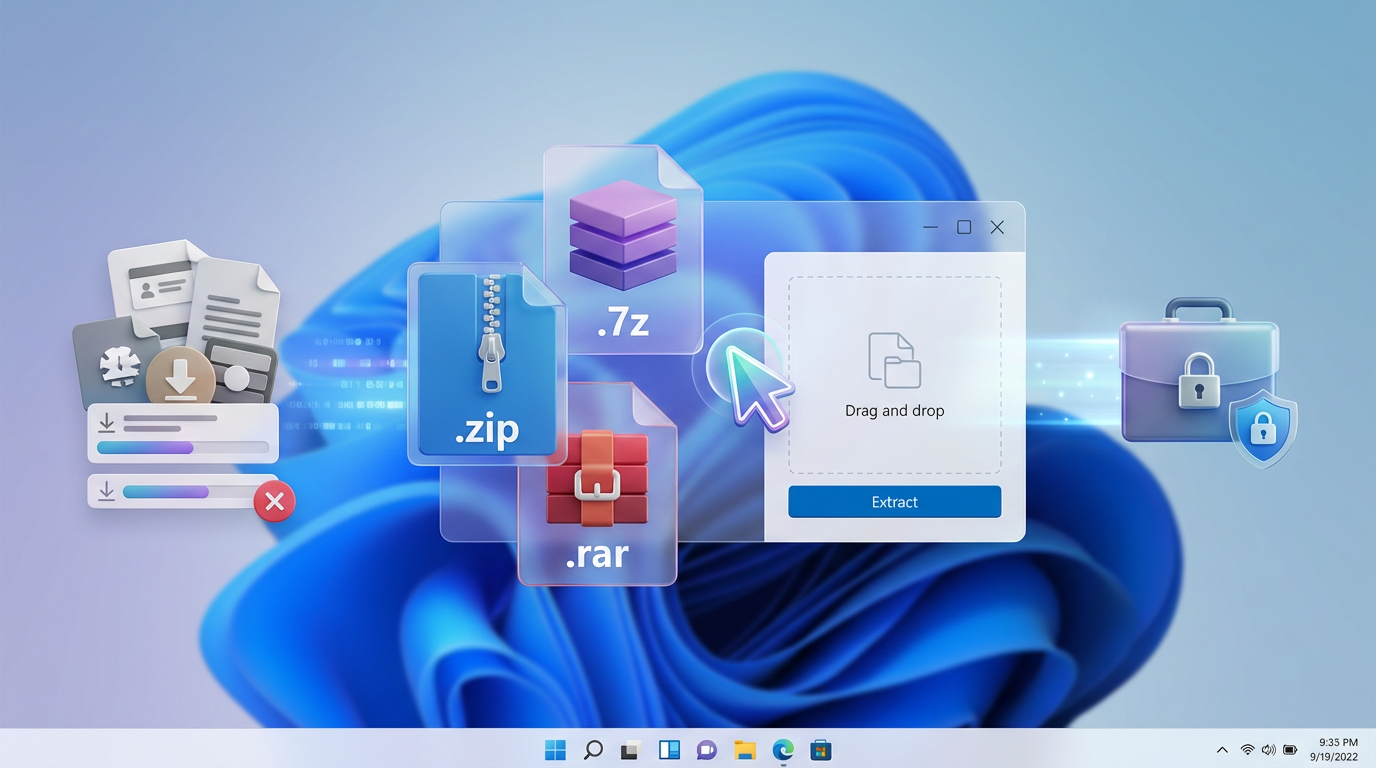
You just downloaded a .rar or .7z—what should open it on Windows?
You double-click a download expecting a folder, and Windows either opens the wrong app or asks what to use. That’s the moment most people grab the first “free unzipper” they see, install it, and later wonder why extra offers showed up or why a .rar still won’t open. On Windows 10/11, built-in support covers ZIP well, but .7z and especially .rar often push you toward a separate utility. The good news: you only need one dependable tool. The catch is choosing it based on the formats you actually hit, not marketing claims.
Start by noticing what lands in your Downloads folder over a normal month: ZIP from work, 7Z from developers, RAR from large media bundles, or split archives like .part1.rar. If you only extract, a free tool may be enough. If you also create archives, encrypt them, or share them, the “right” pick changes fast. That practical checklist is what you’ll use next.
Before choosing, which archive formats do you actually touch in real life?
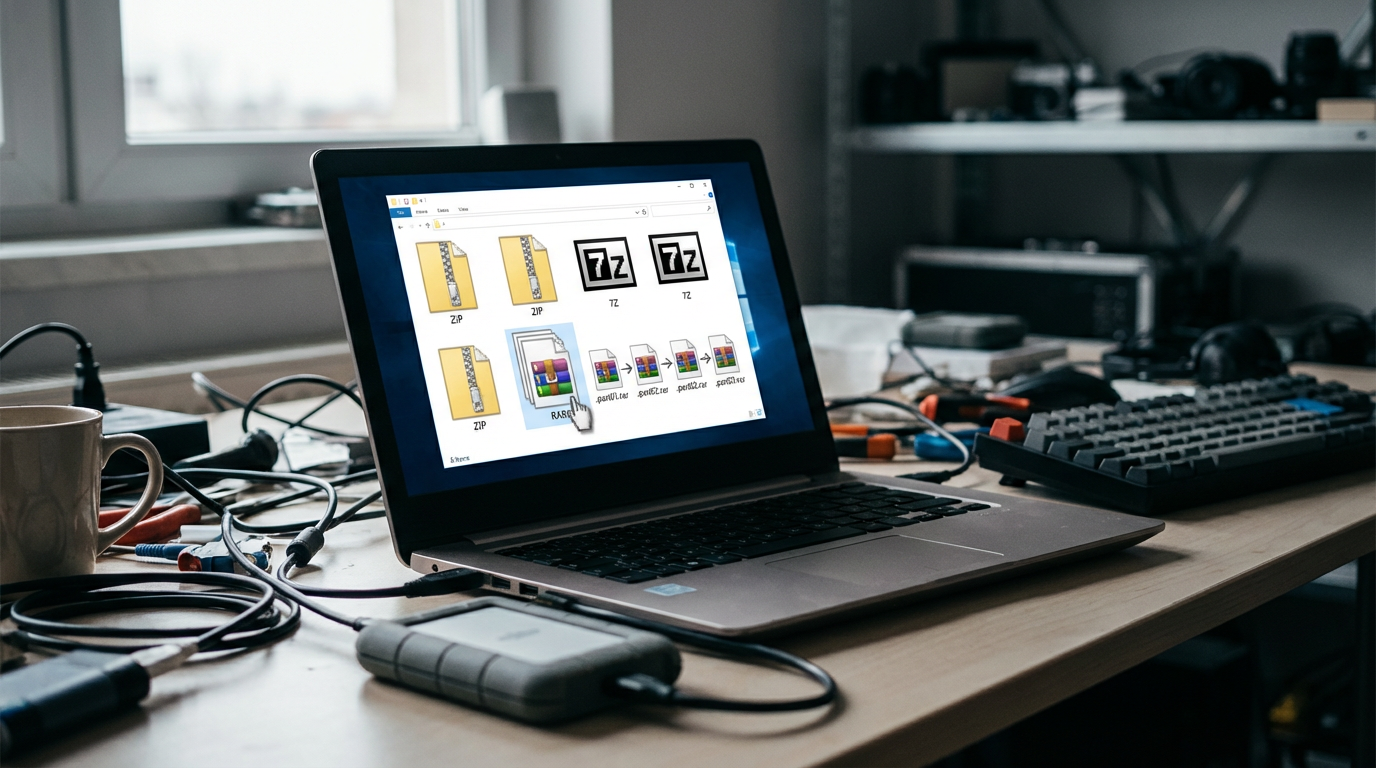
That checklist gets clearer when you stop thinking “archive tool” and start thinking “which file endings do I actually see.” Open File Explorer, click Downloads, and sort by Type. If you mostly see .zip, nearly any utility will feel fine because Windows already handles basic unzip tasks.
.7z is the next common step up. It shows up in developer tools, mods, and big project folders because it often shrinks better than ZIP. Then there’s .rar, which appears a lot in bundled downloads and older sharing habits, plus split sets like .part1.rar and .r00. Those are where “supports RAR” stops being a checkbox and starts being the difference between extracting cleanly or getting stuck.
One friction: if you ever need to create RAR files, many “free” options won’t do it. That format reality is what narrows your shortlist before you even compare features.
When the installer feels sketchy: avoiding bundled offers and look‑alike downloads
That shortlist is when people hit the real risk: the download page, not the archive format. A common pattern is clicking a “Download” button that isn’t for the tool at all, then ending up in a setup wizard that offers a browser add-on, a different search provider, or “recommended” software you didn’t ask for.
Start with the publisher’s official site or a store listing you trust, then watch the installer screens like you’d watch a checkout total. Choose “Custom” or “Advanced” if it appears, uncheck anything optional, and skip “Express” paths that don’t show details. If the installer tries to add multiple extras, or the “Decline” button is hard to find, treat that as a signal to back out and pick a different utility.
Another trap is look-alike names and domains. Before you run anything, confirm the exact product name and the publisher shown in Windows’ security prompt—then you can focus on features instead of cleanup.
If you share sensitive files, what security features actually matter?
Once the download source looks clean, the next worry shows up when you’re the one sending the archive: payroll PDFs to a bookkeeper, a scanned ID to an apartment manager, or client files over email. In those cases, “it extracts” isn’t the bar. You want the archive to stay unreadable if it leaks.
Start with encryption type. Look for AES-256 for ZIP and 7Z, and make sure the tool can encrypt file contents, not just “hide” names. Password protection that only scrambles filenames still leaves the data exposed. Also check whether it supports encrypting headers (common in 7Z) if you don’t want people to see what’s inside without the password.
The trade-off is compatibility. A 7Z with strong encryption is great for safety, but some recipients only know how to open ZIP. If you can’t control what they use, pick ZIP with AES-256 and test-extract on a second PC. Then decide whether you also need integrity checks (test archive) and secure deletion of temp files.
The moment convenience wins: right‑click menus, drag‑and‑drop, and speed
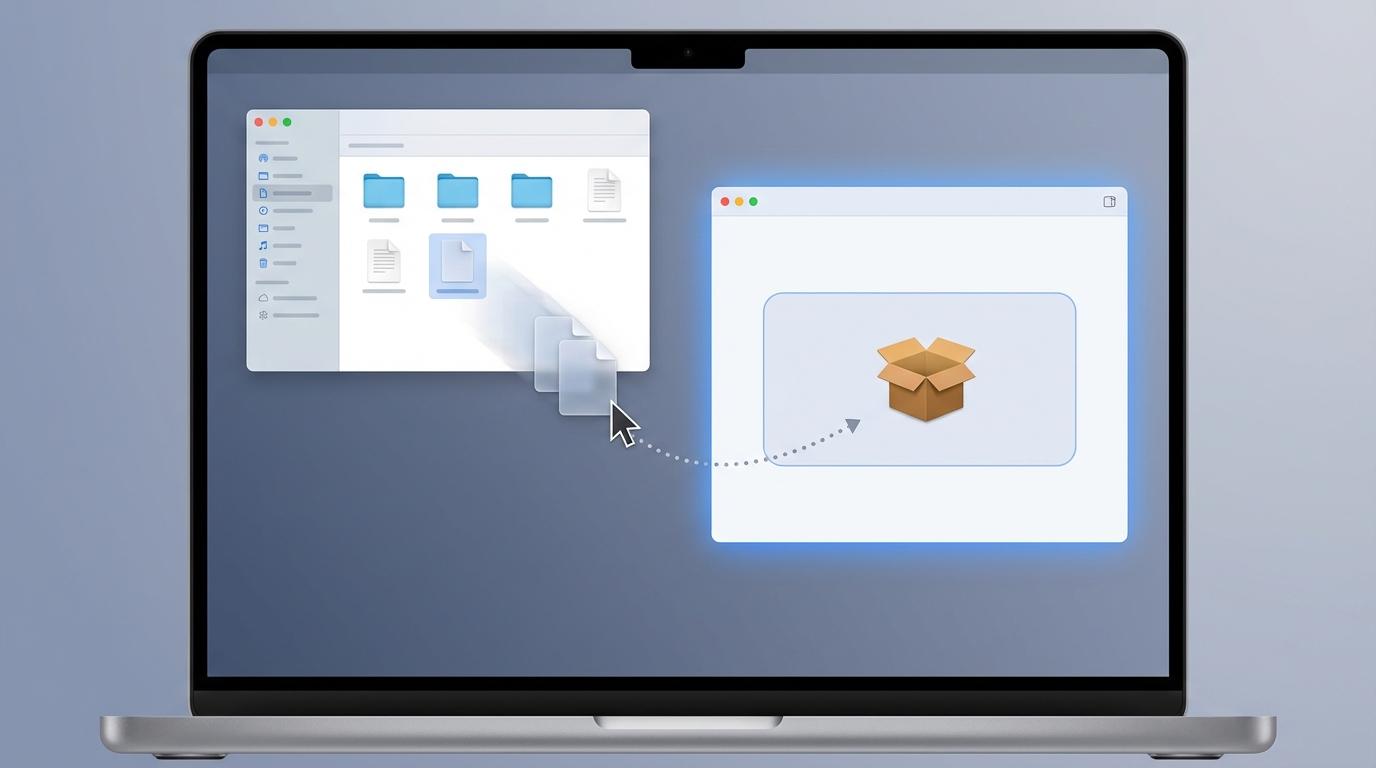
After you’ve picked a safe download and you know encryption will work for the times you need it, day-to-day use comes down to what happens in File Explorer. You right-click a file and you either see clear options like “Extract Here” and “Add to archive,” or you see a cluttered menu that makes you hunt. That friction adds up fast when you’re unpacking multiple downloads or sending a folder to someone every week.
Drag-and-drop matters the same way. If you can drop files onto the app window (or into an open archive) and it “just works,” you’ll actually use compression instead of attaching loose files. But deeper Explorer integration can slow right-click menus on some PCs, and auto-scanning every archive can make big extracts feel laggy.
Speed is usually about defaults: where it extracts, whether it remembers your last folder, and whether “Test archive” is one click when something fails.
Free vs paid: where licensing and RAR support change the recommendation
Those defaults also decide whether you hit a paywall the first time you try to do something slightly “extra,” like create a RAR or use the tool at work. Most free utilities will extract ZIP/7Z/RAR fine, which is why they feel identical on day one. The difference shows up when you need to create archives with specific rules, automate them, or keep using the app in a business setting without worrying about license terms.
RAR is the clearest divider. Plenty of apps can open RAR, but creating RAR is often limited to WinRAR itself (and some paid tools) because of how RAR licensing works. If you just need to unpack downloads, a reputable free tool is usually enough. If you need to produce RAR files for someone else’s workflow, budget for a paid option—or switch the workflow to 7Z/ZIP and confirm your recipient can open it.
Also watch the “free” trade-off: some free builds fund themselves with ads, nags, or bundled offers, which pushes you back into installer risk. If you want one tool you never second-guess, paying once can be cheaper than troubleshooting later.
After install: make it open the right way from File Explorer (and fix file associations)
That “never second-guess” feeling usually depends on one boring detail: what happens when you double-click an archive tomorrow. If ZIPs still open in File Explorer but RARs open in a different app (or prompt you every time), you’ll keep bouncing between tools and blaming the download.
In your archive utility, look for settings like “Integrate with Explorer” and “Associate with” file types. Turn on only what you use (for example: .zip, .7z, .rar, and split RAR parts), then keep the right-click menu lean—too many entries can slow Explorer and make the menu feel messy. Also confirm the default extract folder behavior, because a bad default (“always ask” or “same folder with no prompt”) creates repeats and accidental overwrites.
If associations are already wrong, fix them in Windows: Settings > Apps > Default apps > Choose defaults by file type, then set .rar/.7z/.zip to your chosen tool. Do a quick test: double-click one of each, then right-click and extract.
Pick your one dependable tool—and a safe setup you won’t revisit next month
That quick test is also where you make the “one tool” decision: pick the app that opens every archive you actually see, adds two or three right-click actions you’ll use, and doesn’t push ads or extra installs. For most Windows users who mainly extract ZIP/7Z/RAR, a reputable free utility is the low-friction choice. If you need to create RARs for someone else’s process, accept the paid pick (often WinRAR) or change the workflow to 7Z/ZIP and confirm your recipient can open it.
Lock the setup in. Associate only the file types you want, keep Explorer integration minimal, and set a default extract location that prevents accidental overwrites. Then save one encrypted test archive and re-open it a week later; if it still behaves, you’re done.