You’re not imagining it: where the “ads” show up (and why it’s hard to find the off switches)
You open your PC to do something simple—check a file, change a setting—and a “suggestion” slides into view. A tile in Start points to an app you didn’t ask for. The lock screen offers a tip. Settings nudges you toward a Microsoft account feature or a Store download. It feels like ads because, in practice, it’s marketing dressed up as “help.”
The frustrating part is the labels. Windows rarely calls these “ads.” It uses words like recommendations, suggestions, tips, and featured, and the switches live in different places depending on where the promo shows up. Turn off the wrong thing and you might also lose useful alerts—like security messages—so the goal is to target the promo channels, not silence everything.
Once you know the main surfaces Windows uses—Start, lock screen, notifications, Settings, and widgets—you can work through them one by one and keep control of what stays visible.
Before you flip switches: decide what “clean” means for you (quiet vs. missing useful alerts)
Working through them one by one goes faster when you decide what “clean” actually means on your PC. For some people, it means zero surprises: no app promos, no “try this,” no curated content. For others, it means keeping a few practical nudges—like storage warnings or Windows Update reminders—while stripping out anything that points to the Store or a subscription.
A quick gut-check helps: do you rely on notifications to catch calendar reminders, delivery updates, or security alerts? If yes, you don’t want a blanket “turn off notifications” approach. You want to keep system-critical messages and remove the channels that mix in marketing. The trade-off is real: the more aggressive you get, the more likely you’ll also hide something you’d rather see.
With that line drawn, you can start with the easiest, highest-impact switch most people overlook: Start menu suggestions.
The quickest win most people miss: Start menu suggestions and “recommended” items
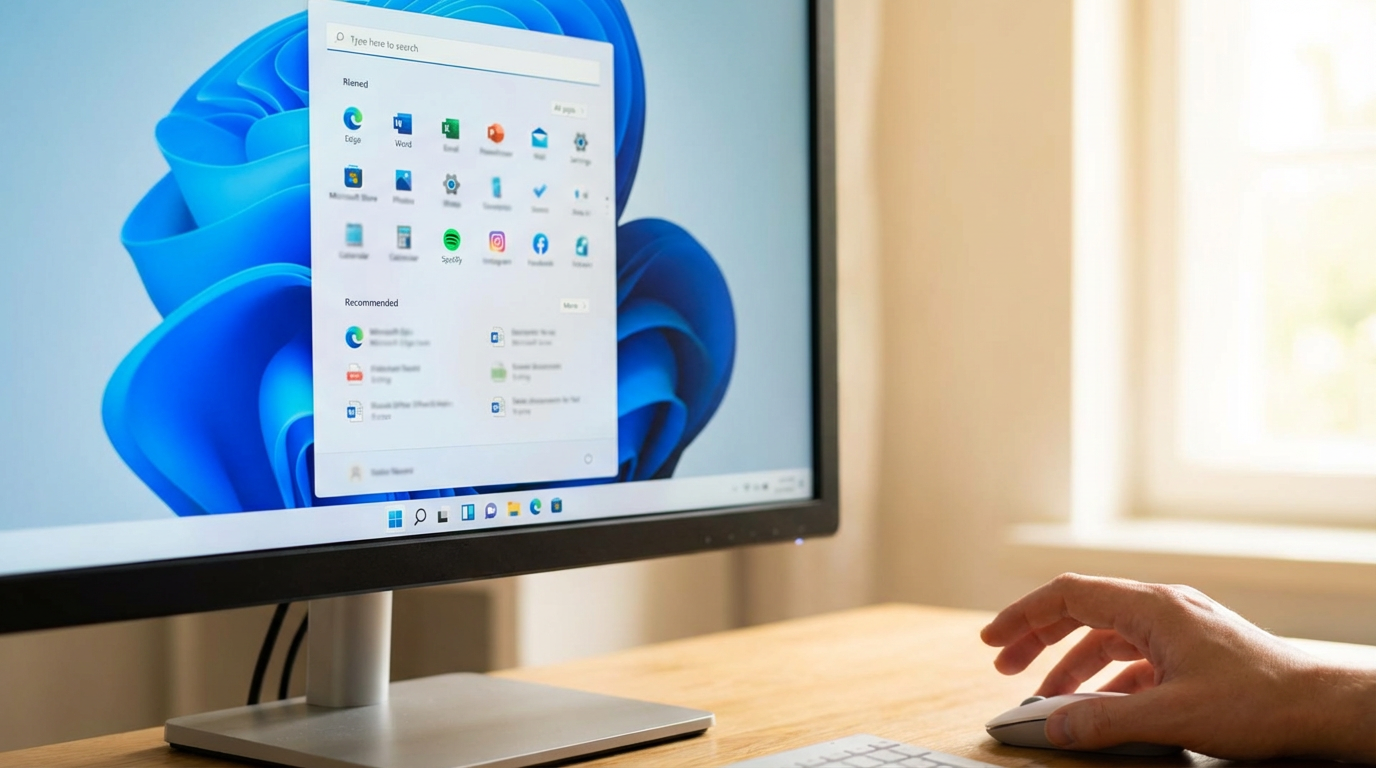
Start is where most people feel the “why is this here?” moment. You open it to launch an app and see “Recommended” files you didn’t mean to surface, or suggestions that steer you toward something from the Store. It’s fast, visible, and it tends to reset your attention every time you click Start.
On Windows 11, go to Settings > Personalization > Start and turn off the switches for showing recommendations, tips, and “new apps.” If you still want convenience, leave recent items on and just remove the suggestion-style options. On Windows 10, check Settings > Personalization > Start and disable the option to show suggestions in Start.
The trade-off: “Recommended” can genuinely save time if you bounce between a few documents all day, but it also becomes another surface for promos. Once Start looks predictable again, the lock screen is usually the next loudest place to clean up.
Lock screen ‘fun facts’ and spotlight images—pretty, but still marketing
That same “why is this here?” feeling often shows up before you even sign in. The lock screen looks harmless—nice photo, quick status icons—but it can also carry “fun facts,” tips, and links that act like lightweight promos.
On Windows 11, open Settings > Personalization > Lock screen. If you’re using Windows spotlight, you’re opting into rotating images and occasional suggestions. Switch the background to Picture or Slideshow for the cleanest result, and turn off options like showing “fun facts, tips, tricks,” or similar wording. On Windows 10, check Settings > Personalization > Lock screen, avoid Spotlight if you want zero marketing, and disable the toggle for lock screen “fun facts” content.
The trade-off is small but real: Spotlight can be genuinely pleasant and low-effort, but it also keeps a content channel open. If the lock screen looks quiet, the next place Windows often uses for promos is notifications.
When Windows uses notifications as a billboard
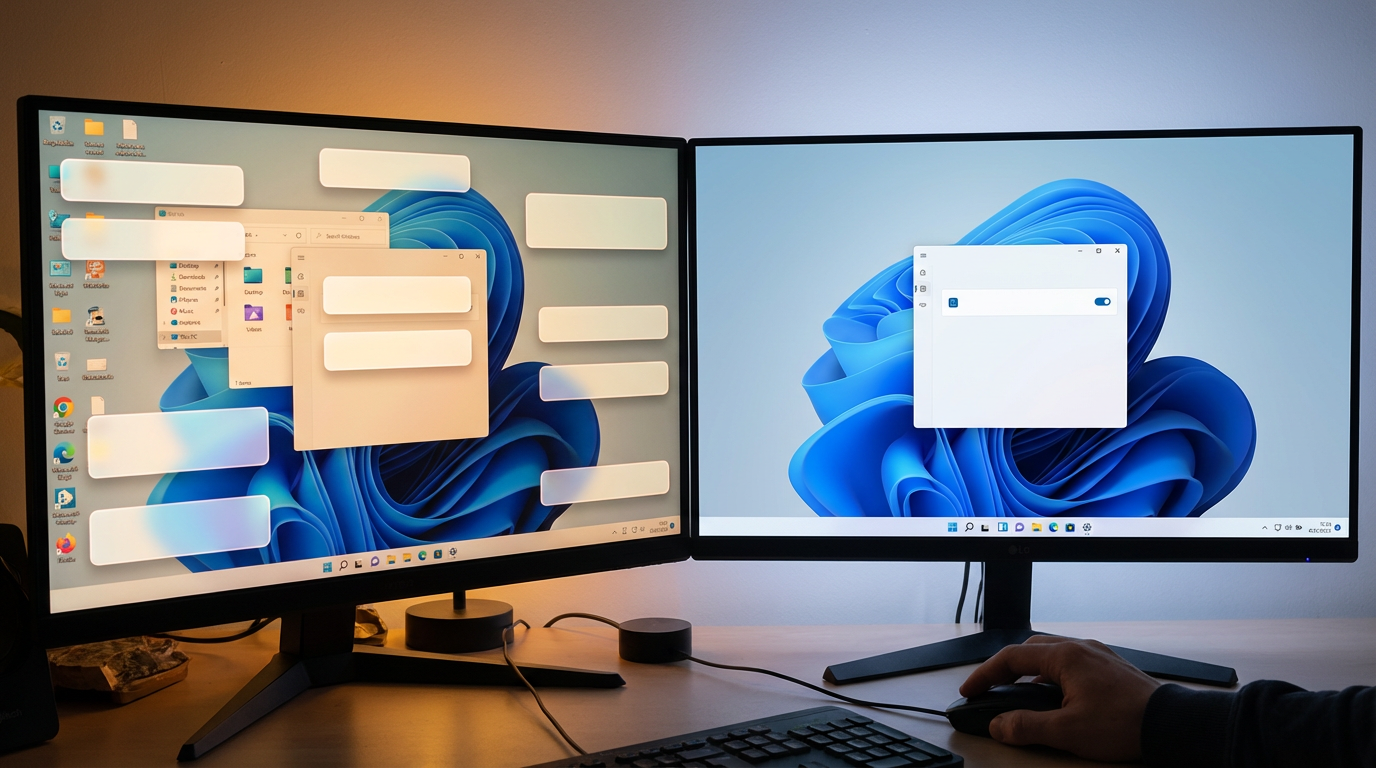
You’re in the middle of something and a notification pops up that isn’t really “about” anything you did. It might suggest setting up OneDrive, finishing account sign-in, trying Edge, or checking out a feature. Notifications feel urgent by design, so even small promos can break focus more than a Start tile ever did.
Instead of turning notifications off entirely, trim the promotional sources. In Windows 11, go to Settings > System > Notifications and review the app list—toggle off apps you don’t want speaking up. Then open Additional settings and turn off options that offer “tips,” “suggestions,” or “welcome” messages. In Windows 10, look in Settings > System > Notifications & actions for similar “tips/tricks/suggestions” wording and disable it.
The trade-off: you can accidentally hide useful app alerts (like a password manager or delivery updates), so do this in two passes—promo-style senders first, everything else later. If the pop-ups calm down, Settings is usually the next place that quietly pushes apps.
Settings that sound helpful but push apps: ‘recommendations,’ ‘suggested content,’ and the Microsoft Store
Settings is where promos feel the most “official,” because they show up as friendly prompts while you’re trying to fix something. You’ll see panels that suggest an app, a Microsoft service, or a Store download, and the switches rarely say “ads.” They’re more likely to say recommendations, suggested content, or “get the most out of Windows.”
Start in Windows 11 under Settings > Privacy & security > General and turn off the options that show suggested content in the Settings app or offer app recommendations. Then check Settings > System > Notifications for any “suggest ways” or “tips” style toggles you didn’t catch earlier. In Windows 10, look under Settings > Privacy for similar “suggested content” language and disable it.
The trade-off: some of these prompts overlap with setup reminders (like finishing account sign-in), so if you share the PC or recently upgraded, you may need to manually find a feature once instead of being nudged. After this, the remaining “stragglers” are usually widgets/news, File Explorer, and little banners that call themselves helpful.
One more pass for stragglers: widgets/news, File Explorer, and ‘helpful’ banners
Those remaining “stragglers” usually show up when you open something for a practical reason—check the weather, browse files, or click a small “learn more” banner that wasn’t there yesterday. They’re easy to miss because each one looks like part of the interface, not a promo surface you intentionally turned on.
Widgets/news is the loudest of the bunch. If you never use it, the cleanest move is to turn it off: on Windows 11, go to Settings > Personalization > Taskbar and disable Widgets; on Windows 10, right‑click the taskbar and turn off News and interests. The trade-off is convenience—some people genuinely like a quick glance at weather or calendar, but it also keeps a feed channel alive.
File Explorer is quieter but persistent. In Explorer, open Folder Options and look for a toggle like Show sync provider notifications—turning it off usually removes OneDrive-style promos. Also watch for “helpful” banners in places like backup or account pages; if a page offers a “suggested” setup path, look for a skip/dismiss option instead of clicking through.
Once these are calm, you’re down to confirming the change stuck—and deciding what to re-enable if the PC feels a little too silent.
After you’ve cleaned it up: how to tell it worked (and what to re-enable if it feels too quiet)
If the PC feels a little too silent, that’s also your first sign the cleanup worked. Use it normally for a day: open Start a few times, unlock the PC, dip into Settings, and watch for any “try this” tiles, lock screen tips, or feature pop-ups. If they’re gone (or rare), you hit the main promo channels.
Then make sure you didn’t lose the alerts you actually need. If calendar reminders or app notifications disappeared, go back to Settings > System > Notifications and re-enable only those specific apps. If you miss the convenience of recent files, turn on the least “promotional” Start option and leave the rest off.