You open Calculator for “quick math”… and it starts feeling slow
You open Calculator to split a dinner bill or knock 20% off a price, and it should be over in seconds. Instead, you start double-checking each tap, because one wrong digit can wreck the whole line. The app looks simple, but it doesn’t always behave like a forgiving tool.
The slowdown usually isn’t math. It’s control. You don’t always know what you can undo, what you can edit without clearing everything, or where your last result “lives” if you need it again. Even rotating into scientific mode can feel like a risk when you just want one extra function.
Once you stop treating Calculator like a one-shot keypad and start using its built-in corrections and reuse options, “quick math” gets quick again.
A single wrong digit shouldn’t force a full restart
That “one-shot keypad” feeling usually shows up the moment you mistap a digit. Most people hit C, lose the whole number, and start over—even when the fix is smaller than the mistake.
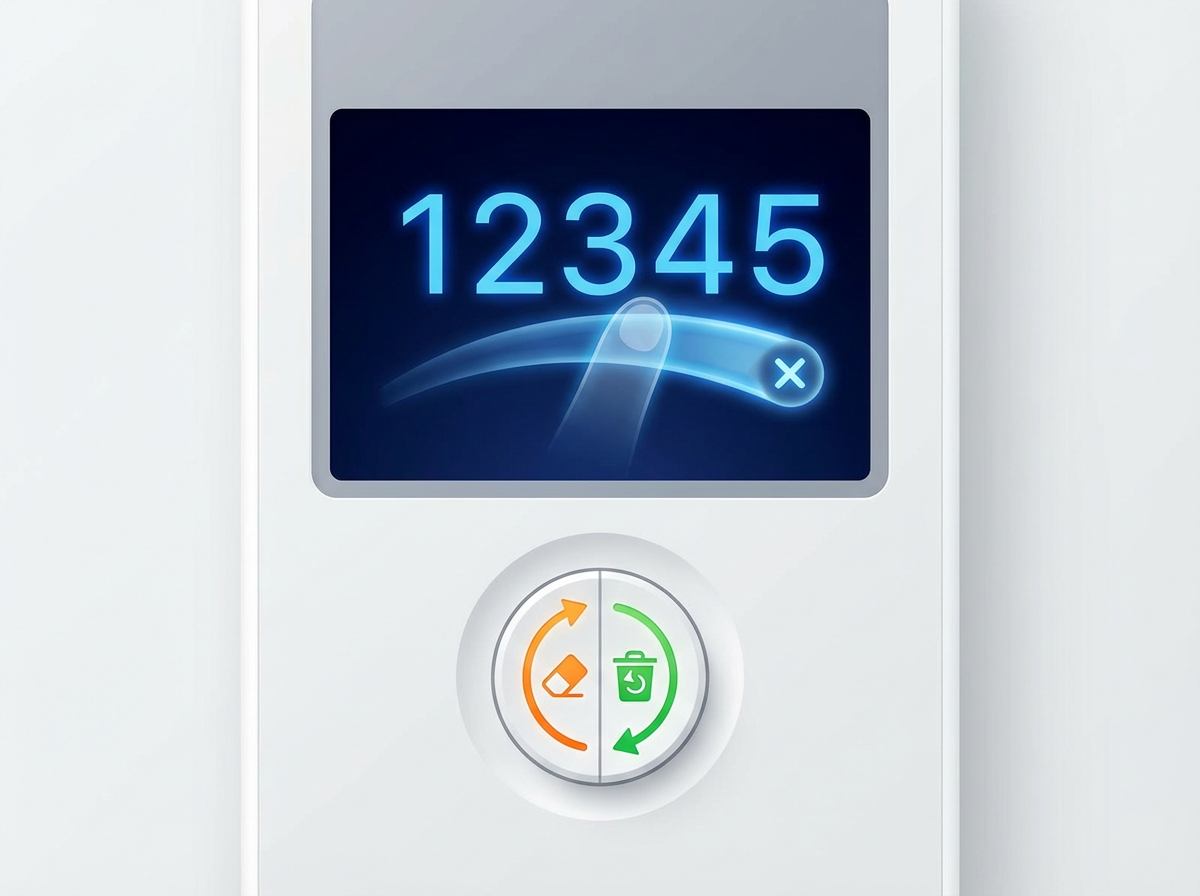
If you entered the right number but the last digit is wrong, swipe left or right on the number display at the top. It acts like a backspace, removing one digit at a time without clearing everything. This is especially helpful when you’re typing something long, like an account balance or a total with cents.
Watch the C/AC button too. C clears the current entry; AC wipes the full calculation. The trade-off: once you’ve hit an operator (like + or ×), clearing only the entry can still leave you with a half-built expression—so it’s worth fixing the digit before you keep going.
Is it worth rotating your phone right now?
That’s why rotating your phone can feel risky: you’re already trying not to break a half-built calculation. Turn iPhone to landscape and Calculator expands into scientific mode, adding extra keys (like parentheses and functions) without changing what you’ve typed so far. If you just need one thing—say, parentheses to force order of operations, or π for a quick circle measurement—it can be faster than switching apps or guessing.
The friction is real, though. If Rotation Lock is on, nothing happens, and you’ve wasted a beat. And the denser layout makes wrong taps more likely, especially one-handed. A good rule: rotate when you need structure (parentheses, exponents) or a constant; stay portrait for tips, discounts, and simple splits.
Once you do rotate, the next question is which of those new buttons are actually worth your attention.
Scientific mode looks crowded—so which buttons actually matter?
That crowded grid matters most when you’re trying to keep a calculation “clean” while adding just one extra idea. Start with the keys that reduce rework: ( ) to group steps (like applying tax after a discount), xʸ or x² when you’re squaring or doing quick area math, and π for anything circle-related without hunting the number down.
The other buttons are situational. sin/cos/tan and ln/log are great if you’re in school, doing angles, or comparing growth, but they slow you down for everyday totals. EE helps with very large numbers, yet it’s easy to hit by accident and end up with something like “3E5” when you meant “35.” If you’re rotating just for one function, use it, then rotate back before the keypad turns into a mistake magnet.
Once you’ve used the scientific key you needed, the next problem is keeping the result from disappearing the moment you switch tasks.
Discounts, tips, and taxes: when the % key doesn’t do what you expect
That “result disappearing” problem gets worse when you’re mid-checkout and you reach for % expecting it to work like the percent button on a store calculator. On iPhone, % often behaves like a converter on the current number, not a “take X percent of the total” helper. So 50 × 20 % gives you 10, but 50 + 20 % doesn’t add 20% of 50 the way many people expect. That mismatch is where tips and discounts start to feel like trial-and-error.
A reliable habit is to make the percent part explicit: for 20% off $50, type 50 × (1 − 20 ÷ 100). For tax, use 50 × (1 + 8.25 ÷ 100). For a tip on $64, try 64 × 0.2 (or 64 × 20 ÷ 100) and then add it back if you need the total.
The trade-off is a few extra taps, but you stop wondering what % just did—and you can reuse the same structure for any bill.
You’ve got the right number—now don’t lose it
That reusable structure is great—until you jump to Messages for a quick “it’s $27.43 each” and come back to a blank slate. Calculator doesn’t autosave “projects.” If you tap AC, or the app gets pushed out of memory while you’re bouncing between apps, your clean result can vanish.
Before you switch away, treat the display like something you can grab. Press and hold on the number at the top to copy it, then paste it into Notes, Messages, or an email draft. If you need to keep calculating with that same result, copy first anyway—one accidental tap on C or AC is all it takes to lose the exact cents.
Once you’ve got the result copied, the fastest win is dropping it into the place you’re already texting from.
The fastest way to move a result into Messages or Notes

That “texting from” moment is where most people slow down: they memorize the number, switch apps, then flip back to confirm the cents. If you already copied the result from the Calculator display, don’t open Notes just to hold it—paste it directly into the thread or text field you’re in. It’s the same paste action, but you cut out an extra app hop.
If you need the number plus a label, paste first, then add the words around it: “Each person: 27.43” or “Total after tax: 58.12.” The friction is that Calculator only copies the raw number, not the full expression, so you can’t paste “64 × 0.2” to show your work. If that context matters, take a quick screenshot before you leave.
Once sharing feels effortless, Calculator stops being a dead end and starts acting like a tool you can keep in motion.
A “basic” Calculator can still feel pro if you treat it like a tool
That “keep it in motion” feeling is the whole upgrade. You don’t need a new app—you need a few default moves: swipe on the display to correct a digit, watch C versus AC before you wipe a full chain, rotate only when you need structure like parentheses, and make percent math explicit when the % key gets weird. Then, copy the result the moment it’s right and paste it where the decision happens. The trade-off is one extra second of discipline, but you spend far less time retyping, rechecking, and redoing.