You want one app, not a Linux photo-tool scavenger hunt
You install one photo app, then realize it only imports from a camera if the stars align. So you add a separate importer. Then a tagger. Then a RAW viewer. A month later, you have three libraries, two folder schemes, and no single place you trust when you need to find “that photo from last summer” fast.
The goal isn’t to find the “best” Linux photo tool. It’s to pick one app you can live in: it brings photos in reliably, keeps your organization consistent, and makes searching feel instant. The trade-off is real: an all-in-one app may do some things “good enough,” while specialist tools can be better but cost you time and consistency.
Before you look at app names, get clear on what you’re actually managing: a small, recent stream of phone photos, a decade of camera folders, or a mixed library with duplicates and edits scattered across drives.
What kind of library are you actually trying to manage?
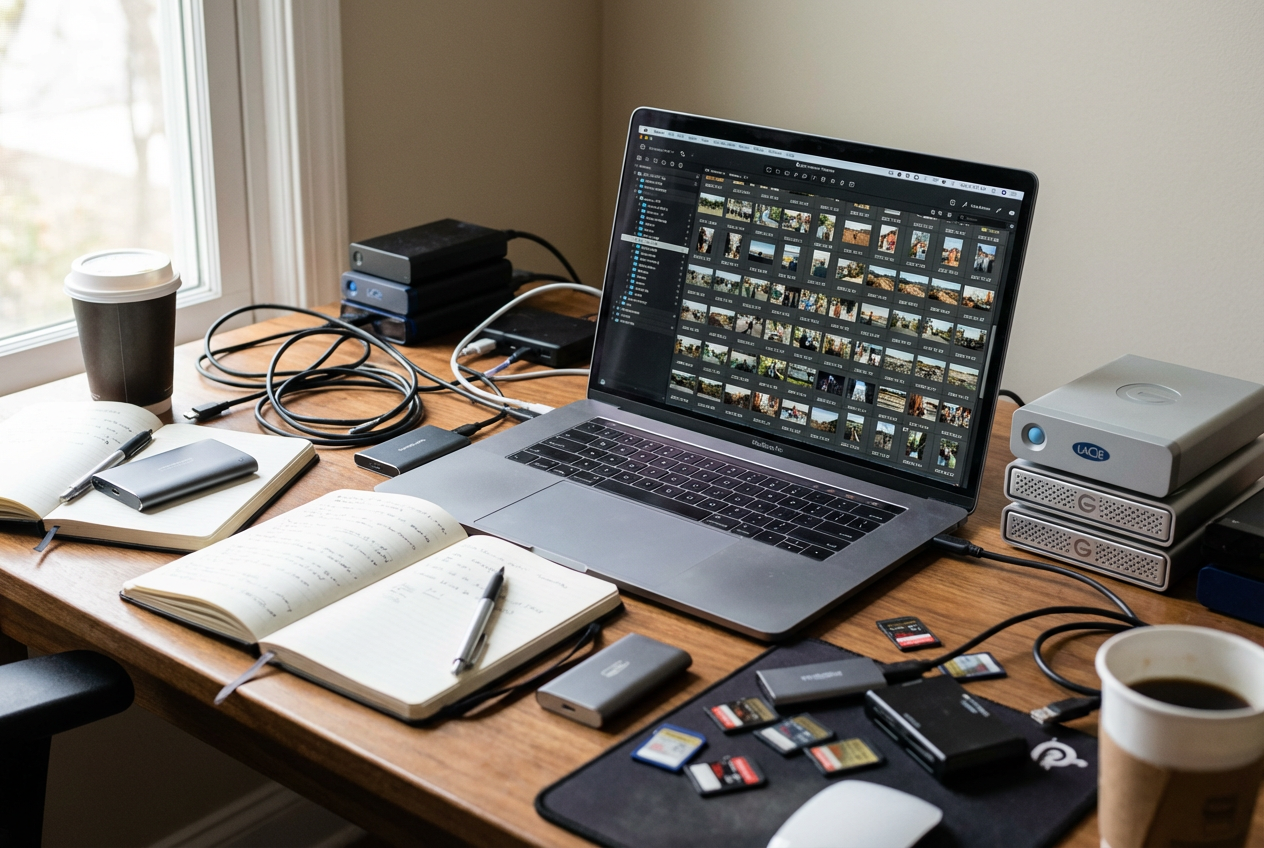
A mixed library is where most “one app” plans break, because the app isn’t just storing photos—it’s making promises about how it will understand them. If your library is mostly recent phone shots, you’ll care about fast imports, good duplicate handling, and being able to search by date and place without doing work. If it’s a decade of camera folders, you’ll care about whether the app respects your existing structure, reads embedded metadata, and doesn’t silently rearrange anything.
Be honest about your “mess level.” Do you have the same trip split across multiple drives? Edits in separate “finals” folders? A partner’s photos mixed in? Those details decide whether you need strict separation (multiple libraries or roots) or one unified catalog. The trade-off: one big catalog makes search simple, but it raises the cost of a bad import or a slow database.
Write down your library type in one sentence, then use it to judge everything else—starting with how you’ll bring new photos in.
Test the import first: phone/camera friction is where most apps fail you
How you’ll bring new photos in is the first place “one app” dreams die: you plug in a phone or camera, the device shows up, and then the importer can’t see the DCIM folder, won’t read a card reader reliably, or pulls everything but loses capture dates. That’s not a minor annoyance. If import feels flaky, you’ll start doing workarounds, and your “single source of truth” breaks on day one.
Test import before you commit anything big. Pick 30–50 photos that include bursts, videos, and a few edits you already made on your phone. Try both paths you’ll actually use: USB/MTP for a phone, and a card reader for a camera (many apps behave better with a mounted card than with the camera itself). Confirm three things: it keeps original timestamps, it handles duplicates the way you expect (skip, rename, or stack), and it can target the folder structure you want without surprise moves.
If any of those fail, the trade-off is time: you’ll pay it either now in testing, or later in cleanup. Once import is stable, you can decide where the truth should live—folders, a database, or sidecars.
Folders, a database, or sidecars—where do you want the truth to live?
Once import is stable, you’ll face a choice that decides how hard recovery will be later: where your “truth” lives. Some apps treat folders as the truth. They write files where you tell them, and your organization is the directory tree plus filenames. That’s comforting on Linux because you can see everything in a file manager, back it up with basic tools, and switch apps without a migration.
Other apps treat a database (a catalog) as the truth. That’s how you get fast search, virtual albums, and big-batch tagging without duplicating files. The friction shows up when something goes wrong: if the database corrupts, a drive path changes, or you split storage across disks, you can end up with “missing” photos until you relink. Backups also need to include the catalog, not just the image folders.
Sidecars sit in the middle. The app keeps a catalog for speed, but it can also write edits and tags into XMP files next to your RAWs/JPEGs. The trade-off is clutter and discipline: you must back up sidecars too, and some apps won’t read every field the same way. Your next decision is simple: how quickly can you find what you just imported?
Searching is the deal-breaker: can you find a photo in 10 seconds?
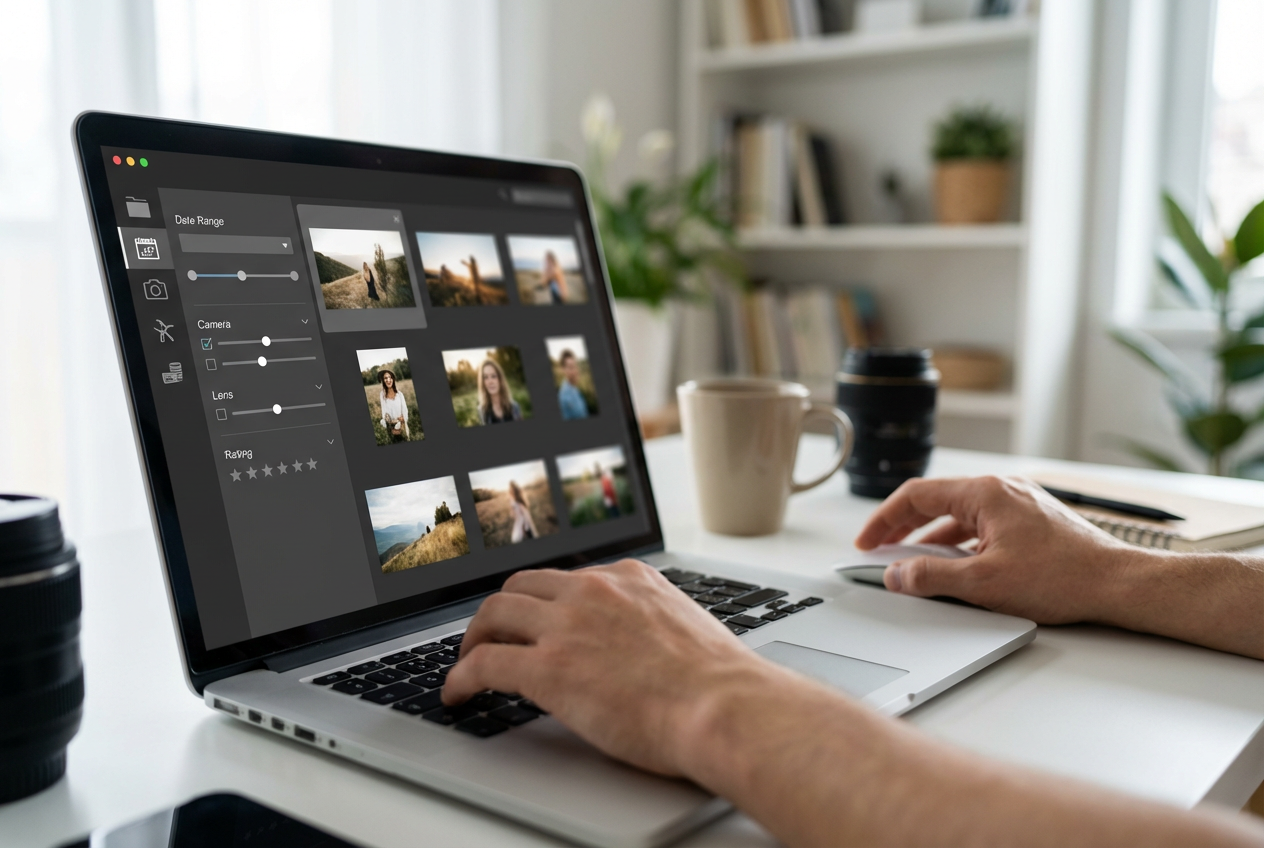
After your first import, you usually do one thing without thinking: you try to pull up a specific photo to confirm it landed where you expect. This is where apps separate fast “live in it” workflows from slow “I’ll deal with it later” workflows. If you can’t find a shot by date, camera, or a quick tag without waiting on a spinner, you’ll start leaning on folders or your file manager again—and your catalog stops being the place you trust.
Test search like you’re in a hurry. Can you filter to “last weekend,” then narrow to one lens or camera body, then add “rating ≥ 4,” and get results instantly? Try a messy query too: “beach” plus “2023” plus “video,” or “portrait” plus “50mm,” depending on how you shoot. If the app only supports one search box with vague matching, you’ll pay for it later when the library grows.
Also check what it searches: filenames, embedded EXIF, tags, captions, and faces/places if you care. The trade-off is indexing time and database size—good search usually needs a real index, which means initial scans can be slow and laptop fans will tell you about it.
Once search feels reliable, the last make-or-break decision is edits: do you need RAW handling and non-destructive changes inside the same app, or is pairing it with an editor the smarter compromise?
RAW and non-destructive edits: do you need it built in or paired with an editor?
When a photo pops up in search, the next reflex is to tweak it: crop, straighten, fix exposure, maybe pull back highlights. If your manager can do that non-destructively, you stay in one place and the edit travels with the photo. The catch is lock-in. Some apps keep edits only in their catalog, so switching tools later can mean “re-edit from scratch” unless it can write XMP sidecars you’ll actually back up.
RAW raises the stakes because you’re no longer just organizing files—you’re choosing where your “develop” decisions live. Built-in RAW can be fast for keepers and simple batch work, but it can feel limited if you rely on a specific look, lens corrections, or careful noise work. Pairing a manager with a dedicated editor (Darktable, RawTherapee) can be stronger, but you’ll juggle versions: RAW + sidecar, exported JPEG/TIFF, and duplicates unless your naming and folders stay strict.
Do a one-hour reality test: edit five RAWs, export two, then restart the app and confirm you can still trace what changed and where the outputs went. If that feels fuzzy, committing the library will feel worse.
Commit with confidence: best-fit picks and a one-hour checklist before you move everything
If that one-hour reality test feels clear, you’re close to a safe commit: pick the app that matches your “truth” choice. If you want folders-first portability, start with digiKam or Shotwell. If you want a catalog-first workflow with strong DAM habits, try darktable’s library (and accept it’s not a phone-first importer). If you mainly want simple browsing with occasional edits, GNOME Photos can work, but it won’t carry a large, messy library as far.
Before importing everything, do this in one hour: import 50 mixed files; verify timestamps, duplicates, and destination folders; add 10 tags and 5 ratings; run three searches you’d use in real life; edit 3 RAWs and export 1 JPEG; close/reopen and confirm nothing “disappears.” Then set up backups for photos plus the catalog/sidecars. The trade-off: this hour costs time now, but it prevents week-long cleanup later.