That first “what if my account gets locked?” moment
It usually hits at the worst time: you’re about to send a client a file, and a login screen turns into a “verify your account” loop, a billing prompt, or a vague “unusual activity” warning. You can still see the folders on your laptop, but they won’t open because they’re placeholders waiting for the cloud. Now the problem isn’t speed or convenience. It’s whether you can access work you already did.
This is the dependency most people don’t notice until it breaks. Cloud storage bundles your files with an account, a plan, and a set of automated decisions you don’t control. That trade-off can be fine—right up until it isn’t. The question worth asking is simple: what parts of your workflow should keep working even if someone else changes the rules?
Reason #1: Access you can’t lose because someone else changed the rules

If you’ve ever had to pause a client deliverable to click through an account check, you’ve already felt the core issue: access is conditional. A cloud provider can require a new billing step, flag a login as “suspicious,” enforce a device limit, or roll out a policy change that turns a normal day into a support ticket. Even short outages matter when the file you need is the one you can’t open without a successful sign-in.
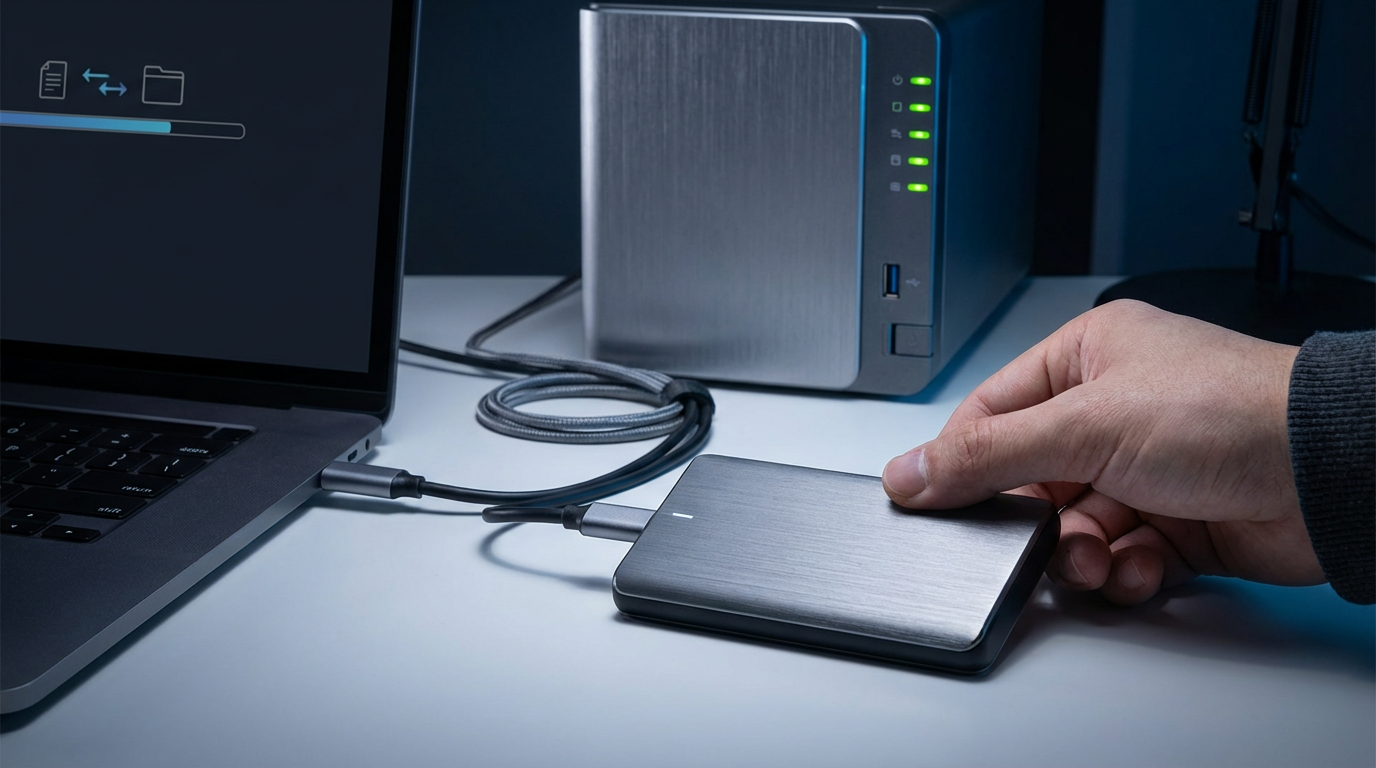
Local storage changes that dependency. If the primary copy of your active projects lives on an external SSD or a simple NAS, you can still open, export, and deliver while the cloud sorts itself out. The trade-off is that you’re now responsible for your own continuity: drive failure, theft, and accidental deletes become your problems. But at least they’re problems you can plan for, instead of rules you discover mid-deadline.
This is why “local-first” isn’t about being anti-cloud. It’s about choosing which failures you’re willing to tolerate—and noticing when your current plan and limits quietly start shaping how you work.
Reason #2: When pricing and plan limits become a quiet tax on your workflow
It often starts small: you hit a storage cap, get nudged to upgrade, and tell yourself it’s just the cost of doing business. Then the limits creep into decisions you make every week. You avoid keeping raw photos, full-resolution video, or project archives online because they “take up too much,” so you compress, delete, or split folders across accounts. That’s time. And it adds risk when you later need the original and realize you kept only a downsized version.
Plan rules can also shape how you collaborate. If a client can’t download because of link restrictions, bandwidth limits, or a “too many people viewed this file” message, you end up re-sending in smaller chunks or exporting alternate formats. You pay twice: once in dollars, again in attention. Local-first reduces that tax by keeping your working set on storage you already own, using the cloud for what it’s good at: a secondary copy, not the gatekeeper.
The friction to watch is simple: when “should I keep this?” becomes “can my plan handle this?” the pricing model is now part of your workflow—and your client experience is next.
Reason #3: Client trust is harder to maintain when your files live in someone else’s system
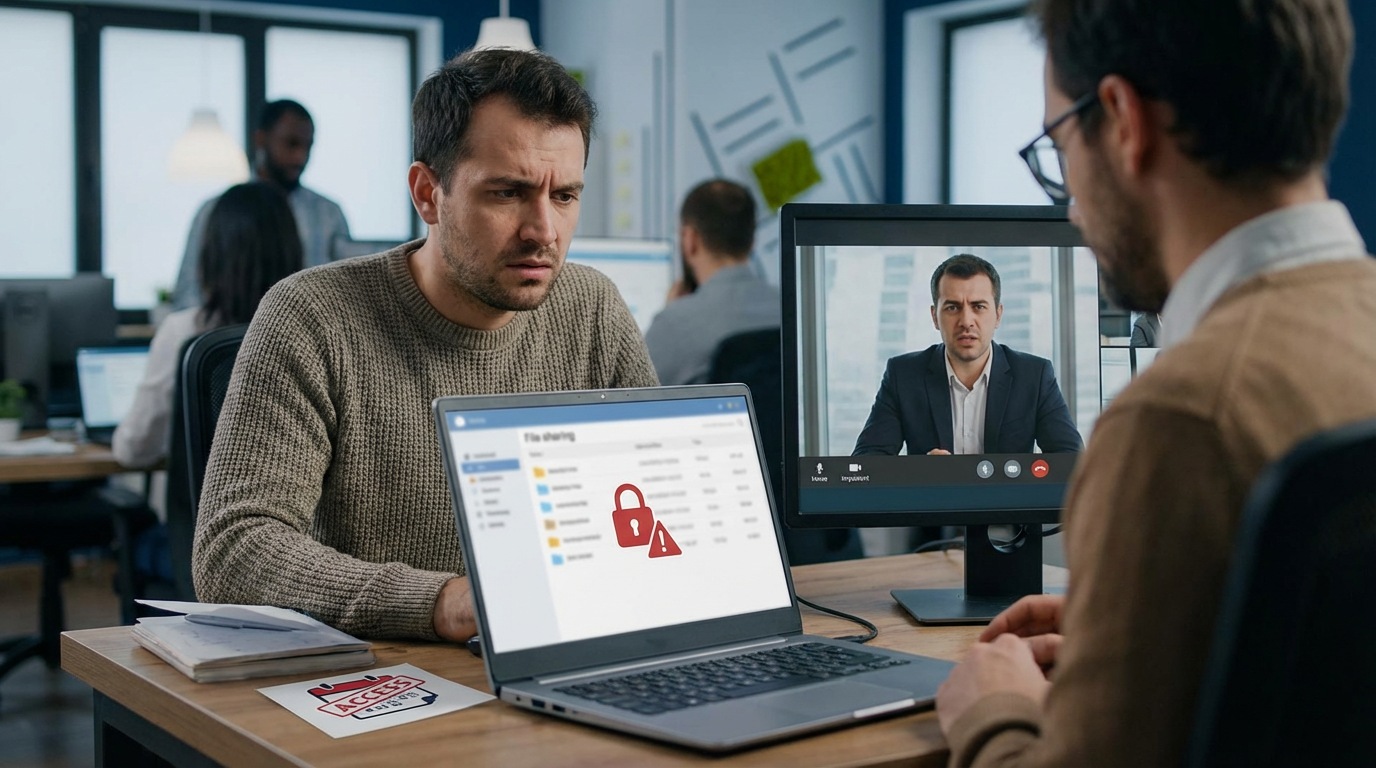
It shows up in small moments: a client asks, “Can you just email it?” or “Can you send a zip instead of a link?” Not because they’re difficult, but because the link is tied to a system they don’t control. If their company blocks a domain, forces a sign-in, or flags shared files, your delivery starts to look unreliable even when your work isn’t.
There’s also the awkward question you can’t fully answer: where, exactly, does this file live right now? With cloud storage, you’re often relying on a third party’s sharing rules, retention behavior, and access logs. Some clients care because of compliance. Others care because they’ve been burned by broken links, expired permissions, or “request access” loops that waste a day.
Local-first doesn’t magically create trust, but it makes your promises easier to keep. If the primary project folder is on your drive or NAS, you can deliver through whatever channel fits the client—encrypted zip, SFTP, a dedicated client portal, even a handoff drive—without betting the handoff on one vendor’s settings. The trade-off is you lose the “one-click share” convenience, so you’ll need a repeatable handoff process you can run under deadline.
Reason #4: The day syncing slows you down (or silently forks your work)
That “one-click share” convenience usually depends on a background promise: everything is synced, everywhere, all the time. On a normal day, it works. On a travel day, a hotel Wi‑Fi day, or a “your ISP is having issues” day, it turns into waiting—files stuck on “syncing,” folders that look present but won’t open, exports that fail because the source isn’t fully downloaded.
The bigger risk is the quiet fork. You edit a file on your laptop while the cloud client is paused, offline, or fighting a conflicted copy. Later, it reconnects and you get “filename (1)” or a merge conflict you don’t notice until a client points out an older version. This happens most with apps that write lots of small changes—design files, video projects, even big spreadsheets—because sync has to chase constant updates.
Local-first reduces both failure modes by making your working copy local by default. The trade-off is you must decide how collaboration happens: if you need real-time co-editing, you’ll keep some work in the cloud, and you’ll want clear rules for what lives where.
Reason #5: “But won’t local storage create new disasters?” (Only if you skip backups)
Those “clear rules for what lives where” usually trigger the biggest objection: if the files live with you, what happens when a drive dies, a laptop gets stolen, or you delete the wrong folder? With cloud storage, those disasters feel “handled.” With local-first, they’re only handled if you build backups on purpose.
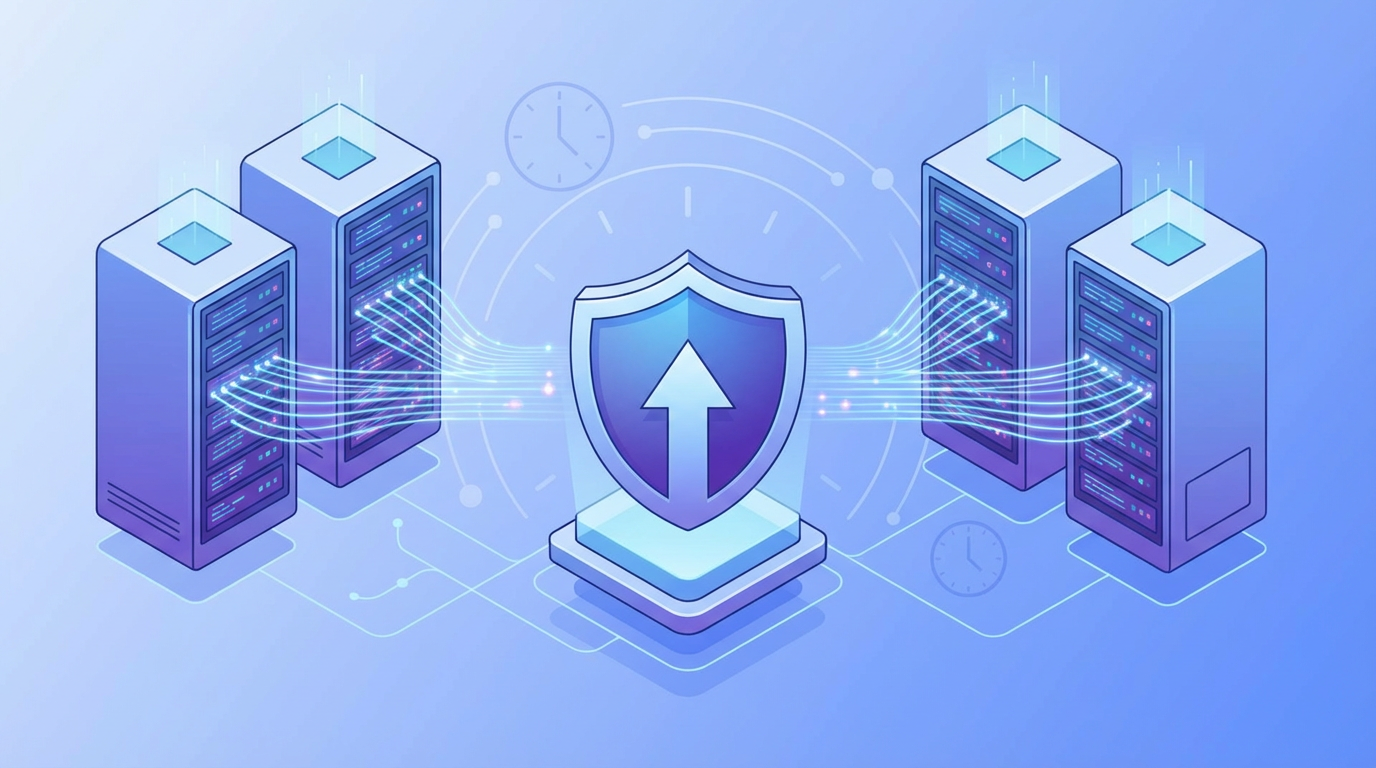
The workable standard is boring: keep 3 copies, on 2 different types of storage, with 1 offsite. In real life that can be (1) your working folder on an external SSD or NAS, (2) an automatic nightly backup to a second drive, and (3) an encrypted cloud backup that never needs to be your day-to-day workspace. Automation matters more than brand choices. If you have to remember to drag folders every Friday, you will eventually miss a week.
The trade-off is upfront: you’ll pay for an extra drive and spend an hour setting it up. Then it runs quietly—exactly what you want before the first failure tests your system.
A local-first setup you could actually run next week (without becoming IT)
That “runs quietly” goal is the whole point: a local-first setup only works if it’s easy to maintain on a normal Tuesday. For most solo operators, the simplest default is an external SSD as your “working drive” (active client folders live there), while your laptop keeps only apps and short-term downloads. If you want shared access across devices at home, swap the SSD for a simple NAS, but don’t start there unless you’ll use it.
Then make backups automatic in two directions. Nightly, clone the working drive to a second drive (Time Machine on Mac, File History or a backup app on Windows). Separately, run an encrypted cloud backup of the same working folder so you have an offsite copy that doesn’t depend on sync behaving. The friction you’ll hit is version sprawl: write down one rule—what counts as “active,” what gets archived monthly—and your storage stays clean enough to trust.
Once that’s in place, you can choose the cloud again—this time as a backup and sharing tool you control, not the place your work has to live.