You know you need backups—why PBS feels like “one more server”
You can run Proxmox VE for months without thinking about backups—until an update goes sideways, a disk starts throwing errors, or you delete the wrong VM at 11 p.m. That’s when “I’ll snapshot it later” turns into “I need a real restore path.”
Proxmox Backup Server is the obvious answer, but it often feels like adding another system to patch, monitor, and store somewhere. The easier you make backups to run, the more likely you’ll actually have them when you need them. The harder part isn’t clicking “Backup.” It’s deciding where the backups live, how they connect, and how you keep history without filling the disk.
Where will the backups live without turning storage into a side quest?
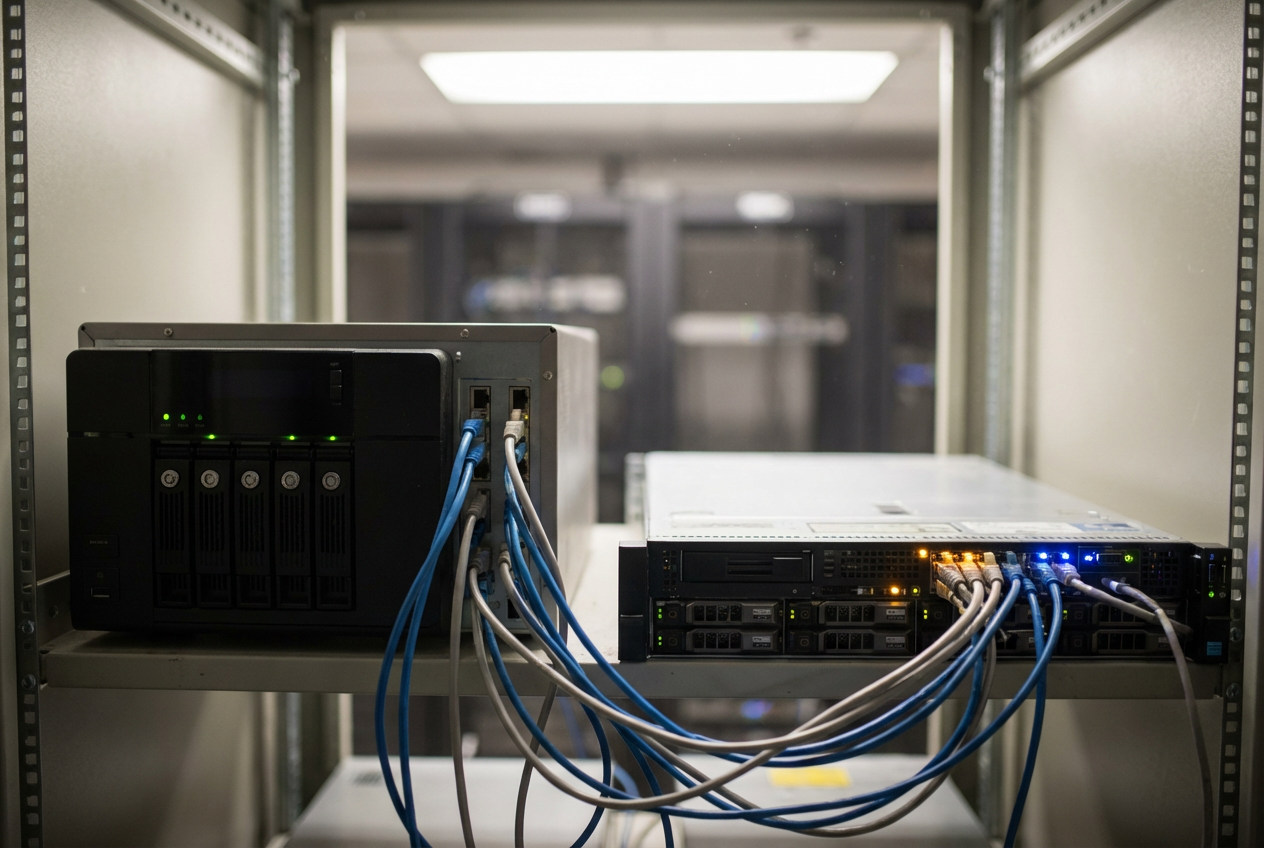
That “where the backups live” decision is the part that quietly determines whether PBS feels effortless or like a new hobby. Most people start by pointing PBS at whatever has free space: a spare USB drive, a random NFS share, or the same ZFS pool that holds the VMs. It works—right up until it doesn’t.
If the backup storage sits on the same physical box as your workloads, you’re mainly protecting against mistakes and bad updates, not hardware failure. That can still be worth it, but be honest about the risk. If you put backups on a NAS, you add network dependency and permissions friction (a wrong mount option can turn into silent backup failures). If you use an external disk, you trade speed and reliability for simplicity, and you have to think about how it gets rotated or copied.
A practical target is “separate failure domain without fragile plumbing”: a small dedicated disk on another machine, or a NAS share you can mount reliably, with enough headroom that retention won’t crowd out new backups. Once that’s chosen, installing PBS is mostly picking the form factor that matches it.
Installing PBS: VM, bare metal, or a tiny box in the corner
That “form factor” choice usually shows up as a simple question: do you want PBS to survive the same reboot, disk failure, or botched change that takes down your Proxmox node?
Running PBS as a VM on your existing Proxmox host is the fastest start. It’s fine if your main goal is protection from bad updates or accidental deletes. The friction is obvious later: when the host is down, the backup server is down too, and USB/NFS passthrough mistakes can turn into flaky storage. If you can, pass through a whole disk or HBA to the PBS VM so the datastore isn’t sitting on the same pool as your VMs.
Bare metal or a small “tiny box in the corner” gives you a clean failure domain. The trade-off is you now own another machine to patch, and small boxes limit drive options and network speed. Once you pick the platform, the next real step is building a datastore that won’t surprise you.
Creating your first datastore (and avoiding the ‘it filled overnight’ surprise)
That “it won’t surprise you” part usually fails the first time you click “Add Datastore,” point it at a mount, and assume the rest will take care of itself. The next morning, the disk is at 95%, backups start failing, and you’re left guessing whether it’s retention, a stuck snapshot, or just bigger VMs than you remembered.
Start by putting the datastore on storage with a clear size boundary: a dedicated disk, zvol, or a properly mounted share that won’t silently drop to read-only. Then pick a datastore name you’ll recognize in logs, and enable encryption only if you can commit to protecting the key file and password—lose them and restores are dead.
The practical guardrail is headroom. Leave space for at least one full “worst day” backup cycle plus chunk reuse overhead, or your first prune/GC won’t matter because new backups can’t finish. Once the datastore exists, connecting it to Proxmox VE will make the UI options feel less abstract.
Connecting Proxmox VE to PBS when the UI options feel abstract
Once the datastore exists, the next stumble is staring at Proxmox VE’s “Add Backup Server” dialog and wondering what it really needs to work. In practice, you’re just teaching each Proxmox node how to reach PBS and which account it should use, then making sure it can actually log in.
In Proxmox VE, go to Datacenter → Storage → Add → Proxmox Backup Server. Use the PBS hostname/IP and port (usually 8007), then set the datastore name exactly as it appears in PBS. For credentials, don’t reuse the PBS web UI login; create a dedicated PBS user/API token and give it only the permissions it needs for that datastore. The common friction is TLS: if you use an IP or self-signed cert, Proxmox may complain about the fingerprint—verify it on the PBS console first, then accept it.
Before you schedule anything, click “Verify”/“Check Connection” and confirm it shows the datastore size and free space. If that doesn’t work reliably, backups won’t either, and the next step is making the first job run on a schedule you’ll actually notice when it fails.
The first backup job: schedule it like you’ll need it tomorrow
When that “Check Connection” finally shows real free space, the temptation is to fire off a manual backup and call it done. The catch is you won’t be around to click “Backup” on the day you actually need it, so set a schedule that matches how you work. If you patch on weekends, run backups right before that window. If users touch systems all day, run them overnight and stagger nodes so you don’t spike disk and network at once.
In Proxmox VE, create a job under Datacenter → Backup and target the PBS storage you added. Start small: pick one or two important VMs, set Mode: Snapshot, and enable notifications so you’ll notice failures. A common friction is timeout and load—your first run may take longer than expected, so avoid stacking backup time on top of replication, scrubs, or heavy cron jobs.
Let it run twice. Two points make “restorable” more than a checkbox: you see an incremental, and you catch the first failure while it’s still easy to fix. After that, you need to decide how much history you’ll keep without filling the datastore.
Retention, prune, and GC: keeping history without burning the disk (decision point)

That “how much history” question usually shows up as a datastore that looks fine for a week, then starts creeping toward full. PBS doesn’t delete old backups just because they’re “outside retention” in your head. You need a retention policy, and you need prune/GC to actually turn that policy into free space.
Set retention to match how you recover, not how you imagine recovering. If you mostly roll back from bad updates, “keep 7 daily + 4 weekly” is often plenty. If you need “end of month” recovery for a small business, add a few monthlies—but accept the consequence: monthlies can keep old chunks alive, so the disk won’t shrink the way you expect. The practical friction here is growth spikes: a big VM change (database, media ingest, Windows updates) can burn more space than your averages.
Then make it real: run Prune on a schedule so expired snapshots get marked for removal, and run Garbage Collection after prune so unreferenced chunks actually get reclaimed. If you only prune, the UI will look “clean,” but the datastore won’t. If you only GC, nothing expires. Once prune+GC runs a few cycles, you can decide whether to buy disk or tighten history—and then prove restores work.
Prove you can restore: a 10-minute test that builds real confidence
That “prove restores work” part usually happens on a calm day, not at 11 p.m. Pick one small, non-critical VM and do a full loop: restore it under a new VM ID, on an isolated bridge or with the NIC disconnected, so you can boot it without colliding with the real one.
In Proxmox VE, open the backup on the PBS storage and hit Restore. Watch two things: that it actually reads from PBS (not “waiting”), and how long it takes end-to-end on your network and disks. The trade-off you’ll feel fast is space and time: a test restore needs scratch storage, and slow links turn “we have backups” into a long outage.
Boot the restored VM, log in, and check one real thing (a service starts, a file exists, a database opens). If that works once, schedule a repeating restore test—because the next failure should be during a drill, not during a disaster.