You’re happy with the 3S… until one small annoyance keeps showing up
You buy an MX Master 3S because it already does the big things right: it fits most hands, tracks well, and the scroll wheel makes long pages feel manageable. For a while, that’s enough. Then one small annoyance starts repeating—maybe the side thumb area feels cramped after two hours, the clicks still sound too sharp in a quiet room, or the mouse hesitates when you switch devices at the worst time. None of these issues ruin the mouse, but they’re the kind that push an “upgrade curiosity” into a real decision.
The hard part is that a new model can change the spec sheet without changing your day. A slightly different shape won’t matter if your grip stays the same, and “quieter” won’t matter if your office isn’t quiet. The goal here is simple: identify the one or two annoyances you actually feel every week, then check whether MX Master 4 targets those specifically—or just refreshes what already works.
What would make you regret not waiting (or regret upgrading too early)?
That “one small annoyance” is also the easiest way to predict regret: if a new model doesn’t hit it directly, you’ll feel like you paid for change you can’t feel. Upgrading too early usually looks like this: the MX Master 4 tweaks shape, adds a feature you won’t use, or claims better battery, but your real problem is still there—like noisy clicks in a shared office, or flaky device switching during meetings. You end up relearning button placement and gesture habits without getting the fix you wanted.
Not waiting stings in a different way. You buy (or keep) the 3S, then find out the 4 quietly solved a daily friction point you can’t patch with settings—like a more comfortable thumb rest for your grip, more consistent tracking on your desk surface, or more reliable multi-device switching. The trade-off is timing: if you can’t test the 4 soon, the “wait” cost is weeks of putting up with the same annoyance.
So pick your two non-negotiables now, and only treat the MX Master 4 as an upgrade if it clearly improves those, not just the spec sheet.
In hand all day: will MX Master 4 actually feel better than 3S?
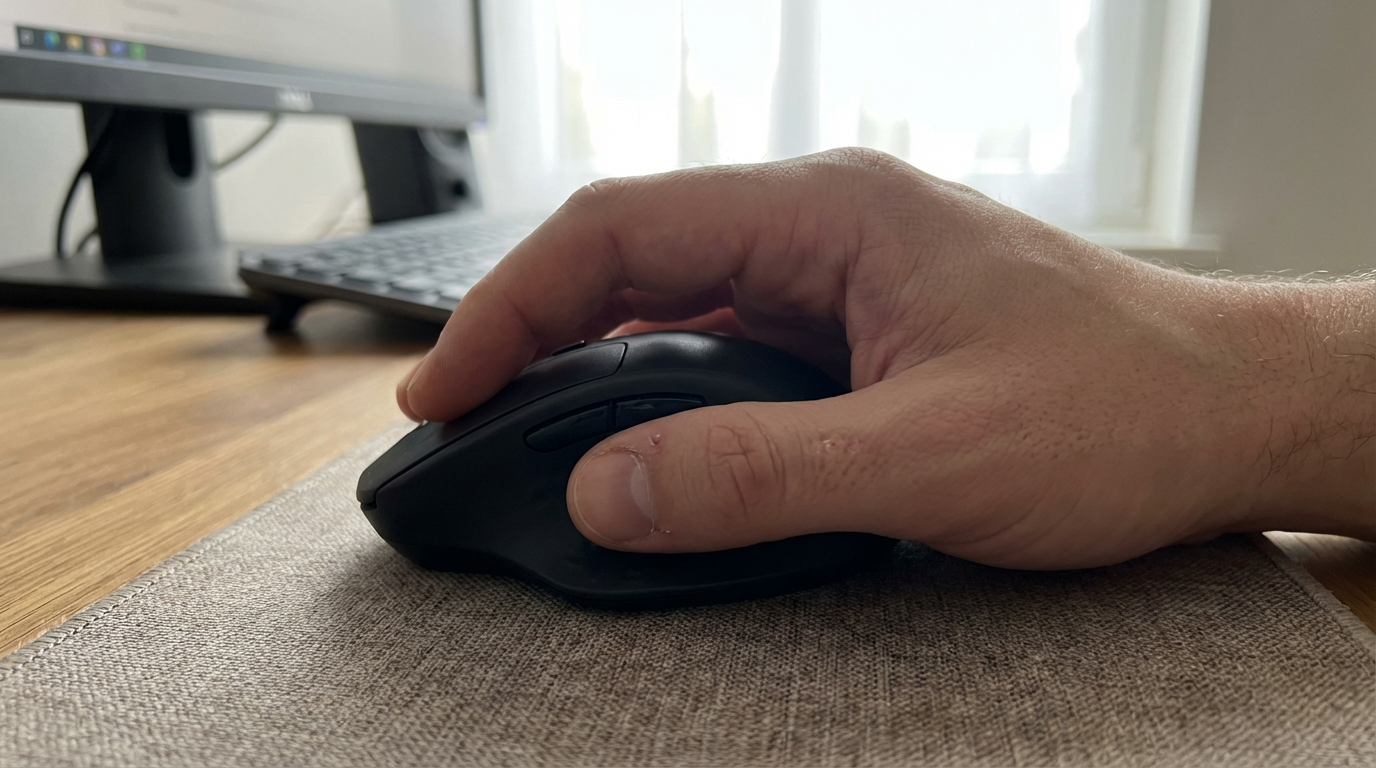
If one of your non-negotiables is comfort, “better” usually means you notice it when you stop noticing the mouse. Most people feel it as less thumb pressure, less pinky drag, or a wrist angle that doesn’t creep upward during a long spreadsheet session. If the MX Master 4 only shifts the shell a few millimeters, your grip may not change at all—and then the upgrade won’t show up in your day.
The way to predict it is boring but reliable: match the shape changes to how you actually hold the 3S. If you palm-grip and your thumb rest already feels tight after two hours, look for reviews that mention a wider thumb shelf or a gentler ridge. If you claw-grip, watch for a taller rear hump that can force your hand open and make fingertip control feel slower.
The trade-off: even a small button relocation can break muscle memory for weeks—right before the scroll wheel reminds you why you bought an MX Master in the first place.
Scroll wheels are the MX Master reason—did the feel change in ways you’ll notice?
That moment when you flick the wheel and it lands exactly where you wanted is why the MX Master line earns its price. In daily use, the question isn’t “does it scroll?”—it’s whether the MX Master 4 changes the feel in a way you’ll actually notice: how much force it takes to start moving, how cleanly it stops, and whether the SmartShift jump between ratchet and free-spin feels predictable.
What to look for in reviews is simple and specific. If you constantly overshoot in Excel or timelines, you want tighter, more consistent ratchet steps and less “coast” after you let go. If you read long docs, you want a free-spin mode that doesn’t wobble, with a mode switch that doesn’t trigger by accident. The friction: even small changes in wheel tension can make your scrolling accuracy worse for a week while your hand recalibrates.
And because the wheel is only half the story, the real test is whether the clicks and side buttons feel as controlled as the scroll.
Click noise, button feel, and fatigue: quiet enough to justify switching?
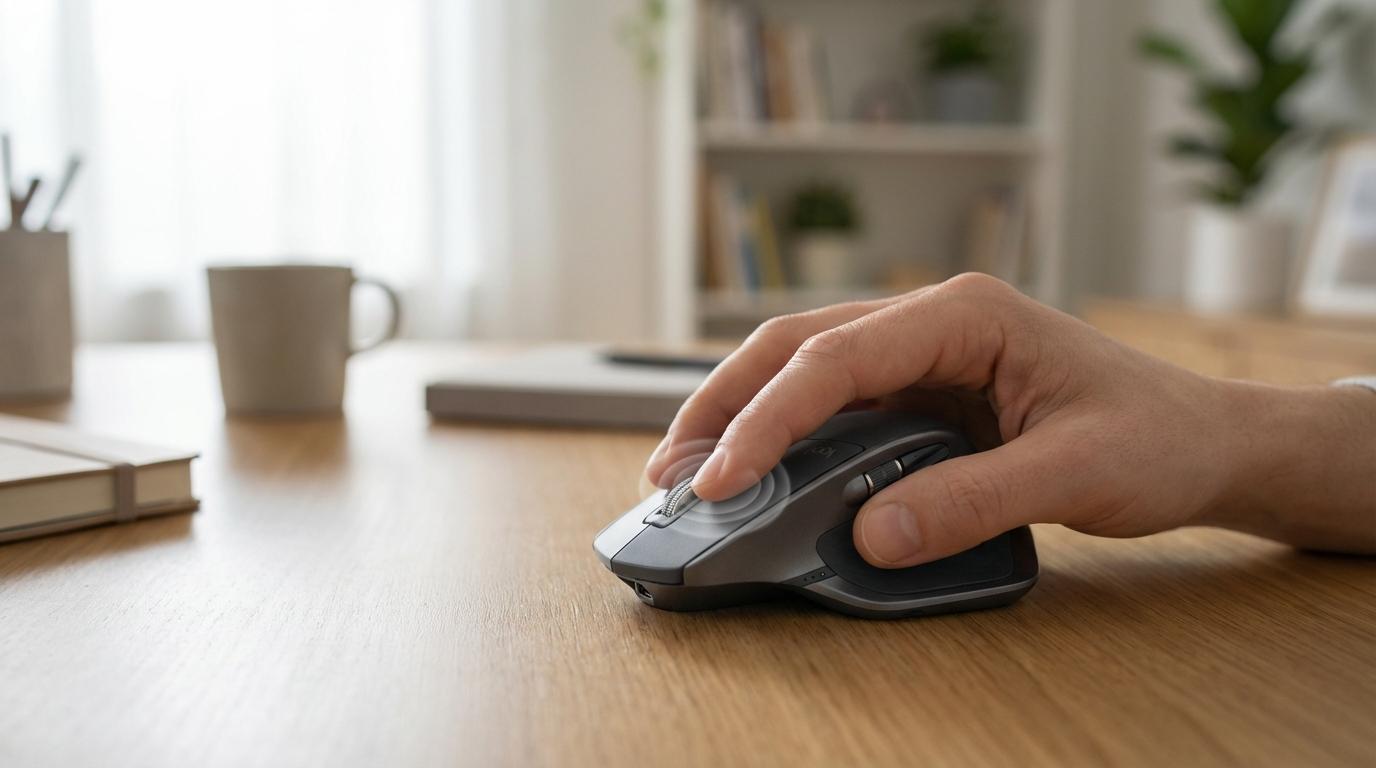
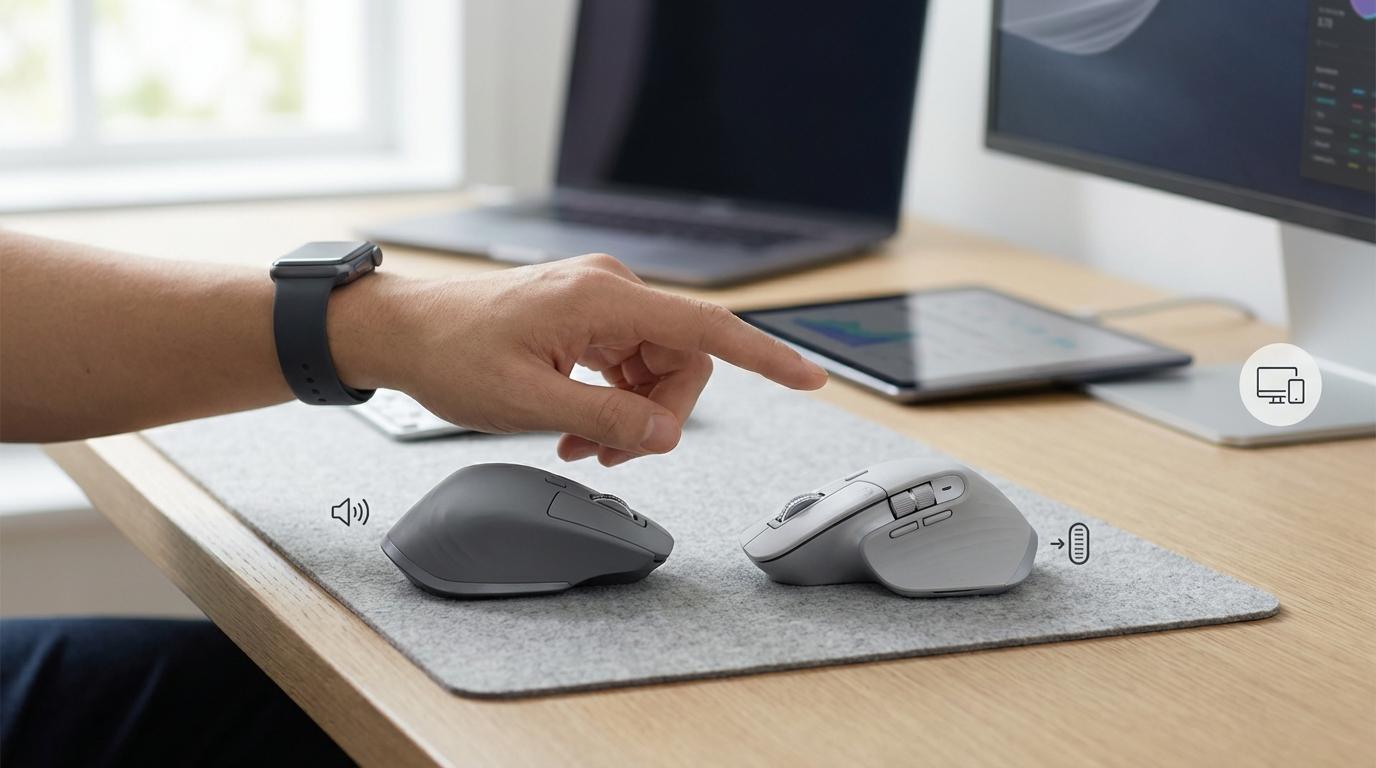
If the wheel feels controlled but the clicks don’t, that mismatch shows up fast in quiet rooms and long workdays. The 3S already reduced click noise versus the MX Master 3, so MX Master 4 only matters here if it changes what you actually hear at your desk: the sharp “top-out” sound, the return thump, or the side-button clack when you’re paging back and forth in a browser.
Button feel is the other half. A lighter click can reduce finger fatigue in repetitive work (think: selecting cells all morning), but it can also increase mis-clicks if the switch triggers too easily. A stiffer click can feel precise, yet it can wear on your index finger by day’s end. The friction is real: if MX Master 4 changes actuation force or button travel, you may spend a week fighting muscle memory.
Before you upgrade for “quieter,” look for reviewers measuring noise in dB and describing side-button mush vs. crispness, then match that to where you work and how click-heavy your day is.
Multi-device reliability and tracking: the upgrade is only real if it fixes your worst surfaces
Noise and feel are easy to notice, but connectivity and tracking are the things that break your rhythm. It usually shows up mid-call: you hit the Easy-Switch button, the cursor freezes for two seconds, then jumps. Or you move from your desk to a kitchen table and suddenly the mouse feels “floaty” or skips on small movements.
So MX Master 4 only counts as an upgrade if it improves your worst case, not your best case. If you live on two or three devices, look for reports on how fast it swaps, how often it reconnects after sleep, and whether it behaves differently on Bluetooth vs Logi Bolt. The trade-off is annoying: “more reliable” dongle performance can mean you now have one more USB-A/C thing to carry, and company laptops sometimes block pairing tools or USB receivers.
Tracking is the same logic. Don’t test it on a clean mousepad. Test it on the surface that currently fails you—wood grain, glossy desk, leather desk mat, even a couch arm—and only upgrade if reviewers show fewer skips there. If that’s your deal-breaker, it belongs on your final keep/upgrade/wait checklist.
The keep/upgrade/wait checklist (and what to confirm before you spend)
If tracking on that one bad surface or device switching mid-call is your deal-breaker, turn it into a simple decision. Keep the 3S if your only “issue” is curiosity, your grip is comfortable, and your wheel and clicks already feel right. Upgrade to the 4 only if you can point to one weekly annoyance and see credible hands-on reports that it’s fixed.
Wait if you can’t test it soon or reviews are still vague on specifics. Before spending, confirm: (1) shape changes that match your grip (thumb shelf, pinky support), (2) ratchet step feel and SmartShift predictability, (3) measured click/side-button noise plus actuation feel, (4) Easy-Switch reconnect speed after sleep on your OS, and (5) tracking on your worst surface using Bluetooth and Bolt.