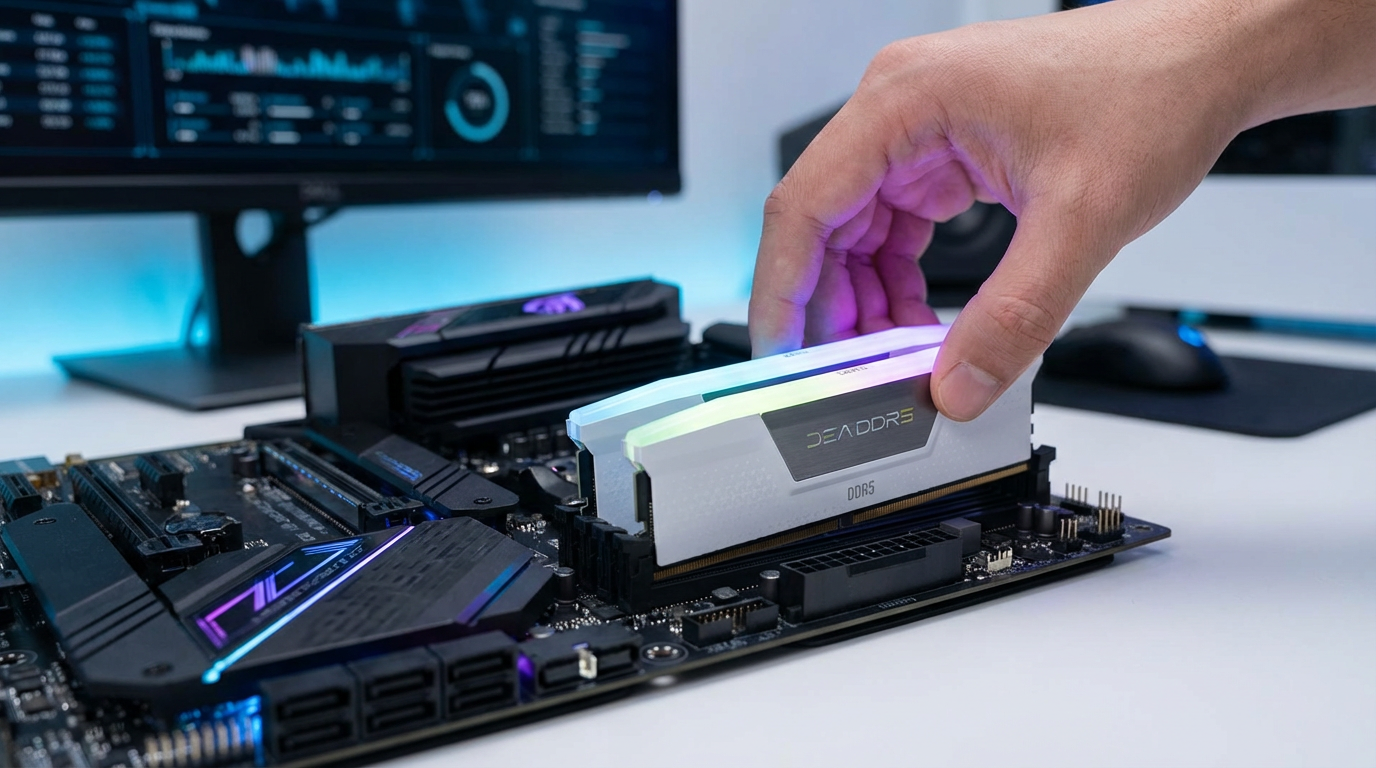
You’re about to upgrade or troubleshoot—what number are you actually looking for?
You usually notice RAM when something forces the question: an app crawls, a browser tab reloads, or you’re staring at a shopping cart for “16GB” and wondering what you already have. Windows will show you more than one memory number, and they don’t all mean the same thing. One is what’s physically installed. Another is what Windows can actually use right now, after it sets some aside for hardware like integrated graphics.
Getting the right number upfront saves you from buying the wrong upgrade or chasing a “missing RAM” problem that isn’t real. The quickest place to start is the Windows Settings page that lists your installed memory.
Fastest check: Settings shows your installed RAM in under a minute
That Settings number is the fastest way to answer “what do I have installed?” without digging through specs or opening your PC. On Windows 11, open Settings > System > About. On Windows 10, go to Settings > System > About (or Settings > System > About from the left menu). Look for Installed RAM.
Use that figure when you’re comparing to upgrade options (for example, “8.00 GB installed” tells you what’s in the machine). Practical friction: some PCs show a slightly odd number like 15.9 GB or 7.9 GB, which can look like something is missing. That’s where the next label matters—because “installed” isn’t always the same as what Windows can use.
The number looks lower than expected—installed vs usable vs ‘hardware reserved’
That “7.9 GB” or “15.9 GB” reading usually isn’t a bad stick of RAM. It’s Windows showing you the difference between what’s installed and what’s usable.
Installed is the physical RAM in the PC. Usable is what Windows can use after it sets some aside for things that need memory mapped a certain way. The most common label you’ll see for this is Hardware reserved. A typical example is a laptop with 8 GB installed where Windows reports around 7.9 GB usable, because a small chunk is reserved. The bigger jump is often on systems with integrated graphics, where the GPU borrows system RAM; if the BIOS/UEFI is set to reserve 1–2 GB for graphics, Windows will show that as unavailable.
The trade-off is simple: that reserved memory can help display and video tasks, but it reduces what’s left for apps. If the usable number is much lower than you expected (say, 16 GB installed but only 12 GB usable), it’s worth cross-checking in Task Manager to see what Windows is actually using under load.
When Task Manager tells a different story: what to trust for real-world performance
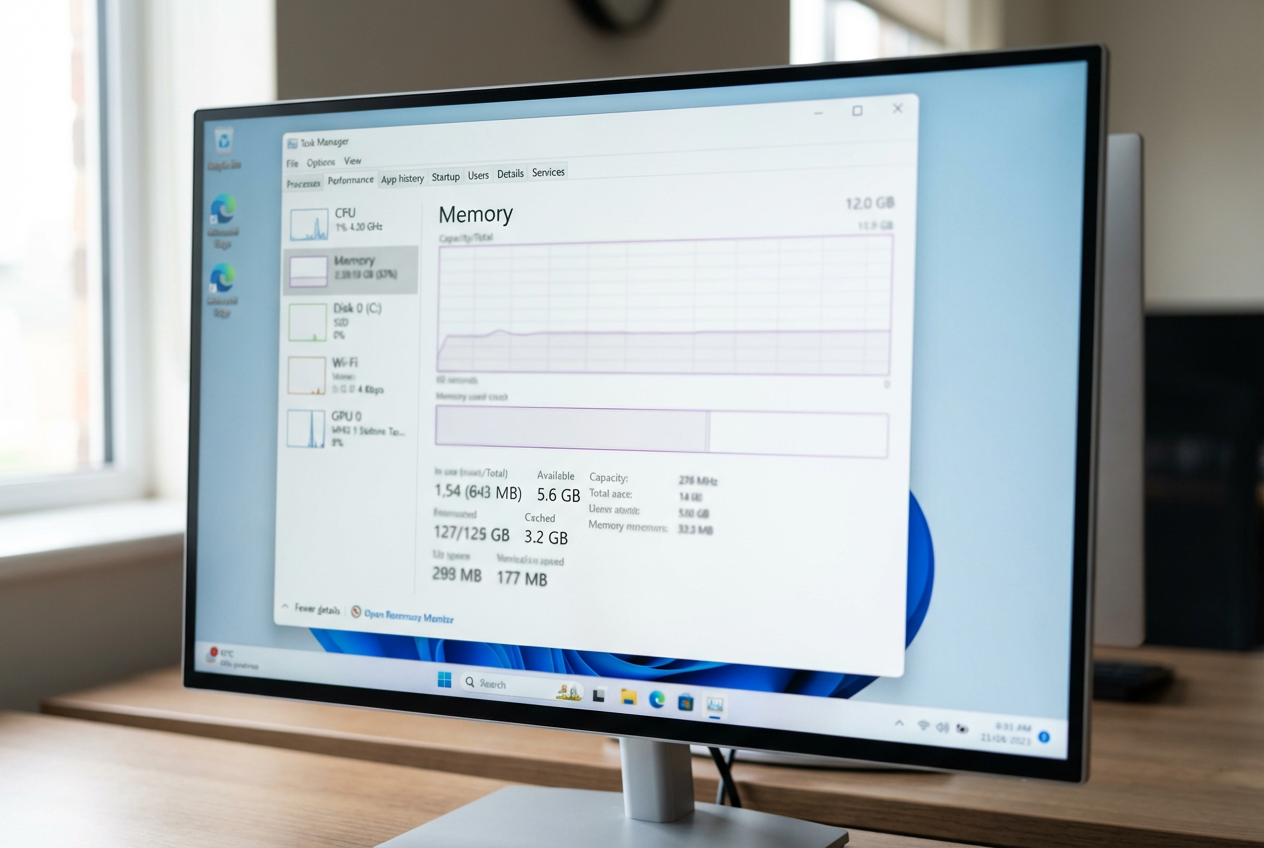
That cross-check is where people get uneasy: Settings says “16 GB installed,” but Task Manager shows different numbers depending on where you look. Open Task Manager (Ctrl+Shift+Esc) > Performance > Memory. Treat Capacity (or the top-right total) as your practical “usable ceiling,” because it reflects what Windows can address after any hardware reserve. If that total is far below your installed RAM, that’s a real constraint on how many apps you can keep open.
Then look at what’s happening right now. In use is memory actively used by Windows and apps. Available is what you can use without paging to disk, which is what affects stutters when you open a big file or a game. A common friction: Cached can make “used” look high even when you’re fine, because Windows fills spare RAM to speed things up. For performance decisions, focus on “Available” when things feel slow.
Before you buy RAM, double-check what your PC can actually take
That “usable ceiling” is the number that makes you want to shop, but buying RAM is where PCs get picky. Two machines can both show 8 GB installed and still take very different upgrades, because the limit isn’t set by Windows—it’s set by the motherboard and CPU.
Start with what you can confirm without opening anything. In Task Manager > Performance > Memory, note the Speed and how many Slots used (for example, “1 of 2”). If both slots are already used, an upgrade usually means replacing sticks, not adding one. That’s the common “surprise cost” people hit.
Then check your model’s max RAM and type before you click Buy. A laptop might top out at 16 GB even if you want 32 GB, or it may have some memory soldered so only one slot is upgradable. If you don’t see a clear path on paper, try the quick Windows-side fixes first.
If Windows can’t see all your RAM: quick fixes to try (and when not to panic)
If you don’t see a clear path on paper, the next best move is confirming Windows isn’t leaving RAM on the table. Start with the simplest check: a full restart (not Sleep), then recheck Task Manager > Performance > Memory. If the total is still low, open System Information (search it from Start) and look at Installed Physical Memory versus Total Physical Memory. A big gap usually points to “hardware reserved,” not a bad upgrade choice.
Two quick fixes are worth trying before you open the case. First, update your BIOS/UEFI and chipset drivers from your PC maker—firmware bugs can misreport memory. Second, check BIOS/UEFI for an iGPU/shared-memory setting that’s reserving an unusually large chunk (common on some laptops).
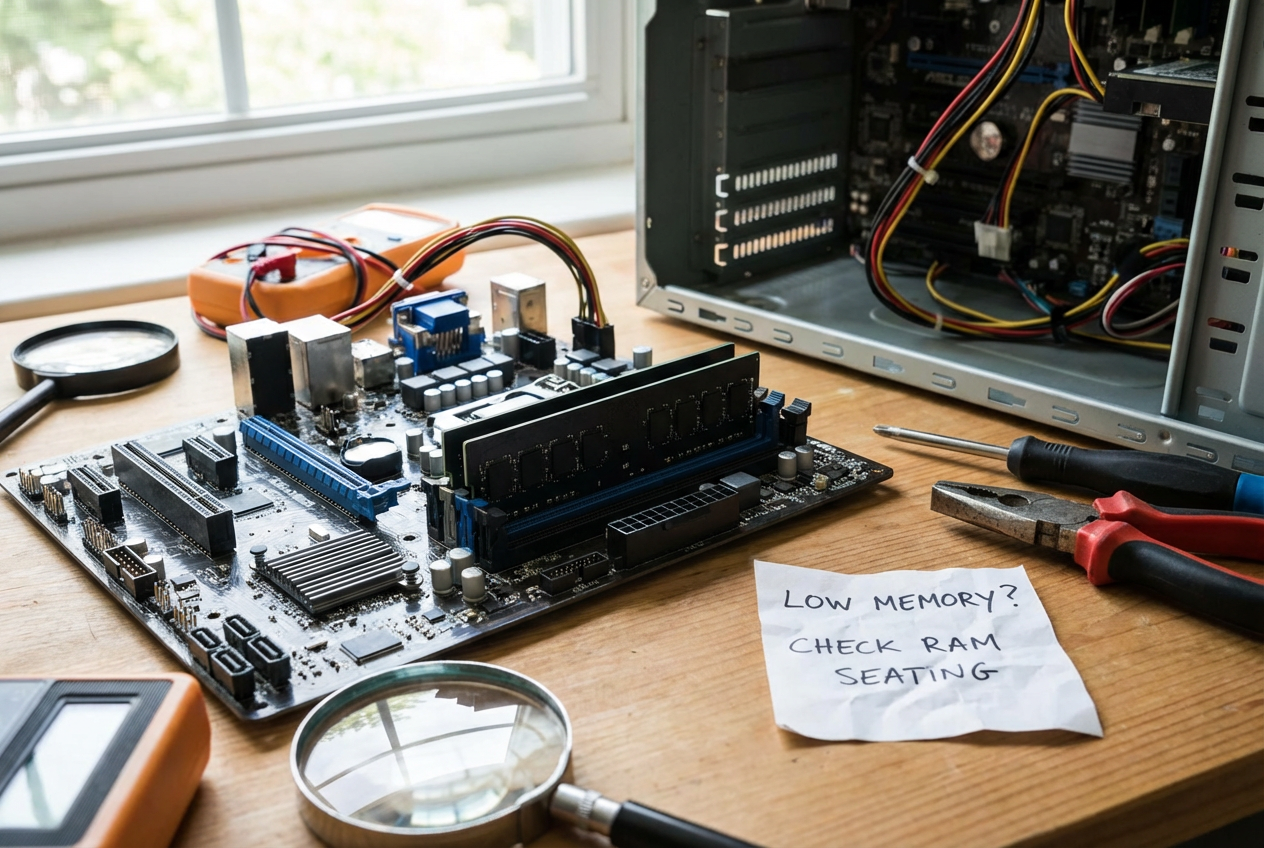
When not to panic: a small difference like 7.9 GB usable from 8 GB installed is normal. When to dig deeper: if Windows is stuck in a much lower mode (for example, 16 GB installed but only ~8 GB total), you may be looking at a seating issue or a failing stick—which changes what you buy next.
Make your call: upgrade, troubleshoot, or stop worrying
If Windows shows “8 GB installed” and Task Manager’s total is about the same, you’re not missing RAM. At that point, decide based on pressure: if “Available” drops near zero when you work (lots of tabs, video calls, big spreadsheets), an upgrade will feel immediate. If “Available” stays healthy but things still lag, more RAM won’t fix it—look at disk usage, startup apps, or overheating instead.
If installed and usable are far apart, troubleshoot before you buy. A huge “hardware reserved” chunk, a BIOS/iGPU setting, or a stick that isn’t detected can make a purchase pointless until the system can see it.