Finder fatigue: when “good enough” starts costing you minutes every hour
You open Finder to grab one file, then bounce between Downloads, a project folder, and a cloud drive. After a few hops, the small delays stack up: windows pile up, you lose the path you were on, and “just drag it over” turns into a mini cleanup job. None of it is dramatic. It’s just constant.
That’s Finder fatigue: the friction you feel when you repeat the same moves all day—re-finding folders, re-sorting columns, re-running searches, re-selecting batches. If you touch files for work, media, or client handoffs, “good enough” starts charging a time tax every hour.
Replacing Finder isn’t hard because alternatives don’t exist. It’s hard because you need speed without breaking muscle memory—plus the right mix of navigation, comparison, and batch control for what you actually do.
What are you actually trying to do faster—navigate, compare, or process files?
That “right mix” usually gets clearer the moment you notice what slows you down. If you’re constantly drilling into nested folders and jumping back out, you’re trying to navigate faster. If your day is “take this version from here, that asset from there,” you’re trying to compare faster. If you keep selecting twenty items to rename, move, tag, compress, or convert, you’re trying to process files faster.
Those three goals map to different tools. Navigation speed comes from tabs, favorites, and a quick way to jump to recent and frequent folders. Comparison speed comes from dual-pane views, split views, and synchronized scrolling between folders. Processing speed comes from batch rename, queued operations, and safer “preview before you commit” steps.
The trade-off is real: the more an app optimizes for power processing, the more you’ll feel a learning curve. The trick is to pick the category you’ll use ten times a day, then judge everything else as a bonus.
The features that matter after day three (not the flashy ones)
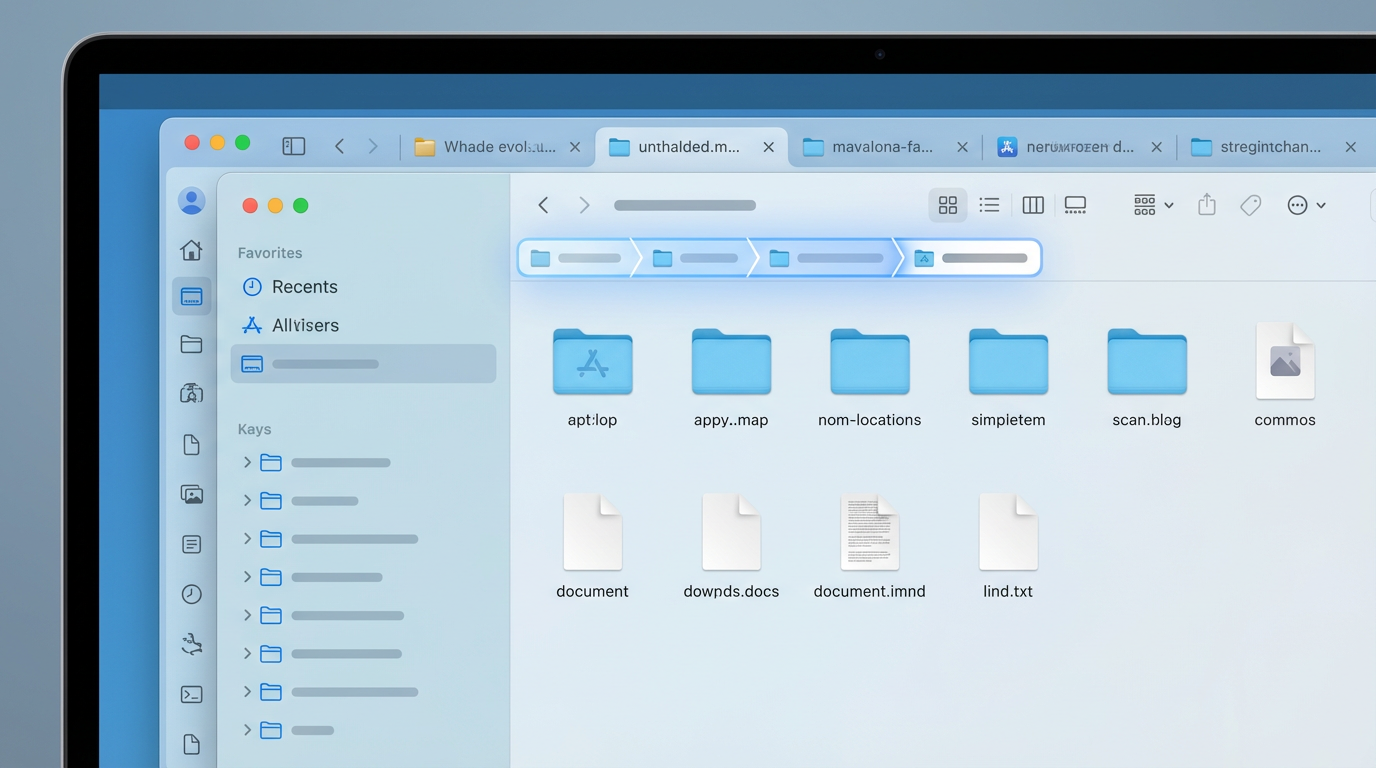
That “bonus” stuff is where a lot of Finder replacements win the demo and lose you by day three. What sticks is what saves clicks when you’re tired: a persistent sidebar of favorites and recent folders, tabs that remember where you were, and a path bar you can edit to jump up or sideways without backtracking.
For comparison, split/dual-pane is only half the story. You also want independent sort and view settings per pane, plus a reliable preview (Quick Look support) so you don’t open five files just to confirm which is which. The friction you’ll hit: some apps feel fast until you realize previews are limited for certain file types or columns don’t behave consistently across folders.
For processing, look past “batch rename” as a checkbox. The practical wins are queued file operations (so big moves don’t block you), undo for file actions, and a rename preview that shows exact results before it touches anything. Then you can decide how much macOS integration you’re willing to trade for that control.
How much macOS integration do you need to keep your habits intact?
That trade—more control for less “it just works”—usually shows up the first time you right-click. If your day depends on Services, tags, color labels, Quick Actions, and “Share…” targets (AirDrop, Messages, Mail), weak integration will slow you down in a new way: you’ll export files to Finder just to do the thing you already know how to do.
Start by listing your non-negotiables. Many people need reliable Quick Look, consistent file associations (“Open With”), and Spotlight-like search that respects metadata. If you live in tags—say, marking selects, finals, and deliverables—make sure the app reads and writes Finder tags, not its own. The friction: some tools are fast but treat tags, comments, and extended attributes as optional, which can break an existing filing habit without you noticing.
Then decide how far you want to push beyond Finder. The more you rely on custom shortcuts, dual-pane workflows, and built-in rename/move rules, the less you’ll care about perfect Finder sameness—and the more you should care about how the app behaves with iCloud Drive and network volumes.
A short list you can trust: which app fits your workflow (and why)
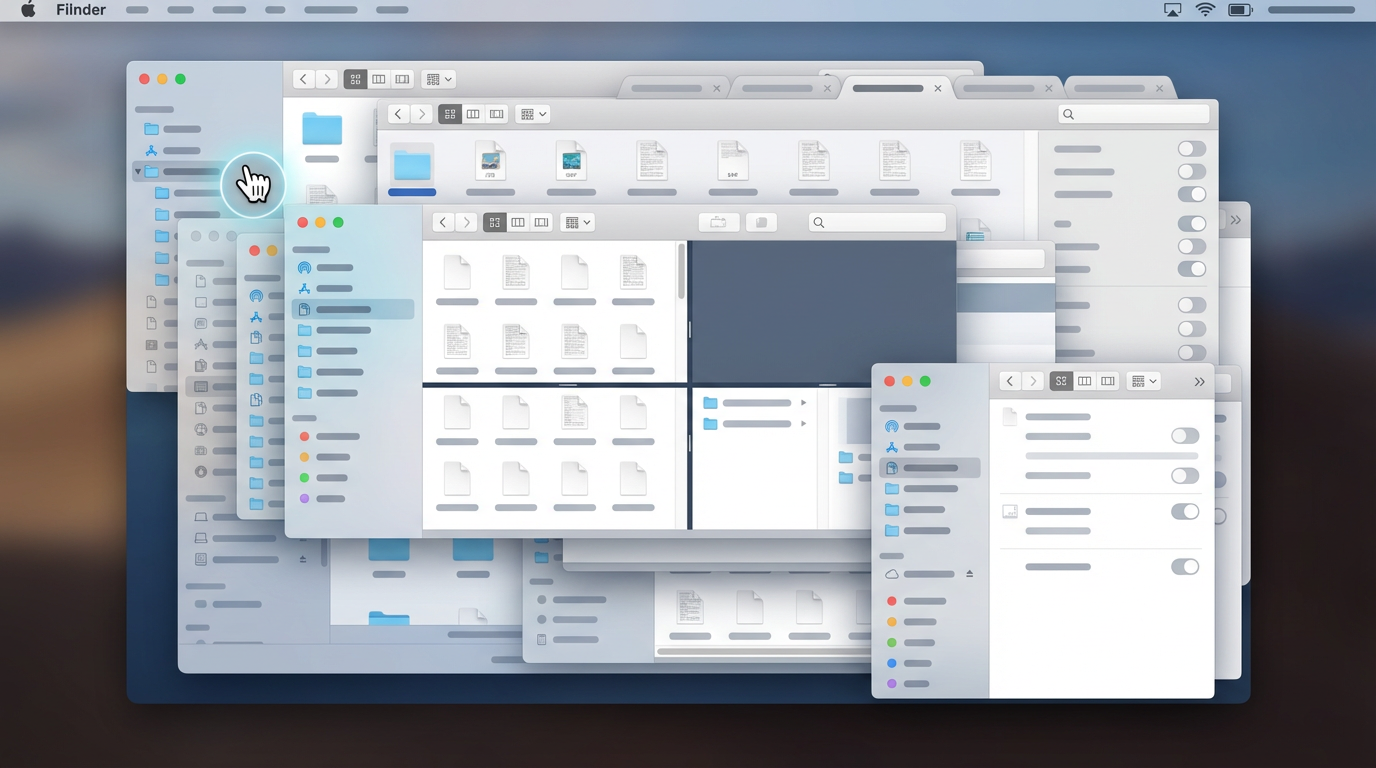
That behavior on iCloud Drive and network volumes is where the shortlist gets real, because the “best” app is usually the one that matches the way you move through folders all day. If you mostly need faster navigation with minimal retraining, start with something Finder-adjacent like Path Finder or QSpace: they add tabs, split views, and smarter sidebars while keeping the basic mental model intact. The trade-off is density—more panels and toggles can feel busy until you hide what you don’t use.
If your work is constant two-folder shuffling—assets from one place, deliverables to another—ForkLift earns its spot because it’s built around dual-pane and “move/compare” flow. It tends to fit people who want speed without turning file management into a hobby. The friction you’ll hit is that some advanced actions live behind shortcuts and toolbar customization, not obvious menus.
If you process files in batches and you like keyboard-driven control, look at Nimble Commander or Marta. They reward repetition, but the learning curve is real—especially once remote mounts enter the picture.
Cloud and remote mounts: do you need SFTP, SMB power tools, or just reliable iCloud?
Remote mounts are where a Finder replacement either feels like a real upgrade or turns into “open Finder for that one thing.” The common moment: you connect to a NAS over SMB, or a server over SFTP, and the app suddenly can’t preview files, stalls on big folders, or forgets credentials and bookmarks.
If your work is mostly iCloud Drive and local disks, prioritize reliability over features. You want consistent syncing status, predictable file locks, and no weird “ghost” files when iCloud is still downloading. The trade-off is that apps that stay closest to Finder may do less to help you recover from conflicts or sort out duplicated versions.
If you touch servers weekly, treat SFTP/FTP/WebDAV as a first-class requirement. Look for saved connections, dual-pane transfers, queueing, resume, and a clear “what’s uploading right now” view so you don’t overwrite a live asset by accident. If you live on SMB daily, test the ugly cases: long paths, thousands of items, and permission errors—then you’re ready to set up a trial that matches your real day.
Your 30-minute trial plan (so you don’t “switch” twice)
That “ugly cases” test is exactly what a good trial should force into the open, fast. Set a 30-minute timer and pick one real folder pair you touch daily (for example: Downloads → current project, or NAS assets → local working folder). In the first 10 minutes, only navigate: open the same three locations five different ways (sidebar, search, path bar, recent, favorites) and confirm Quick Look, tags, and “Open With” behave the way your habits expect.
Minutes 10–20 are for compare and move. Run dual-pane or split view, sort panes differently, and do a small shuffle: move 20 mixed files, rename a batch with preview, then undo at least one operation on purpose. If undo is missing or unreliable, you’ll feel it later—usually after a long day.
Use the last 10 minutes on your worst mount (iCloud, SMB, or SFTP): connect, copy a few hundred MB, interrupt it, and confirm it resumes cleanly. If the app passes that, you can commit to shortcuts and layout without worrying you’ll crawl back to Finder next week.
Choosing the best alternative is really choosing your default file workflow
If an app passes your trial, the real decision starts: what do you want your “default” file moment to feel like at 3 p.m. on a busy day? Most people don’t fail because the app is missing a feature. They fail because the app’s defaults don’t match how they think—where tabs land, what a new window shows, whether dual-pane is always there, and how aggressive confirmations and queues feel.
Pick the workflow you’ll commit to: Finder-adjacent speed, dual-pane shuffling, or keyboard-first processing. Then accept the trade-off you’re buying: less macOS sameness, more setup, or a paid license. Set it as your default file manager, save one layout, learn five shortcuts, and stop evaluating. The win is consistency.