You just want a few VMs—why picking a hypervisor feels harder than it should
You grab a spare PC, picture two or three VMs, and assume the hard part is picking Linux vs Windows. Then the hypervisor shortlist turns into a maze: “bare metal” vs “hosted,” web UI vs command line, free vs “free until it isn’t,” and forum advice that assumes a rack of servers.
The catch is that home labs hit different constraints than work setups. If your NIC or storage controller isn’t supported, install day becomes a wall. If backups are awkward, every experiment feels risky. If remote management is clunky, you stop using it.
That’s why this choice feels bigger than it is: you’re really picking the setup friction you can live with. Before software debates, make sure your box will even cooperate.
First reality check: will your spare PC actually play nice with virtualization?
That “will it even cooperate” part usually shows up fast: you boot an installer, it can’t see your drive, or the network port never comes up. Before you compare dashboards, check the boring basics that decide whether install day is smooth or a weekend of driver hunting.
Start with CPU virtualization support (Intel VT-x/AMD-V) and, if you want clean PCI passthrough later, IOMMU (VT-d/AMD-Vi). Then look at RAM. Two light VMs can be fine on 16GB, but the moment you add a database, a Windows VM, or a few containers, you’ll feel it. Storage is the other common tripwire: some consumer RAID modes and odd SATA controllers confuse hypervisors, while plain AHCI or a simple NVMe drive tends to behave.
Finally, check networking. Realtek NICs often “work,” but can be flaky under load; Intel NICs are the boring, stable choice. If your hardware is borderline, that pushes you toward the hypervisor that’s most forgiving on drivers and updates.
If you’re happy with Linux and want one box to do it all: does Proxmox VE fit your style?

That “most forgiving on drivers and updates” point is where Proxmox VE often lands for home labs that already like Linux. You install it as a Debian-based, bare-metal host, then do nearly everything from a web UI: create VMs, spin up LXC containers, attach storage, and watch CPU/RAM usage without babysitting a local monitor.
The big appeal is that it can be your all-in-one box. You can run a couple of Linux VMs for services, keep a Windows VM for the odd tool, and still have lightweight containers for things like monitoring. Storage flexibility is a practical win too: ZFS is right there if you want snapshots and easy rollback after a bad update, but you can also keep it simple with a single disk and basic ext4.
The trade-off is that Proxmox rewards comfort with Linux plumbing. If you need perfect Wi‑Fi, quirky consumer RAID, or you dislike reading logs when something feels “off,” you may hit friction. If that’s acceptable, the next calm step is installing Proxmox on clean storage and launching one VM plus one container to test your hardware path.
When you want ‘appliance mode’ and polished VM lifecycle tools: is XCP-ng + Xen Orchestra the calm path?
That “calm step” can also mean choosing a stack that feels less like a Linux server you maintain and more like a small appliance you drive from a cockpit. XCP-ng is a bare-metal hypervisor, and Xen Orchestra is the web UI that makes the day-to-day stuff—creating VMs, cloning templates, taking snapshots, and wiring networks—feel organized instead of improvised.
In practice, it shines when you want repeatable VM lifecycle work. You can build one “golden” Ubuntu VM, clone it twice, and keep both updated with predictable snapshots before you change anything risky. The built-in flow around backups (often via Xen Orchestra’s scheduling) is a big reason people call it the calm path: you set a routine, and experiments stop feeling like one-way doors.
The friction is that it’s mostly VMs, not a “VMs plus containers” mindset, and hardware support can be less forgiving than a general Linux host. If your NIC is odd or you need Wi‑Fi, expect extra work, and that’s where the “appliance” promise can crack.
Already living in Windows: is Hyper-V “good enough,” or will it fight your lab plans later?
That “appliance promise can crack” feeling also shows up when you try to keep Windows as the center of the lab and add Hyper-V on top. The usual path is familiar: you already have Windows on the box, you enable the Hyper-V role, and you’re spinning up a couple of VMs without learning a new host OS. For a light lab—one Linux server VM, one Windows test VM—Hyper-V can be perfectly fine, especially if you like managing things from Windows tools.
The friction shows up when “a couple of VMs” turns into a routine. Remote-first management is doable, but it’s easy to end up juggling Hyper-V Manager, PowerShell, and file shares for ISO storage and exports. Backups can feel improvised unless you commit to a plan (VM exports, Windows Server Backup, or third-party tools), and storage features depend on how you set up disks and virtual switches.
The real trade-off is lock-in to a Windows host. If you later want a cleaner appliance-style workflow or container-first habits, you may end up migrating VMs instead of just adding capacity.
The home-lab dealbreakers: backups, remote management, and how you recover after a bad experiment
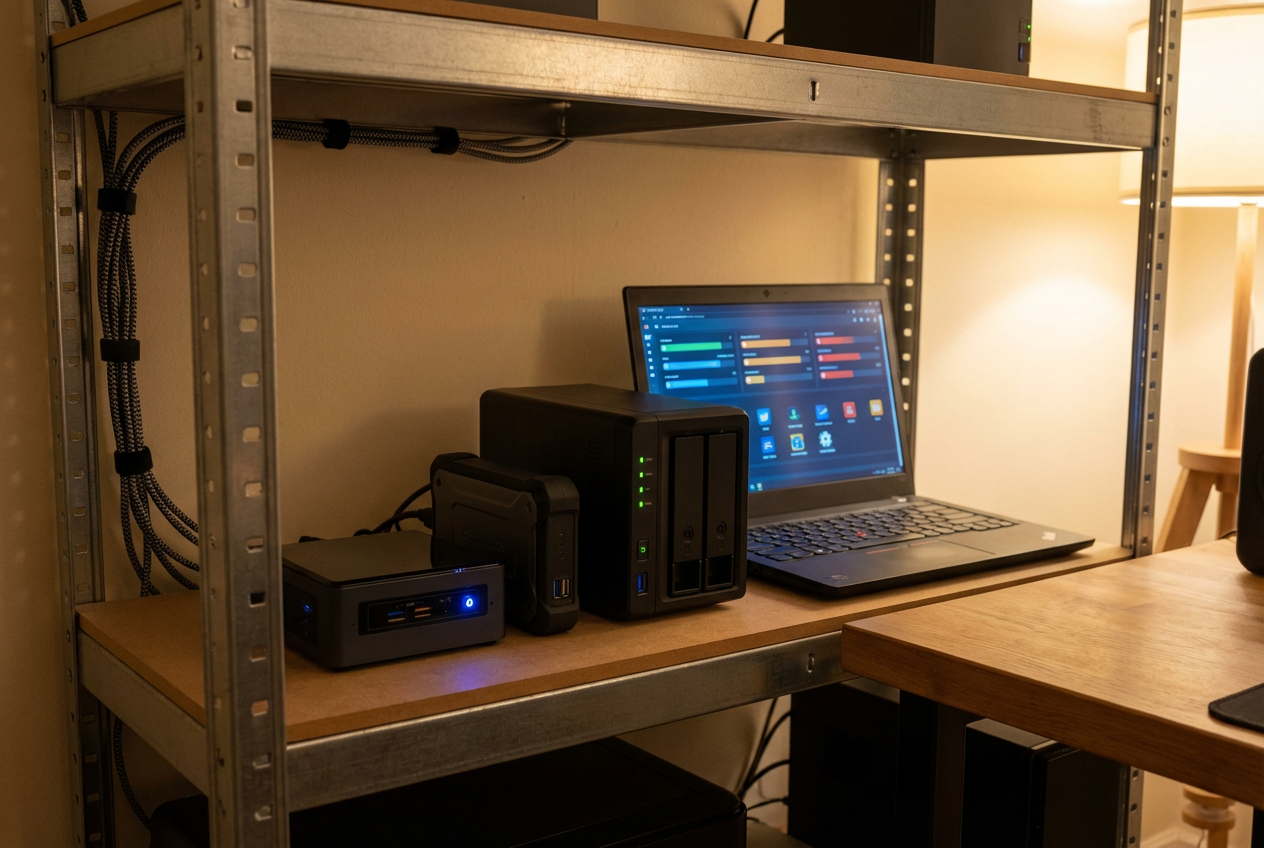
That “migrating VMs later” risk gets real the first time you break something on purpose—and then realize you don’t have a clean way back. In a home lab, the dealbreakers aren’t fancy features; they’re whether you can roll back fast, manage the host from another room, and rebuild without guesswork when the box won’t boot.
Start with backups, not snapshots. Snapshots are great before an update, but they’re not your exit plan if the SSD dies. Proxmox and XCP-ng both make scheduled backups feel like a built-in habit, while Hyper-V often pushes you toward exports or Windows-native/third-party backup tools. The practical friction: backups need storage. If you don’t have a second disk, a NAS, or even a USB drive you’ll actually plug in, your “plan” becomes hope.
Remote management is the other daily multiplier. If you can’t restart a stuck VM, mount an ISO, or check logs from a laptop, you’ll avoid experimenting. Also decide how you recover the host: keep installer media handy, document where VM disks live, and test one restore now—before you trust any setup with your real data.
Pick one today, not forever: the safest next step to install and launch your first two VMs
Testing one restore now also gives you permission to stop “researching” and actually pick. If you’re Linux-comfortable and want VMs plus containers on one box, install Proxmox on a clean disk. If you want a cockpit-style VM workflow and scheduled backups you’ll really use, go XCP-ng and add Xen Orchestra early. If the PC already runs Windows and you need low disruption, turn on Hyper-V and accept that backups may take more effort.
Then do the same proof run: create two small VMs (one Linux, one “throwaway”), set static IPs, snapshot, take a real backup to a second target, and restore one VM. If that loop feels easy, you’ve found your starting point.