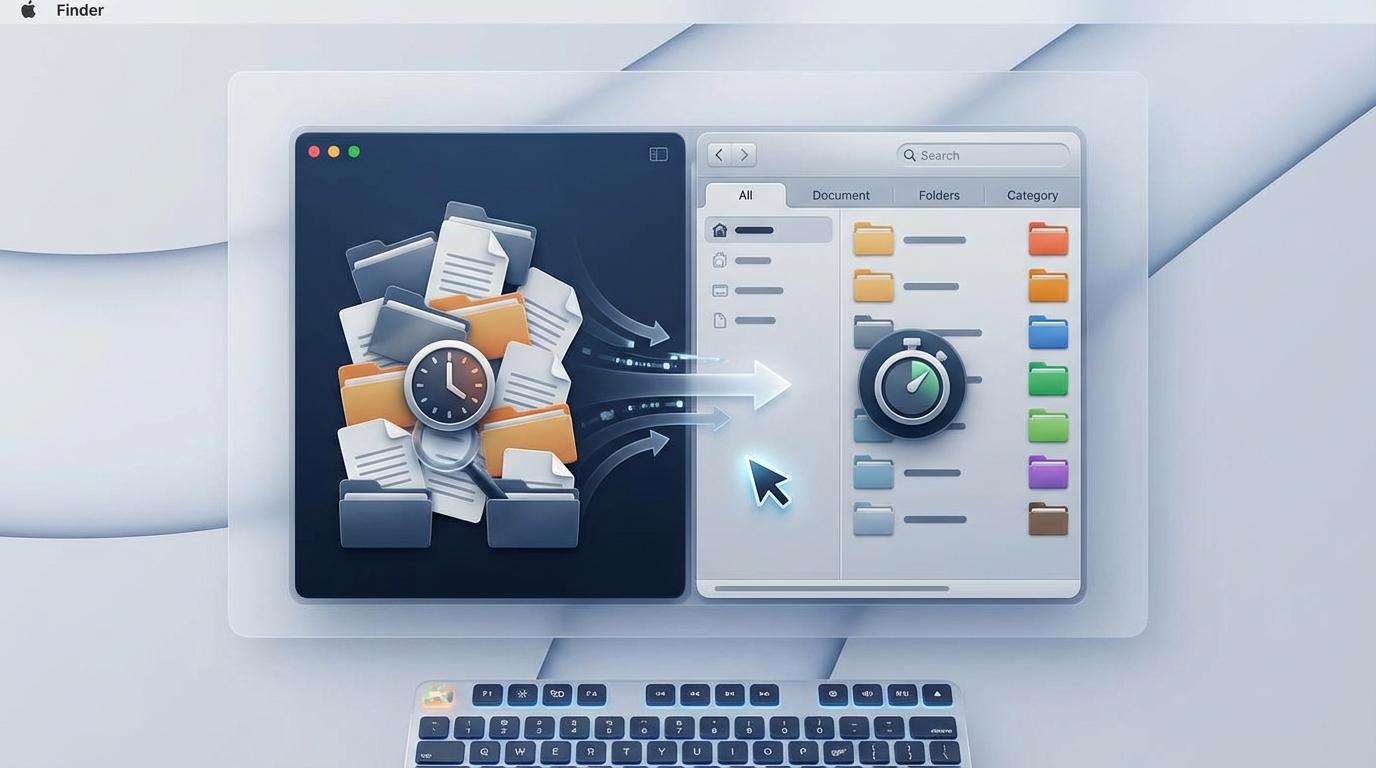
You’re about to travel—what does “download” actually mean for this video?
You’re packing, your signal is spotty, and you tap “download” because you just want the video to play on a plane or in a hotel with weak Wi‑Fi. The catch is that “download” can mean two very different things: saving the video inside the YouTube app (it plays there, usually with limits), or getting a real video file you can open in Photos, Files, or VLC.
Those two paths have different risks and rules. App downloads are usually safer but can expire or require periodic check-ins. File downloads can be useful, but the internet is full of fake buttons, malware-y sites, and tools that can get your account flagged. The key is picking the right kind of offline access for your specific situation.
First check: can YouTube’s built-in Offline/Downloads do the job on your device?
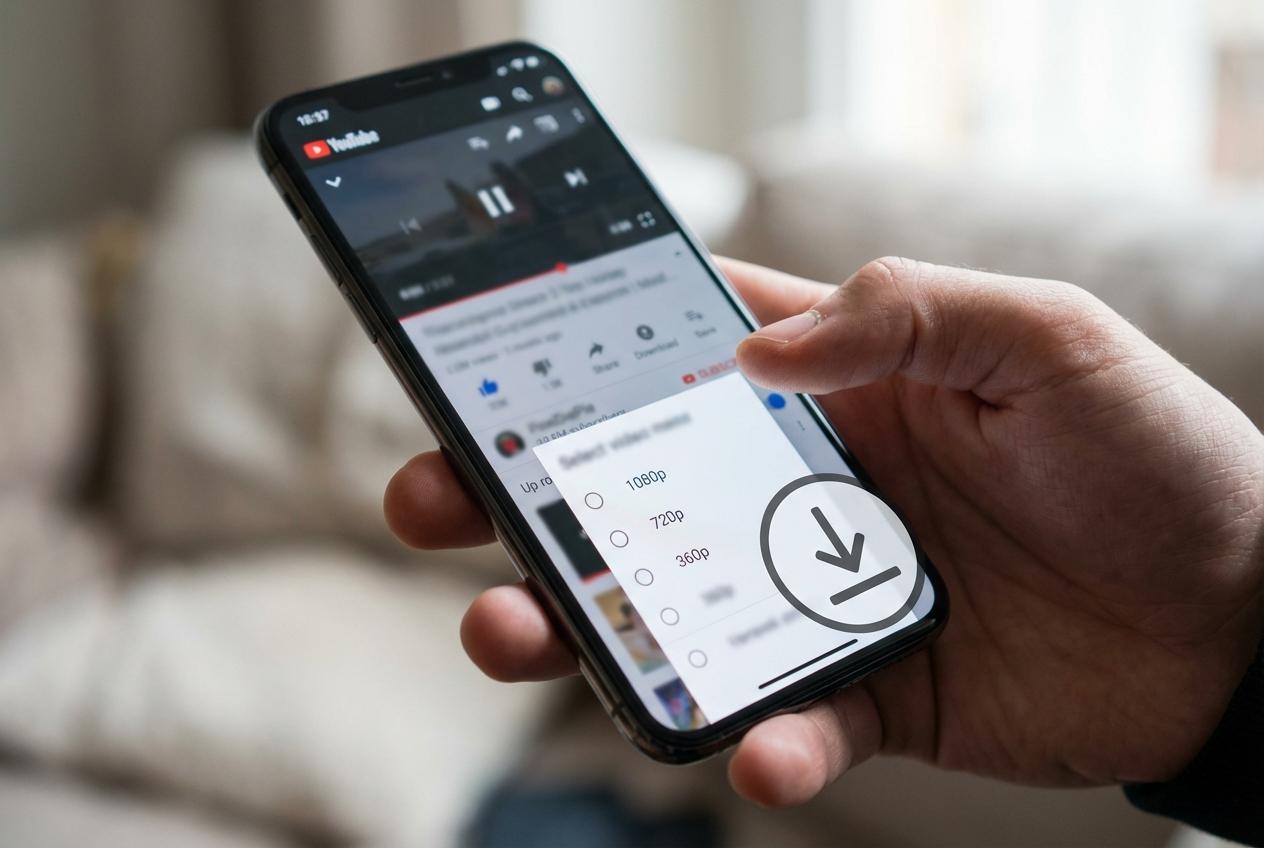
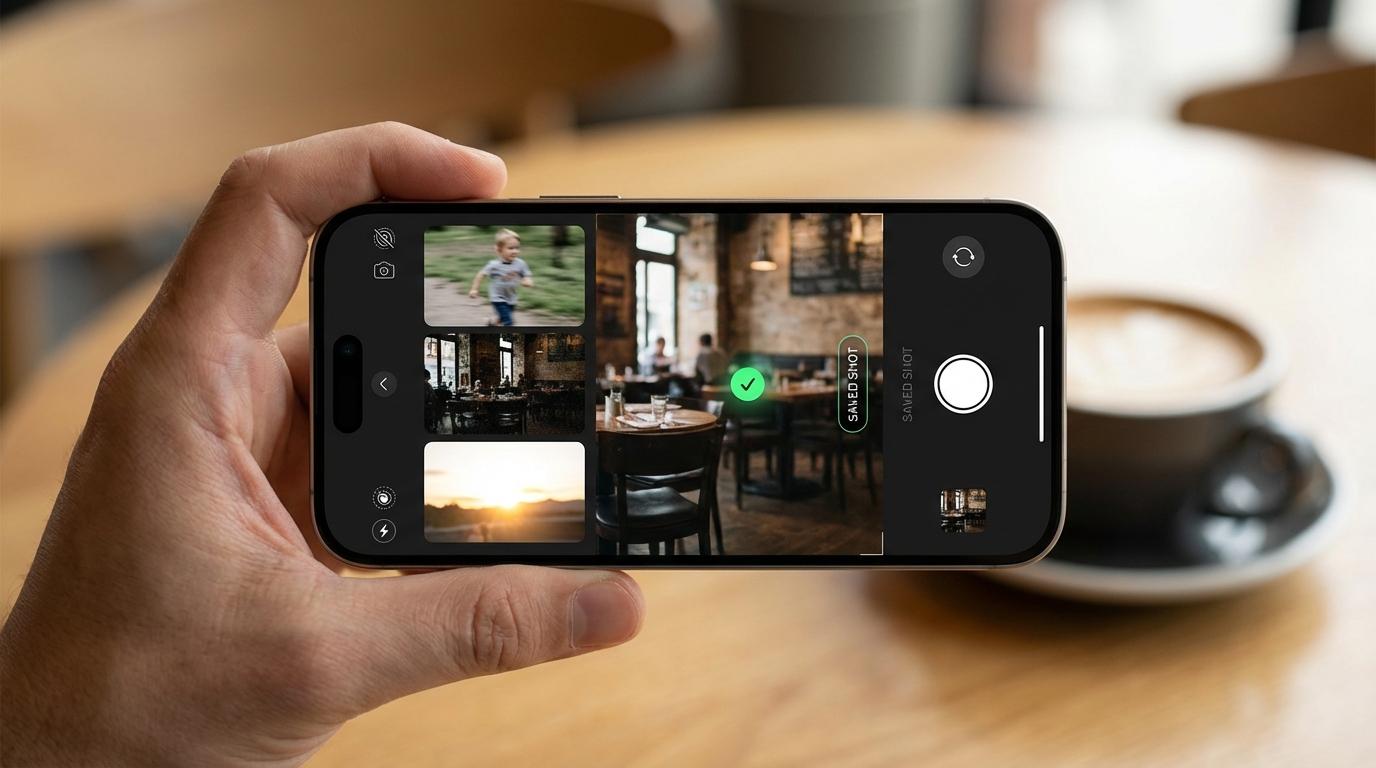
That “right kind of offline access” often ends up being the simplest one: YouTube’s own Offline/Downloads, where the video stays inside the app instead of becoming a file on your device. On iPhone and Android, this is the first thing to test because it avoids sketchy sites and usually keeps you in-bounds on account and playback rules.
Open the video in the YouTube app and look for a Download button (sometimes under Save or the … menu). If you see it, you’ll typically pick a quality level and the download will appear under You (or Library) > Downloads. The friction: this option isn’t universal. It may require YouTube Premium, may not appear for every video, and downloads can expire or need occasional internet check-ins. If you don’t see the button—or you need a file outside YouTube—then you’re in the “actual file” decision territory.
Before you grab a file: are you allowed to save this video offline?
That “actual file” territory is where a lot of people get tripped up, because the technical question (“can I do it?”) isn’t the same as the permission question (“am I allowed to?”). In plain terms: YouTube’s built-in downloads are meant to be the approved offline path, and many creators and rights-holders don’t grant blanket permission for separate file copies.
A quick gut-check helps. If it’s a movie clip, a TV segment, a music video, a live sports highlight, or anything that looks like it’s owned by a big studio or label, assume a third‑party “downloader” is more likely to violate YouTube’s Terms or the copyright owner’s rules. Even if your intent is harmless—watching on a flight—the rule is about copying and bypassing YouTube’s normal controls, not your reason.
The practical friction: some videos are OK to save, but you need a clear signal. Look for explicit creator permission, a license note (like Creative Commons) in the description, or a direct download link from the creator. If you can’t find one, your safest move is to treat in-app Offline as the fallback and only pursue a real file when permission is clear.
If you need an actual file, pick your safest route (and what to avoid)

Once permission is clear, the safest “actual file” route usually looks boring: the creator provides it. That might be a direct download link in the description, a file on their official site, or a copy they’ve posted on a platform meant for downloads (like an episode file or a course asset). It’s not always instant, but it’s the one path where you’re less likely to fight broken formats, shady redirects, or files that don’t match the video you expected.
If there’s no creator-provided file, be careful with “YouTube downloader” sites and random browser extensions. The common failure mode is simple: you click one big “Download” button, it installs something you didn’t want, or it hands you a low-quality file with no audio. Another trade-off: tools that promise “one-click 4K MP4” often push you into extra installers, ads, or login prompts you should never trust.
The safe decision rule: only use tools from known vendors you can name, avoid anything that asks for your YouTube password, and choose a route that saves locally without extra “helper” apps. That sets you up to decide the right steps for phone versus laptop.
Phone or laptop? The steps change more than you’d expect
That “save locally without extra helper apps” rule plays out very differently on a phone than on a laptop. On a phone, the fastest route is usually still in-app Offline, because iOS and Android make it harder for a browser to hand you a clean, usable video file. Even when a creator provides a legitimate download, you can end up with a file that lands in an odd place (Files/Downloads), won’t open in Photos, or won’t cast the way you expect.
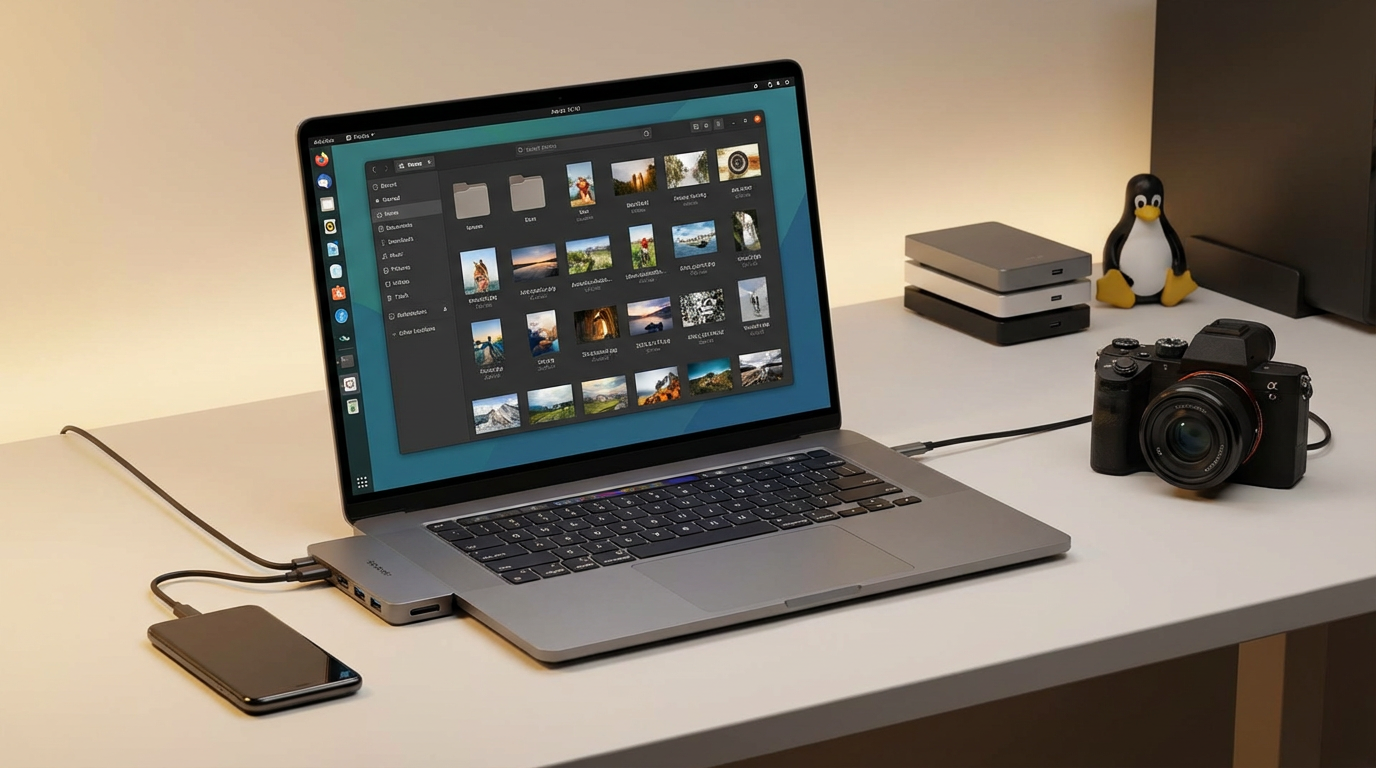
On a laptop, you have more control: the same creator-provided file is easier to save, rename, and test in a standard player. The trade-off is exposure—desktop browsers are where fake “Download” buttons, extensions, and bundled installers are most aggressive. If a tool needs an extension, a separate installer, or any kind of sign-in, treat that as a stop sign.
So decide the device first: are you trying to watch on your phone, or are you really downloading on a laptop and then transferring the file?
Quality, captions, and storage: what you’ll wish you decided before hitting download
If you’ve decided “phone versus laptop,” the next surprise is how much your choices lock in once you hit download. A 1080p file looks nicer, but it can be 3–5× bigger than 480p, which matters when you’re trying to fit a few videos on a 64GB phone. If you’re watching on a small screen, 720p is often the best balance; if you’re mirroring to a TV in a hotel, you’ll notice the difference.
Captions are the other gotcha. Many downloads don’t include them unless you grab a separate subtitle file (often .srt) or choose a format that supports embedded captions. If you rely on subtitles for accents, quiet dialogue, or noisy flights, test this before you’re offline.
Finally, check where the file will live. “Downloads” can mean browser storage, a player’s library, or the YouTube app—and only one of those may be easy to find later.
Do a 30-second “offline test” so you’re not stuck without playback later
“Only one of those may be easy to find later” becomes painfully real when you’re at the gate and the video won’t play. Before you leave Wi‑Fi, switch your device to Airplane Mode and try to play the video from the exact place you plan to use it (YouTube app > Downloads, Files/Downloads, or your player’s library). Scrub 10 seconds forward, pause, resume, and rotate the screen once.
If it fails, you’ll usually learn why fast: the download is still incomplete, the app needs a quick sign-in, the file has no audio, or the player can’t read the format. Fixing any of those now takes minutes; fixing them mid-trip can take your whole plan.