You hit Send—did it actually leave yet?
You click Send, and your stomach drops because you notice a wrong attachment, a missing detail, or the message went to the wrong person. In that moment, it helps to know what Gmail can and can’t do.
Gmail doesn’t “pull back” an email after it’s truly sent. What it can do is delay delivery for a few seconds so you can cancel. If Undo Send is turned on, Gmail holds the message briefly, then releases it when the timer ends. The trade-off is simple: you get a safety buffer, but you have to act fast and the option is easy to miss.
That’s why spotting the Undo prompt in time matters.
Spotting the “Undo” prompt before it disappears (web inbox)
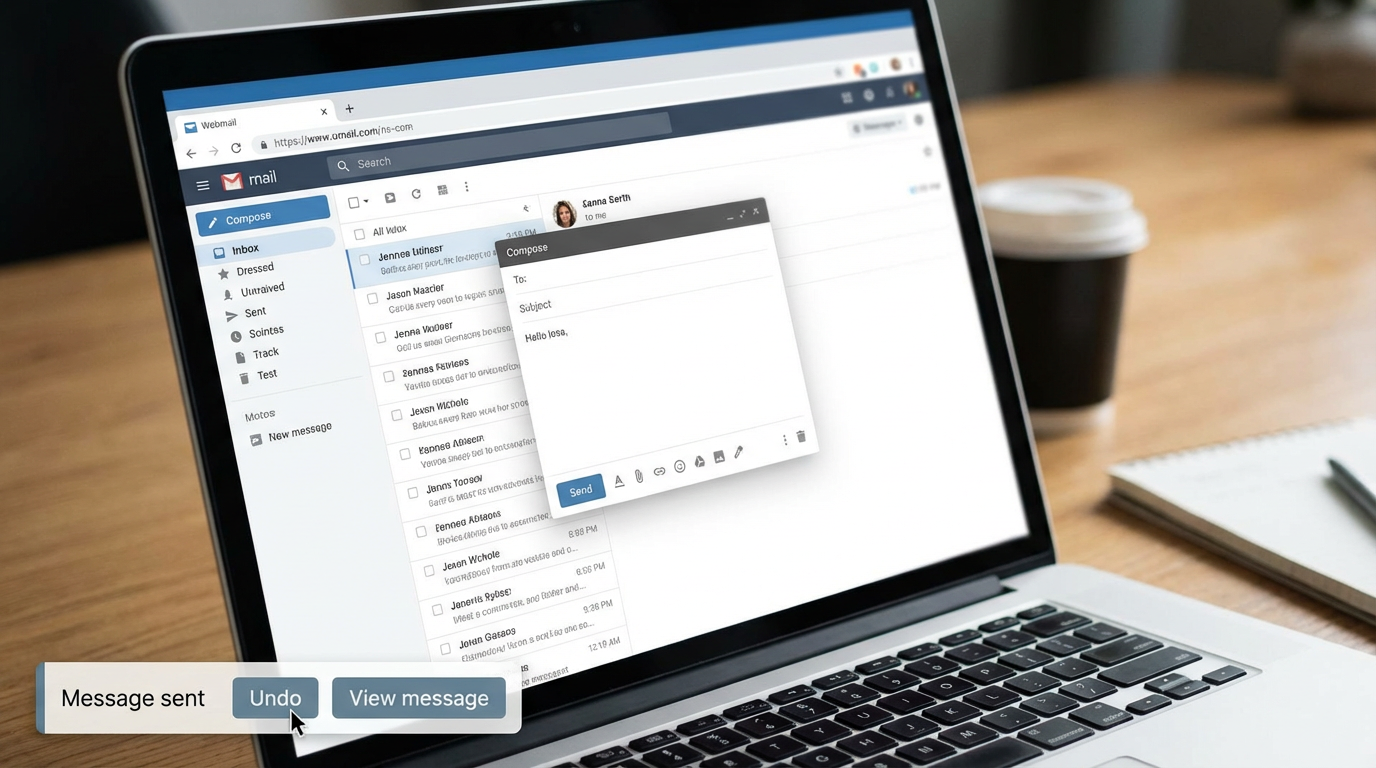
Spotting the Undo prompt in time usually comes down to where your eyes go right after you click Send. In the web version of Gmail, a small notification pops up in the lower-left corner that says your message was sent, with Undo and often View message beside it. It’s easy to miss if you immediately click into another email, switch browser tabs, or start typing a new message.
If you want to stop the email, click Undo before that notification disappears. Gmail will reopen the draft so you can fix the attachment, edit a line, or delete the message entirely. The friction is that the prompt fades on its own, and there’s no “Are you sure?” backup once it’s gone.
How long the prompt stays up depends on your cancellation window setting—which you can choose.
How long do you want to be able to cancel? Choosing the right Send cancellation window
That window setting decides whether the Undo prompt feels like a quick reflex or a real chance to catch yourself. In Gmail, you can choose how long delivery is delayed—typically 5, 10, 20, or 30 seconds. During that delay, the message hasn’t actually left yet, so clicking Undo cancels it and puts you back in the draft.
Most people pick 10 or 20 seconds because it matches a common “oh no” moment: you notice a bad attachment name, a missing link, or an auto-filled recipient right after you hit Send. If you often send emails with multiple attachments, long recipient lists, or sensitive details, 30 seconds can save you. The trade-off is small but real: every email leaves a little later, which can feel odd if you’re firing off quick replies in a fast back-and-forth.
The practical rule is simple: choose the shortest window that still covers your typical mistake. Then make sure the setting is actually turned on.
Turning on Undo Send (and confirming it’s really enabled)
That “make sure” part is where people get burned: you assume Undo Send is on because you’ve seen the prompt before, then one day it isn’t there. On the Gmail website, click the gear icon, choose See all settings, and stay on the General tab. Look for Undo Send, then set Send cancellation period to the window you picked.
The easy-to-miss step is at the bottom: click Save Changes. If you close the tab or click back to Inbox, your choice may not stick, and Gmail won’t warn you. After saving, send yourself a quick test email and watch the lower-left notification. You should see Undo immediately, and it should linger for the exact number of seconds you chose.
Even with it enabled, the timer is a hard limit. On your phone, the same feature exists, but the Undo button shows up in a different place.
On your phone, it feels different—where Undo hides in the Gmail app
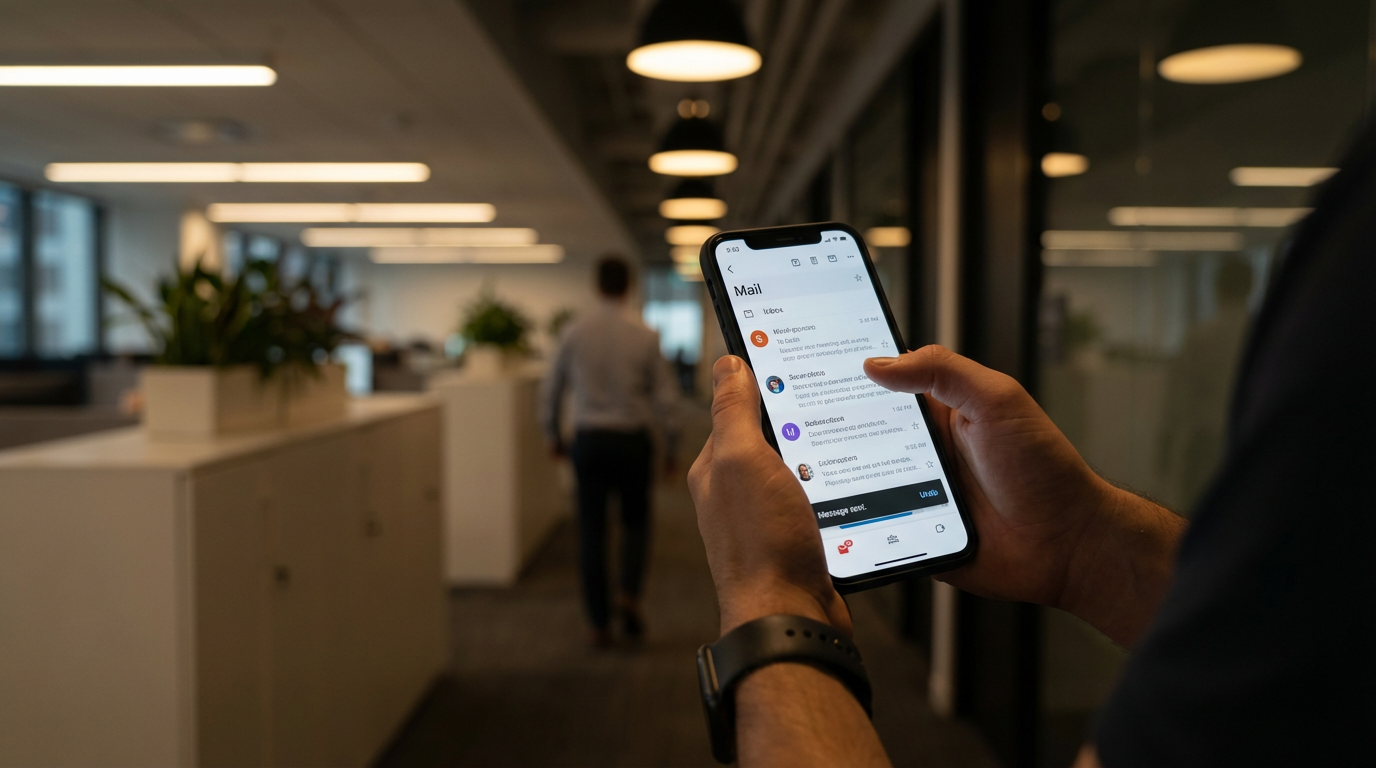
That different place is why people miss it: on your phone, you tap Send, the screen snaps back to your inbox, and it feels like the email is already gone. In the Gmail app, the Undo option shows up as a small bar along the bottom of the screen. It usually says something like “Sent,” with Undo on the right. If you’re looking at the top of the screen, or you immediately lock your phone, you won’t see it.
To cancel, tap Undo before the bar disappears. Gmail will drop you back into the draft so you can fix the recipient, edit the message, or delete it. The friction on mobile is speed: that bar can vanish while you’re switching apps, taking a call, or walking into a meeting.
If you don’t see Undo at all, don’t assume you imagined the feature—there are a few common reasons it won’t appear.
When Undo isn’t there: the three most common reasons and what to try next
That “no Undo” moment usually happens when you’re doing something ordinary: you hit Send, glance down, and there’s no bar or pop-up to tap. Before you assume Gmail failed you, check the simple causes first, because each one has a different fix.
Reason one: the cancellation window is set to 0 (or the setting never saved). On the web, open Settings → See all settings → General, confirm Undo Send is enabled, and click Save Changes. Then send a test email to yourself. Reason two: you’re looking in the wrong place for your device. Web shows it lower-left; the app shows a bottom bar. If you tap away, switch apps, or lock your phone, you can miss it.
Reason three: you’re not actually sending through Gmail’s own composer. Some “Send” buttons in other apps (or mail clients) don’t use Gmail’s Undo at all. If you need Undo, send from the Gmail website or the Gmail app and watch the screen for those few seconds.
If the timer ran out, what now? Damage control that actually works
Once the Undo timer expires, the message is out. At that point, Gmail can’t claw it back, so the goal shifts from “stop it” to “limit the fallout” as fast as you can.
Start by opening the email in Sent and checking exactly who received it and what went wrong. If it’s a wrong detail or missing attachment, send a short correction immediately with a clear subject like “Correction:” or “Updated attachment.” If it went to the wrong person, send a quick “Please disregard” and, if it’s sensitive, follow up with a direct message or call so the request doesn’t get ignored. Then increase your cancellation window for next time.