Your inbox isn’t broken—your setup is
You open email to answer one message and end up chasing three inboxes, two logins, and a browser full of tabs. Then the day gets louder: newsletters crowd out real requests, search misses the thread you know exists, and “mark as read” turns into a coping strategy. That’s not you failing at email. It’s a setup that was never built for multiple accounts, long histories, and constant context switching.
A good desktop client won’t magically fix bad habits, but it can remove friction: one place to view everything, rules that run the same way every day, and local controls that don’t depend on a provider’s web UI. The risk is real—search, folders, and calendar expectations can break if you assume every client behaves like Outlook. The goal here is a low-drama way to test whether Thunderbird actually makes your day simpler.
One place for every account (without living in tabs)
That “one place to view everything” only helps if it also ends the tab shuffle. In practice, most people keep webmail open because adding accounts to a client feels like a one-way door: one wrong server setting, and you’re stuck untangling duplicates or missing folders. Thunderbird’s setup is more forgiving than that. You can add multiple accounts side by side (work, personal, shared), keep them separate, or use a unified view that rolls new mail into a single inbox-style list while still showing which account each message came from.
The real win is reducing context switches. If you’re replying to a vendor from one address and forwarding to your team from another, you’re not bouncing between browser profiles or incognito windows. You pick the identity in the compose window and keep moving. The trade-off: unified views can hide problems. If one account stops syncing, it may look like “a quiet day” instead of a broken connection, so it’s worth keeping account folders visible in the sidebar.
Once everything is in one place, the next question is whether you can actually find what you need when it’s buried in years of mail.
When you need to find that email from last year, does it show up?
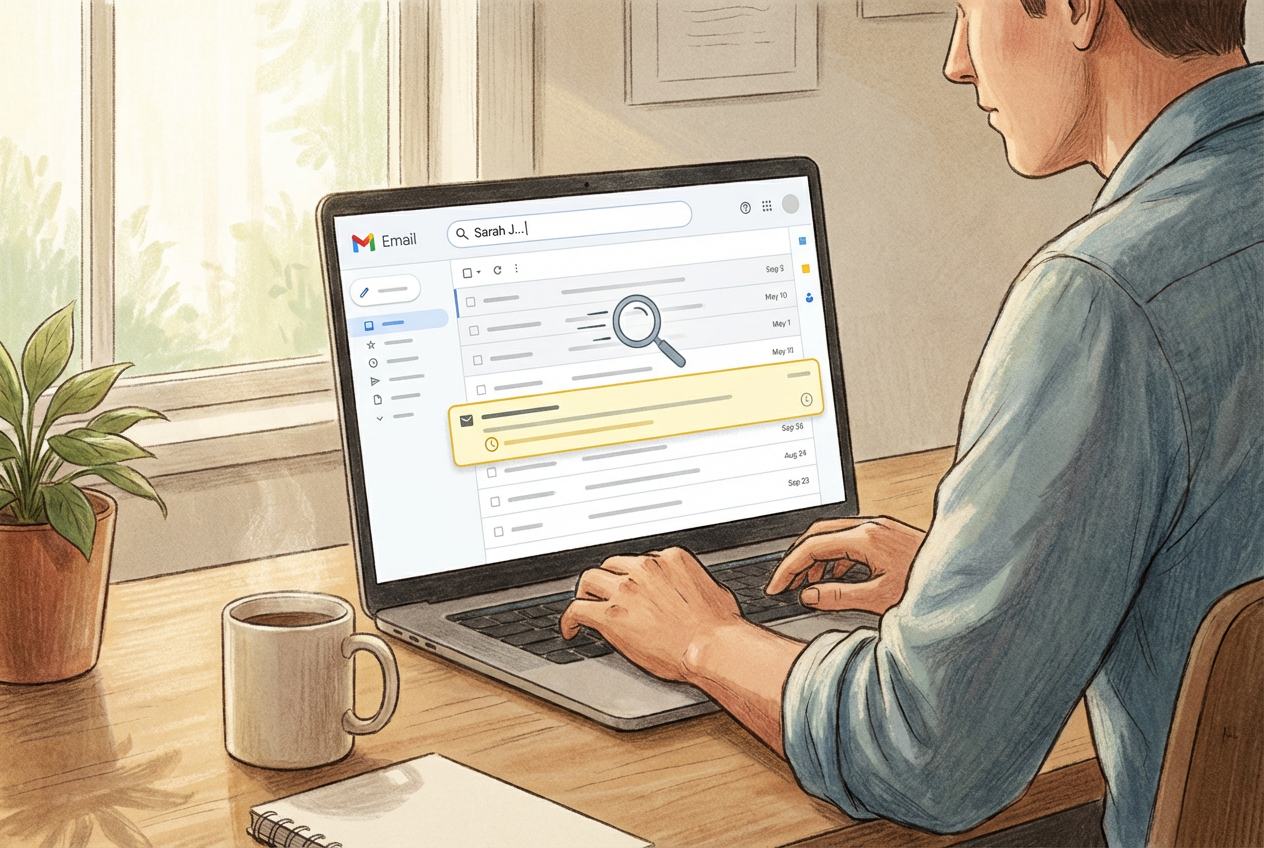
That “years of mail” part is where most clients either save you or waste your time. You type a name, a subject, maybe one odd phrase you remember—and you need the right message to appear fast, not a loose pile of “close enough” results. In Thunderbird, what shows up depends on a basic choice you’re already making, whether you realize it or not: do you keep mail on the server only, or do you let the client keep an offline copy for search?
If you use IMAP and your provider limits server-side search (or just implements it poorly), webmail can feel “smart” while a desktop client feels blind. The fix is usually simple: enable offline storage for the folders you care about (Sent and Archives are the usual culprits), then let Thunderbird index them. The trade-off is disk space and the initial download time—especially if you have multi‑gigabyte archives—so it’s often best to start with one account and a few key folders before you flip on everything.
Once search is dependable, the bigger win is making sure the next important thread doesn’t become “last year” in the first place.
Noise control: filters, folders, and rules that actually stick
If you check mail in bursts, the loudest senders tend to set the tone. A few mailing lists, auto-replies, and “FYI” chains can push real requests below the fold, so you skim, miss something, and then spend the afternoon doing cleanup. That’s the moment filters either earn their keep or get ignored.
In Thunderbird, the practical pattern is simple: decide what “important” means, then move everything else out of your main view automatically. Start with rules that are hard to misfire—newsletters to a “Read Later” folder, receipts to “Purchases,” anything with “[Ticket #]” to a project folder. If you rely on multiple accounts, make sure you notice whether a filter is per-account or global before you build ten of them and wonder why half your mail still lands in Inbox.
The trade-off is maintenance. Senders change addresses, subjects drift, and one sloppy rule can hide a message you needed today. Test new filters for a few days by tagging instead of moving, then tighten them once you trust the match.
Switching without losing anything: a low-risk first week
Testing a new client usually fails in the first 48 hours for a boring reason: you try to “fully switch” before you trust it. A low-risk first week with Thunderbird is more like adding a second dashboard, not ripping out the old one. Keep Outlook or webmail available, then add one account to Thunderbird first—ideally your no-drama personal inbox or a work account with predictable volume. Use IMAP so messages stay on the server, and avoid importing old local archives on day one. You’re trying to confirm day-to-day flow, not win the history battle yet.
For the first few days, focus on three checks: send/receive stability, folder mapping (Sent, Drafts, Archive), and search speed on the folders you actually use. If you use a lot of “Send As” addresses, test replying from each identity and confirm the From address and signature behave. Practical friction: calendar and contacts won’t match Outlook automatically, and some work accounts require app passwords or modern auth hoops. If that setup turns into a time sink, pause and validate the account method before adding the rest.
By the end of the week, you should know whether Thunderbird feels calmer—and which small tweaks would make it feel like yours.
Make it yours: add-ons, keyboard flows, and UI choices

Those “small tweaks” usually start the first time you reach for a familiar shortcut and nothing happens. Thunderbird can feel fast or clunky depending on how you drive it, so spend ten minutes setting your defaults: message list density, preview pane on/off, and a layout that keeps the folder tree visible if you’re watching multiple accounts. If you hate distractions, turn off message-pane extras and keep notifications conservative so you’re not reacting to every arrival.
Then fix your two highest-frequency moves. If you archive all day, make sure Archive targets the right folder per account. If you file mail, keep a short list of “go-to” folders and use quick folder jump instead of dragging. Keyboard flows are where the win shows up: reply, archive, next, repeat—without touching the mouse.
Add-ons can extend Thunderbird, but treat them like tools, not décor. Install one at a time, confirm it doesn’t slow startup or break updates, and keep a short uninstall list. That restraint makes the final decision simpler.
A quick go/no-go checklist before you commit
That restraint makes the final decision simpler when you run a quick go/no-go check. Go if: you can add at least one key account cleanly, send from the right identity, and your Sent/Drafts/Archive land where you expect. Go if: search finds a “last year” thread in your real folders after offline storage/indexing, and your filters tag or move mail without surprises. Pause if: your work account needs modern auth steps you can’t complete quickly, or calendar/contacts syncing is a must-have today. No-go if: missed sync would be business-risky, and you can’t reliably notice it in the sidebar.