You installed Linux—now you’re staring at 20 “best app” lists
You install Linux, open the software store, and immediately hit a wall: five note apps that look identical, three task managers with different sync stories, and a dozen “must-have” lists that don’t agree. Most of them aren’t wrong—they’re just answering different problems, on different distros, with different tolerance for setup.
The trap is treating app picking like a hobby project. If you’re setting up a daily driver for work or school, every extra option creates a new round of installs, logins, extensions, and “maybe I should switch.” That time cost shows up fast—usually right when you needed to write, plan, or hand something in.
What you need isn’t the perfect stack. It’s a clear definition of “productive” for your next week, so the choices stop multiplying.
First, decide what “productive” means for your week (not your ideal life)
That “next week” part matters, because most people choose apps based on a fantasy version of their workflow. On Monday, you don’t need a second brain. You need to get through classes, meetings, reading, and a couple of real deliverables without losing track of anything.
Start by listing what you must produce in the next seven days: a paper draft, problem sets, a slide deck, invoices, lab notes—whatever is non-negotiable. Then write down the three actions that keep those moving: capture quick notes, turn notes into a document, and track the handful of tasks that actually have deadlines. If you can’t name the output, don’t pick an app for it yet.
The friction you’ll hit is mismatch: choosing a tool built for heavy tagging, collaboration, or complex projects when your week just needs “write, remember, submit.” Once you’re clear on that, you can choose an install approach that won’t make maintenance your new hobby.
One install approach that keeps updates simple across distros
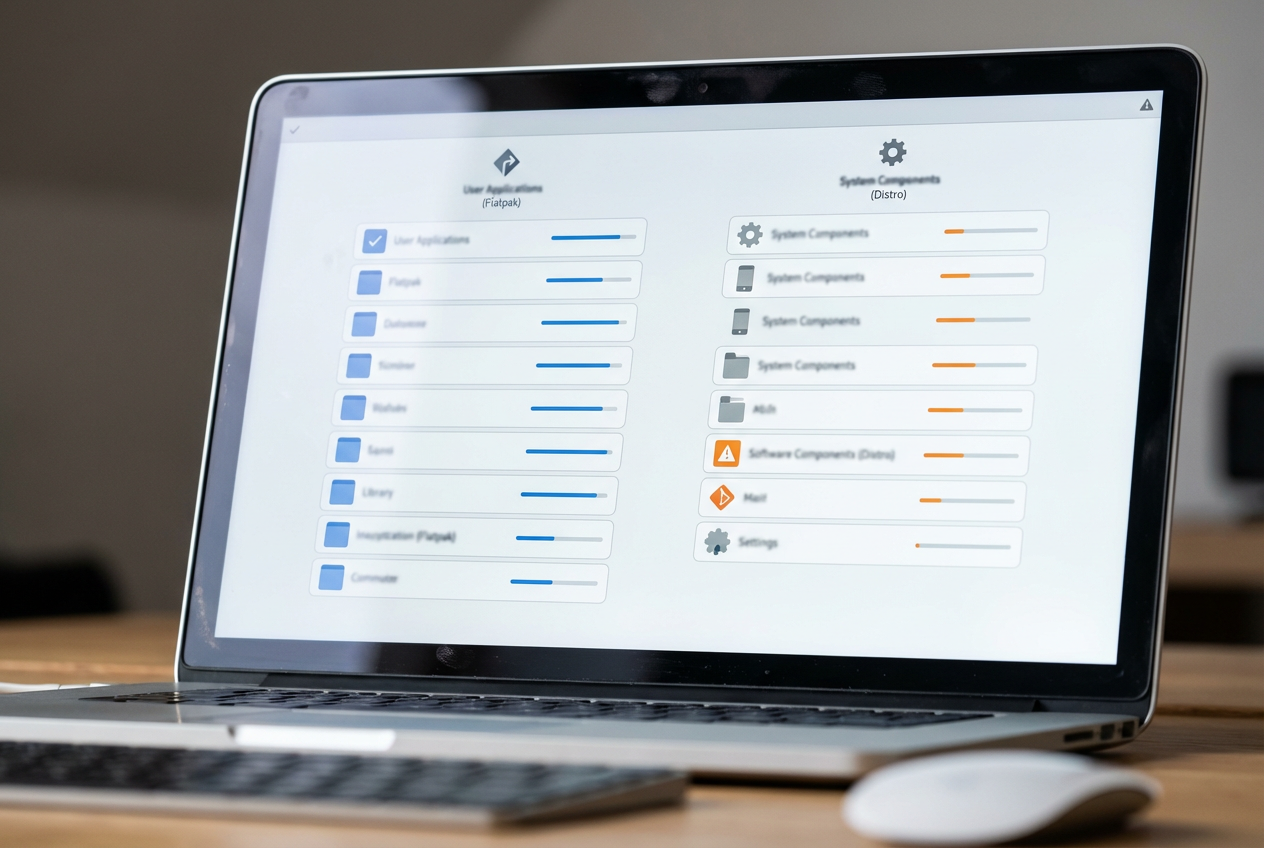
Maintenance becomes a hobby the moment you install the same kind of app three different ways and forget where updates are supposed to come from. A common example: you grab a note app as a .deb file, a task app as a Flatpak, and a calendar tool from your distro repo. A month later, one updates in the Software Center, one nags inside the app, and one just sits there with known bugs.
A simple rule that works across Ubuntu, Fedora, and most other mainstream desktops: pick one “universal” app format for most of your user apps, and stick to it. For many people, that means Flatpak via Flathub for desktop apps, and your distro package manager for system-level basics (drivers, fonts). The trade-off is real: Flatpaks can use more disk space and may need extra permission tweaks for file access, but you get consistent installs and predictable updates.
Once you choose the lane, app picking stops feeling like roulette—and the next decision is where “good enough” writing tools beat feature hunting.
Writing and docs: when “good enough” beats feature hunting
That “feature hunting” urge shows up fastest with writing, because every app promises a cleaner layout, better export, or smarter formatting. In practice, most weeks you need two things: a place to draft without fighting the tool, and a way to hand in a file that looks normal on someone else’s machine.
For most Linux daily drivers, a “good enough” combo is a plain-text editor for drafting (like GNOME Text Editor, Kate, or even a focused Markdown app) plus a mainstream office suite for final formatting and export (LibreOffice Writer). You can write in whatever keeps you moving, then paste into Writer when you need page numbers, a title page, tracked changes, or a reliable PDF. The trade-off is a little friction at the handoff, but you stop burning hours chasing the one editor that does everything.
If your week depends on real-time collaboration or strict doc compatibility, skip the debate and use Google Docs or Microsoft Word in the browser. Then your tasks need to hold up after day three.
Tasks that don’t collapse after day three
After a couple of busy days, most task apps fail in the same way: you capture everything, feel organized, then you stop checking it because the list turns into a junk drawer. That usually means the tool is asking you to manage the system instead of just showing you what’s due.
For a Linux daily driver, pick a task app that makes “today” and “this week” unavoidable, with a fast add box and simple recurring tasks. If you want something that feels native and stays out of your way, GNOME To Do (Endeavour) or KDE’s Kalendar/Tasks can work well. If you need solid cross-device sync without running your own server, use a web-first option like Todoist in the browser or as a Flatpak, and treat it as your single source of truth.
The trade-off is commitment: once tasks live in two places (notes app plus task app, or two task apps), your system collapses. Your calendar shouldn’t add a third place to check.
Your calendar (and email) shouldn’t be a separate project
That “third place to check” is usually the calendar. People install a calendar app, then a different one for better sync, then a separate mail client, and suddenly keeping schedules up to date becomes its own weekly chore.
Start from where your events already live. If your school or job uses Google Workspace or Microsoft 365, the lowest-friction move is often to use the web calendar and webmail as the source of truth, and only add a desktop app if it saves time every day. If you do want desktop integration, GNOME Calendar plus GNOME Evolution (or KDE’s Kalendar with KMail) keeps things predictable on their own desktops. The practical catch is account auth: corporate logins, 2FA, and “modern auth” can break older connectors, so test adding one account before you move everything.
Keep one rule: tasks go in the task app, deadlines go on the calendar, and email stays for messages—not reminders. That separation makes the next problem easier to solve: where files and logins quietly derail your workflow.
Files and logins: the two things that silently wreck your workflow
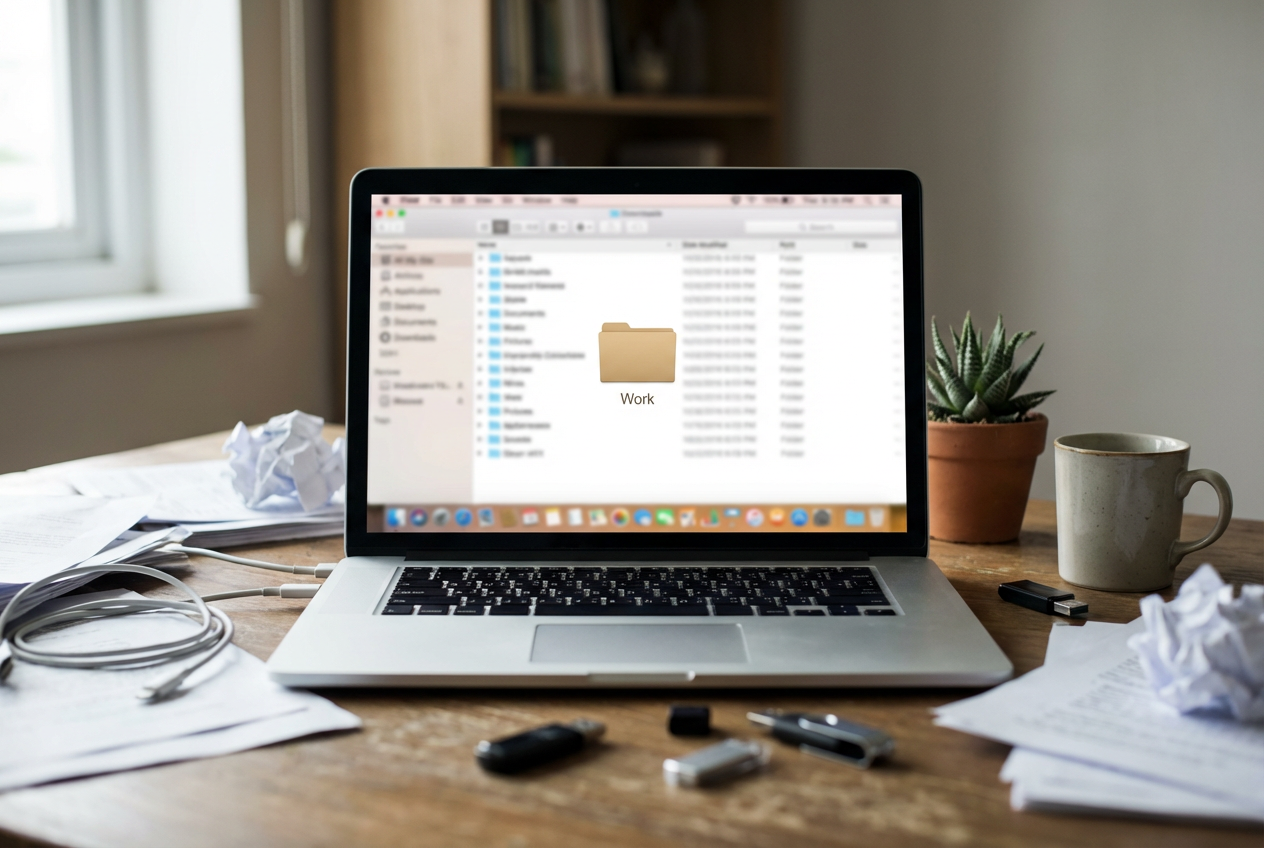
“Where did I save it?” and “why won’t this sign in?” are the two problems that waste the most time because they interrupt real work. A doc app can be great, but if your files land in three folders and two clouds, you’ll still miss a deadline because you grabbed the wrong draft.
Pick one home for active work and make it boring. For many people that’s a single “Work” folder under Documents, synced by one service: Google Drive in the browser, OneDrive via the web, or a Linux-friendly sync like Nextcloud if you already have it. Then set your apps to default there. The trade-off: locking into one sync path feels restrictive, but it removes the daily hunt.
Logins are similar. If your school or job uses SSO and 2FA, favor tools that can use the browser flow (web apps, or desktop apps that open a web sign-in) and avoid older plugins that ask for “app passwords.” Once files and auth stop being surprises, you’re ready for a six-app setup you can stop thinking about.
A six-app setup you can stop thinking about
Once files and auth stop being surprises, the best setup is the one that fades into the background. For most Linux daily drivers, a solid six is: your browser (Chrome/Firefox) for Docs/SSO, LibreOffice for real formatting and PDFs, a simple text/Markdown editor (GNOME Text Editor/Kate) for drafts, Todoist (or GNOME To Do) for tasks, GNOME Calendar (or KDE Kalendar) for dates, and your default file manager (Files/Dolphin) pointed at one “Work” folder.
The friction is that one of these will feel “too simple.” Resist swapping unless it fixes a specific problem you hit twice in the same week. If you need offline-first notes, consider Joplin; if you need team docs, stay web-first and stop forcing desktop sync. Pick, install in one format, and start shipping work.